Managing Royalty Sources
Managing Royalty Sources
Overview
The Royalty Sources feature allows you to manage and download royalty data from various platforms. This guide walks you through accessing, managing, and modifying your royalty sources.
Accessing Royalty Sources
Log in to your Royalti.io account.
Select your Workspace if you manage multiple workspaces
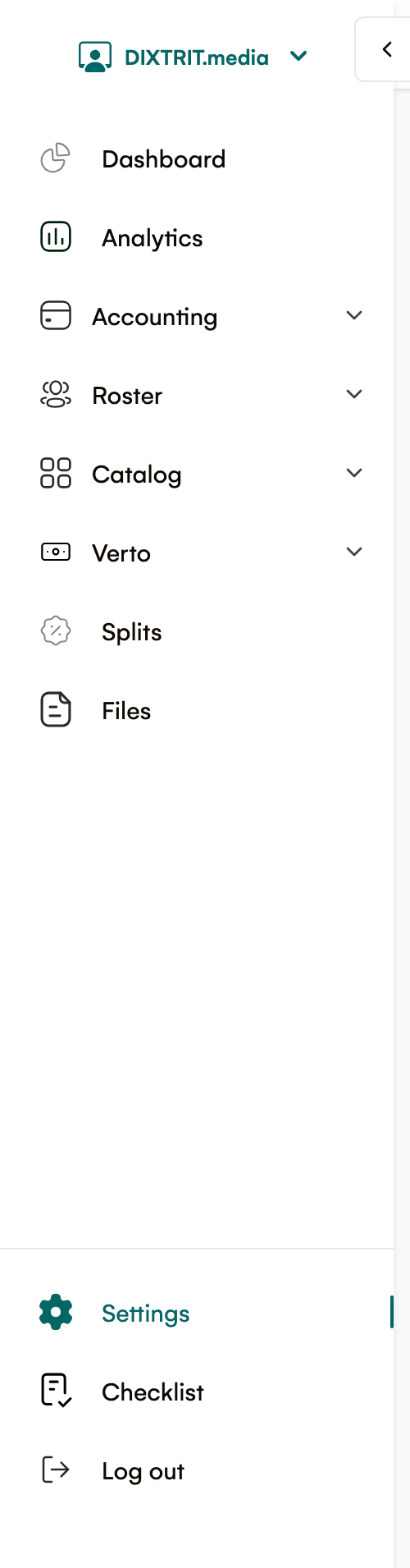
Navigate to Settings from the left navigation panel.
Select the Royalty Sources tab.
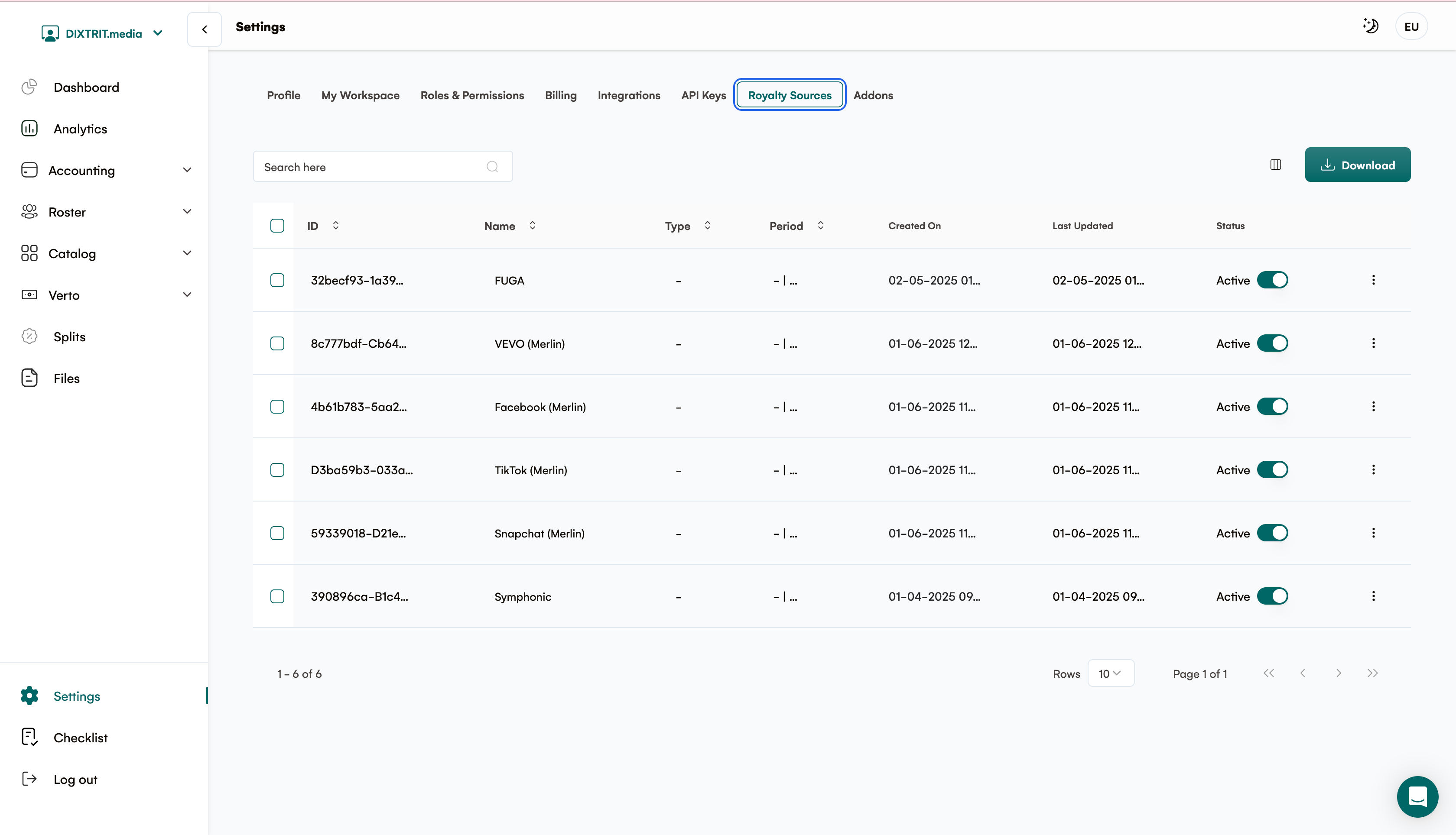
You will see a table displaying all available royalty sources.
Understanding the Royalty Sources Table
The table includes the following columns:
-
ID: Unique identifier for each source.
-
Name: The name of the royalty source.
-
Type: The category or platform (e.g., Spotify, YouTube).
-
Period: The applicable time frame.
-
Created On: The date the source was created.
-
Last Updated: The date of the last modification.
If you have a large number of connected sources, click Load More below the table to load additional sources.
-
Status: Indicates if the source is active or inactive.
Performing Actions on Royalty Sources
Searching for a Source
Use the Search bar at the top of the table.
Enter the name or type of the source.
The table will filter results based on your input.

Activating/Deactivating a Source
Locate the source in the Status column.
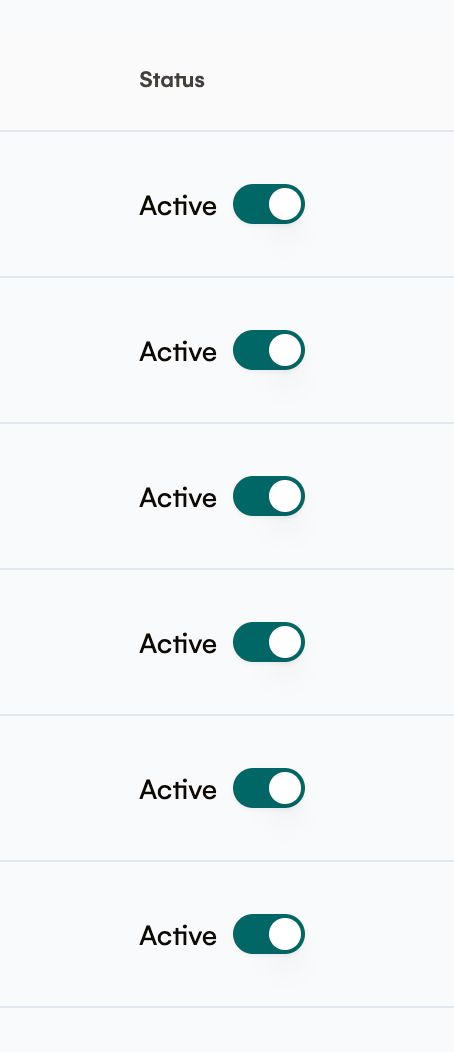
Click the toggle switch to activate or deactivate the source.
A confirmation message will appear.
Editing a Royalty Source
Click the three-dot menu in the Actions column.
Select Edit.

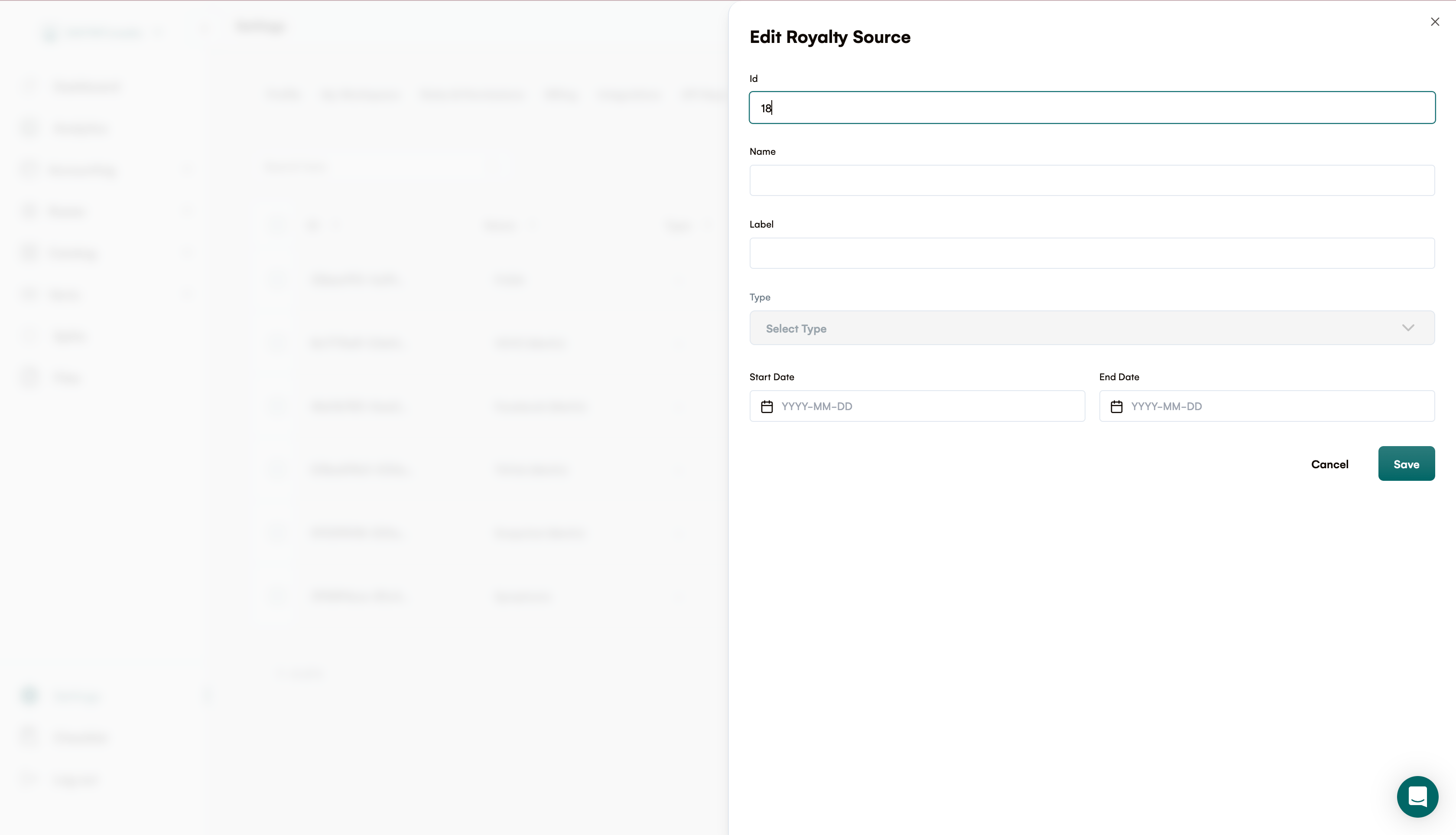
A sidebar form will appear.
The source's Name, Type, and Format are shown as read-only reference information. The fields you can modify are:
- Currency — the currency this source reports royalties in.
- Fee Rate (%) — the source's deduction/fee percentage (enter as a percentage, e.g.
15for 15%).
Royalti uses these two settings when calculating royalty amounts from files processed through this source, so a source that reports in EUR with a 15% fee is handled differently from one that reports in USD with no fee.
Click Save to apply changes.
How Source Settings Affect Processing
Because fee rate and currency are set per source, keeping them accurate matters for every statement you upload against that source. If a converted or fee-deducted total looks off, check the source's Currency and Fee Rate settings first.
For a deeper look at per-source fee/currency handling, automatic duplicate-upload detection, and managing the exchange rates used for currency conversion, see Royalty Processing, Source Fees & Exchange Rates.
Need Help?
If you encounter any issues or need further assistance, contact our Support Team through the help desk or email support@royalti.io.
Related articles
Managing Payment Items in Royalti.io
This guide explains how to view, edit, and delete payment of the Accounting Management system. Getting Started To manage individual accounting items: 1. Log in to your Royalti.io account 2. Select...
Activating and Managing the Releases Feature - The Admin
What is the Releases Feature? The Releases feature is a comprehensive music submission and approval workflow system that allows your users to submit music releases for review and automatic catalog...
Activating and Managing the Releases Feature - The User Guide
What are Releases? Releases are a new way to submit your music to be added to your catalog automatically. Instead of manually creating products and assets, you can now submit complete releases...
Still stuck?
Support answers within one business day — usually much faster.