Royalty processing, source fees & exchange rates
What This Covers
Royalti applies fee rates and currency settings per royalty source when it processes your statements, and it automatically checks new uploads against previously processed files to catch accidental duplicates. This guide explains how source-level fee/currency settings work, what happens when a duplicate upload is detected, and how to manage the exchange rates Royalti uses to convert multi-currency royalties.
Per-source fee rate & currency
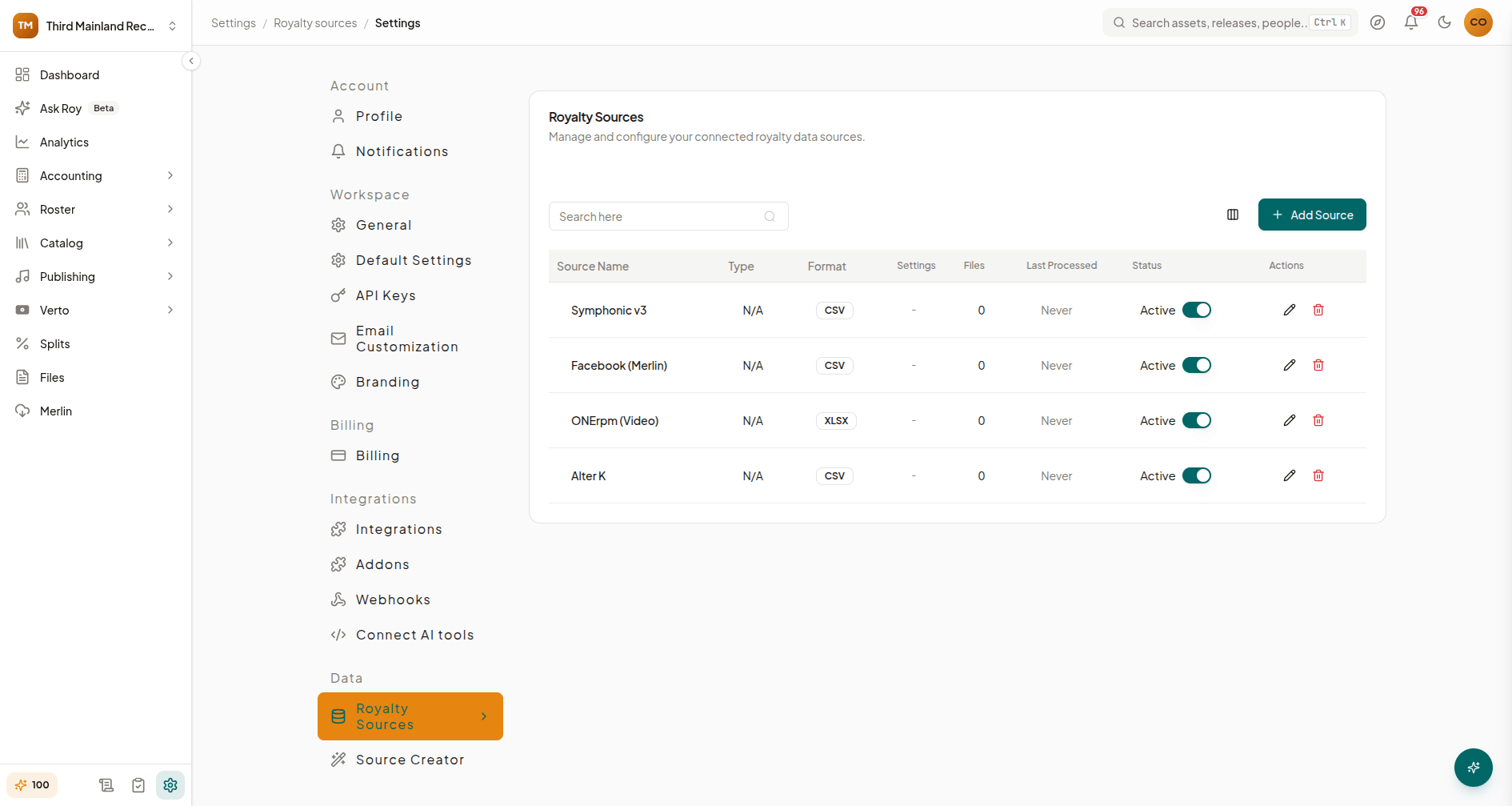
Each royalty source you connect (a DSP, aggregator, or PRO) can have its own fee rate and currency configured at the tenant level. Royalti uses these settings when calculating royalty amounts from files processed through that source, so a source that reports in EUR and carries a 15% distributor fee is handled differently from one that reports in USD with no fee.
Where to manage it
- Go to Settings → Royalty Sources.
- Find the source you want to configure and open its row menu, then choose Edit Settings.
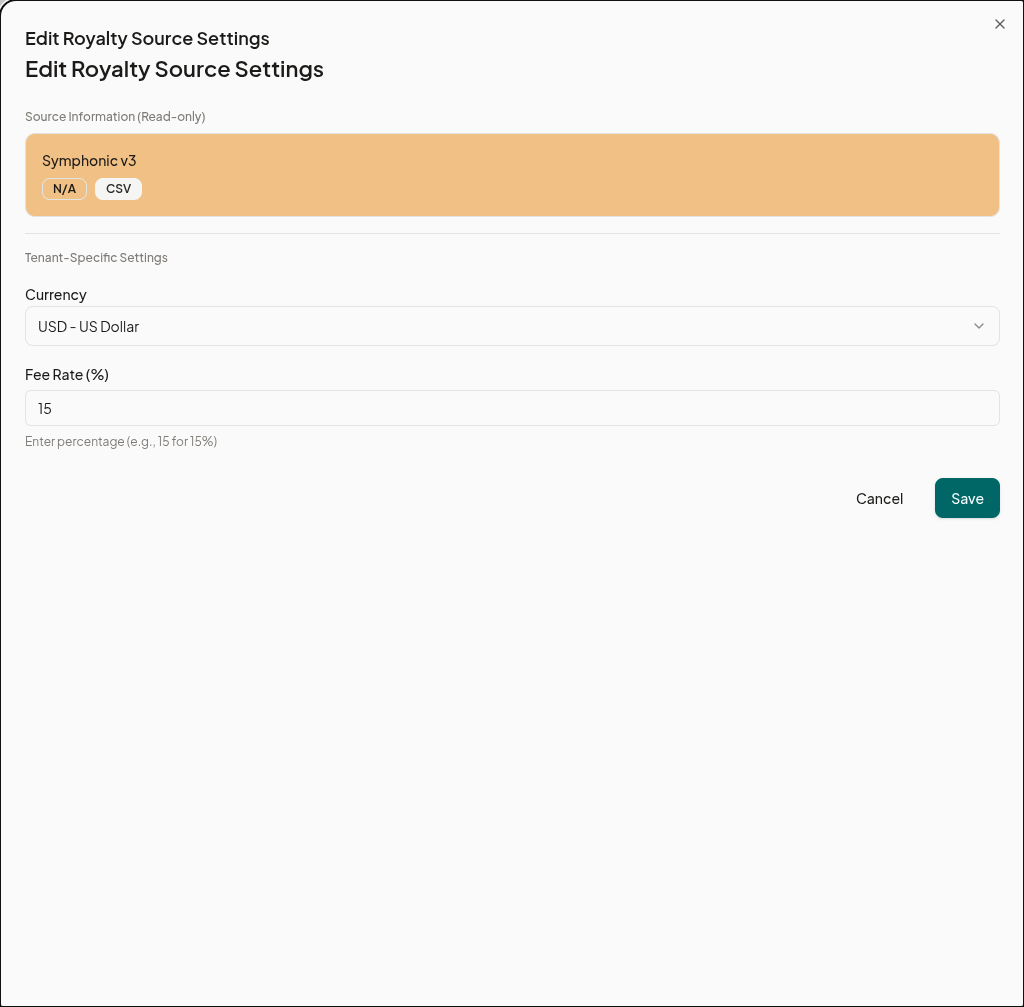
- In the panel, set:
- Currency: the currency in which this source reports royalties.
- Fee Rate (%): the source's deduction/fee percentage (enter as a percentage, e.g.
15for 15%).
- Click Save.
The source's name, type, and format are shown as read-only reference information; only the tenant-specific currency and fee rate are editable here.
You can also activate, deactivate, or remove a connected source from the same Royalty Sources table.
Automatic duplicate detection
When you upload a royalty file, Royalti automatically checks it against files you've already processed for that source and reporting period. No setup or action is required; this runs on every upload in the background.
If a file looks like a duplicate (same source, reporting period, and file name as one already uploaded), the upload is blocked with an error telling you a matching file already exists. Nothing is processed; the check exists to stop accidental double-counting of the same royalty statement.
If the match is a false positive, for example, a corrected re-send from the source that happens to carry the same file name, you have two options:
- Rename the file before uploading. The duplicate check matches on the exact file name (together with source and period), so a corrected statement saved under a new name (e.g.
statement-2026-05-v2.csv) uploads normally. - Remove the original file first, then upload the replacement, if you genuinely want the new file to take the old one's place.
A file with the same contents but a different name is not caught by this check; the comparison is by name, source, and period, not file contents, so name your statement files consistently to get the most protection from it.
Managing exchange rates
Royalti converts multi-currency royalty data using exchange rates you control from the dashboard, rather than relying on a fixed or hidden rate table.
Where to manage it
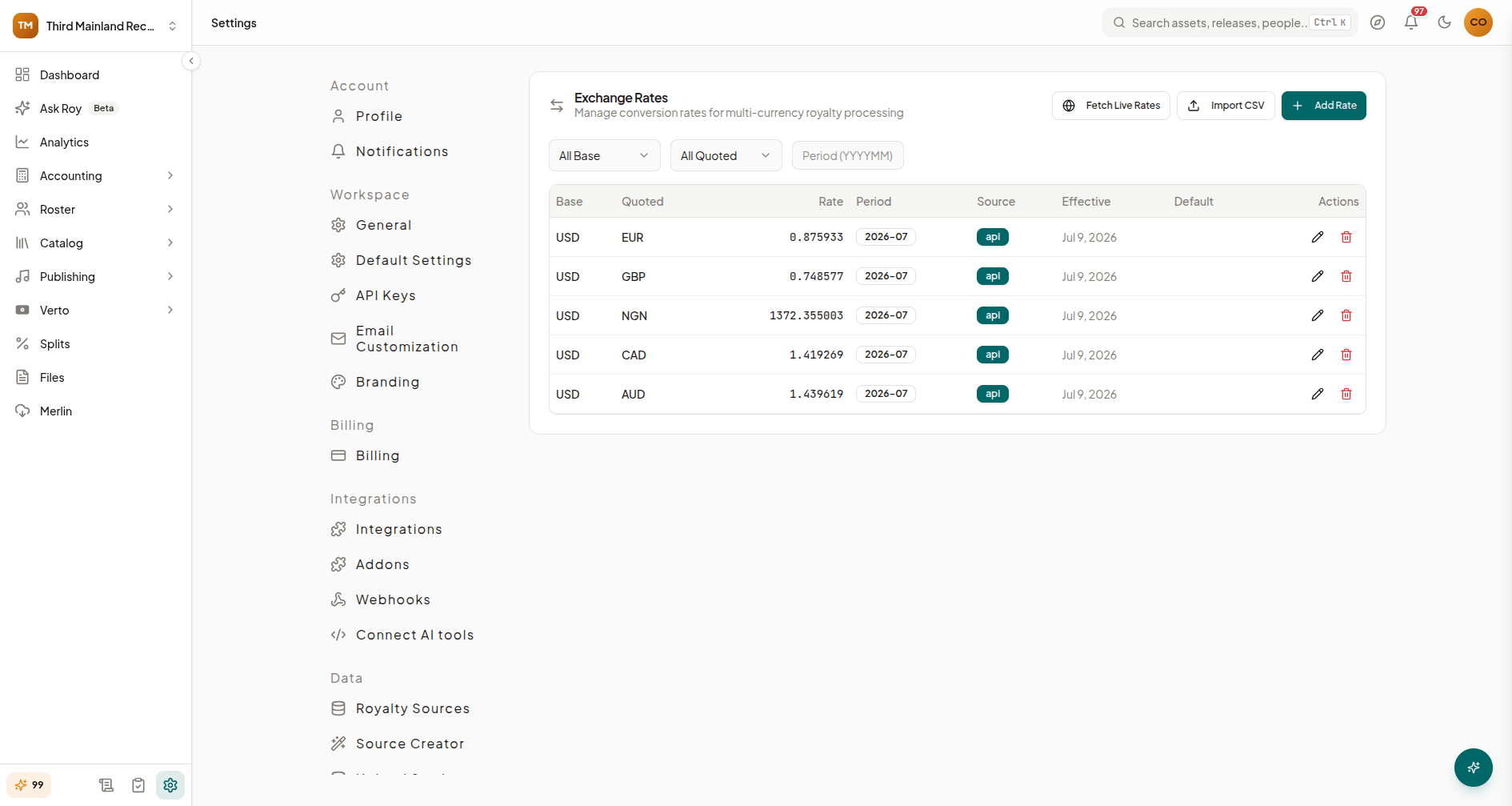
Go to Settings → Exchange Rates. From here you can:
- View rates: filter by base currency, quoted currency, or reporting period (
YYYYMM). - Add Rate: manually add a rate with a base currency, quoted currency, rate value, period, effective date, optional expiry date, and an optional memo. You can also mark a rate as the default for that currency pair.
- Edit an existing rate the same way.
- Import CSV: bulk-upload historical exchange rates from a spreadsheet.
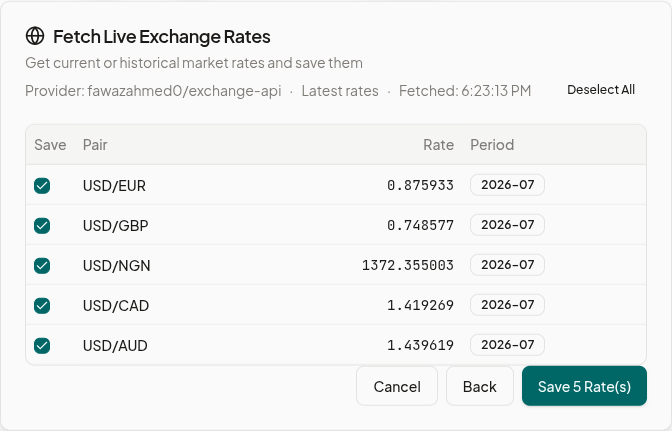
- Fetch Live Rates: pull current (or historical, by date) rates for a base currency against a set of target currencies, preview the results, and choose which ones to save.
Why it matters
Exchange rates feed directly into royalty processing for any source configured with a non-default currency (see above), so keeping rates current, or importing the historical rates that match your reporting periods- keeps converted royalty totals accurate.
What's next
- Connecting and configuring royalty sources
- Understanding your royalty statement
- Uploading royalty files
If you're not sure why a converted total looks off, check the source's currency setting and confirm an exchange rate exists for that currency pair and period before reaching out to support.
Still stuck?
Support answers within one business day — usually much faster.