Managing Payment Items in Royalti.io
Managing Payment Items in Royalti.io
This guide explains how to view, edit, and delete payments of the Accounting Management system.
Getting Started
To manage individual accounting items:
Log in to your Royalti.io account
Select your Workspace
Select Payments from the Accounting section. The Payments page is also home to two other tabs: Requests (incoming payment requests awaiting approval) and Methods (payment method setup), so payment items, requests, and methods all live together here.
Viewing Item Details
To view complete information for any accounting item:
Locate the item you want to examine in the table
Click the eye icon on the row of the item
A sidebar will open displaying all information related to the selected
item
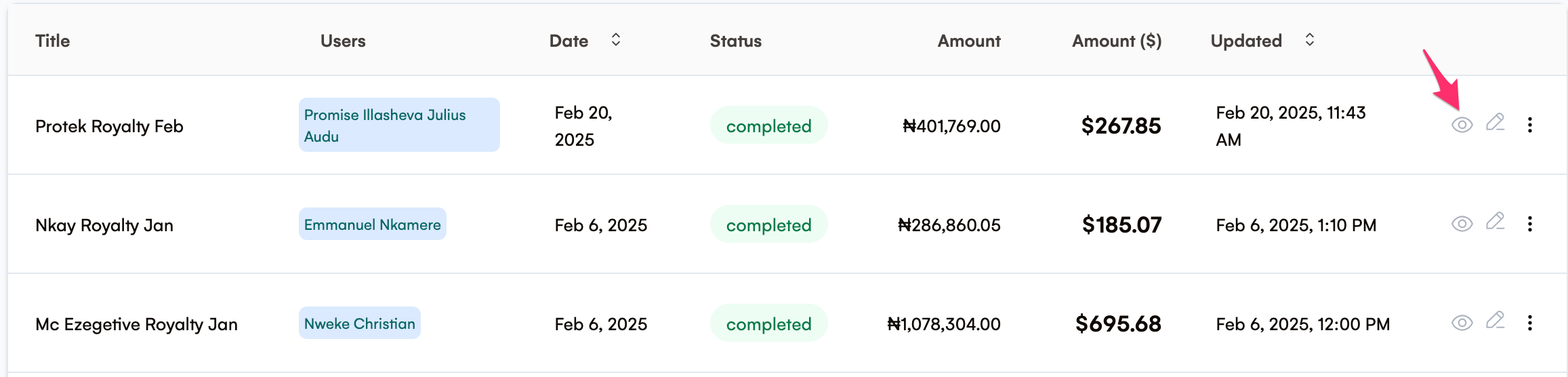
The view panel includes all details associated with the entry, allowing you to review the complete information without making any changes.
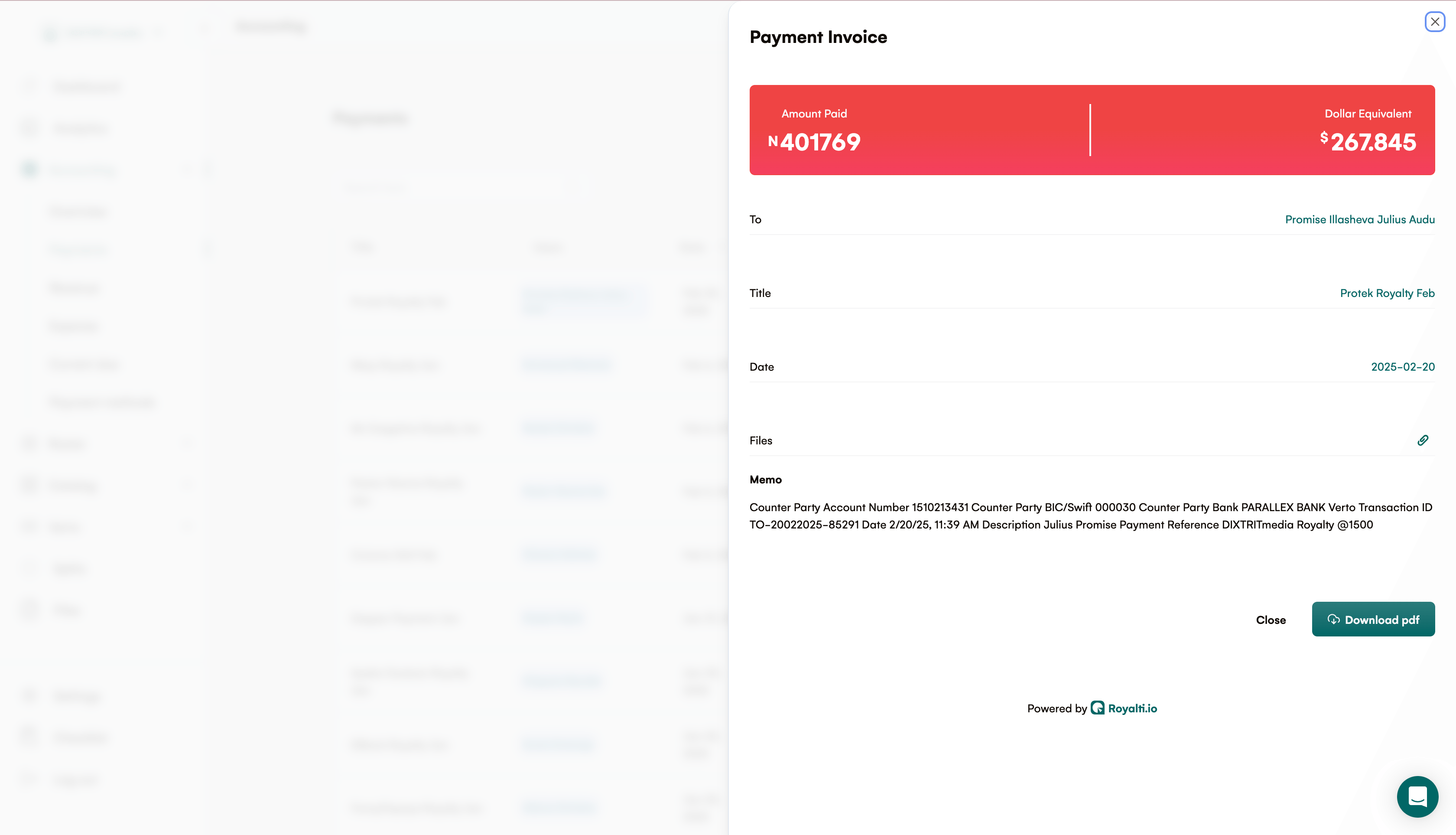
What You Can See in View Mode:
-
Complete item details including To, Title, Date, Files, and Memo
-
Related transactions or connections to other accounting entries
-
Document attachments (if applicable)
-
Full payment or transaction history
-
Option to Download the Invoice as PDF
Editing Items
To modify information for any accounting item:
Locate the item you want to change in the table
Click the edit icon (pencil) on the row of the item
After Which
A sidebar will open with editable fields
Make your desired changes to the information
Click the Save button at the bottom of the sidebar to save your changes
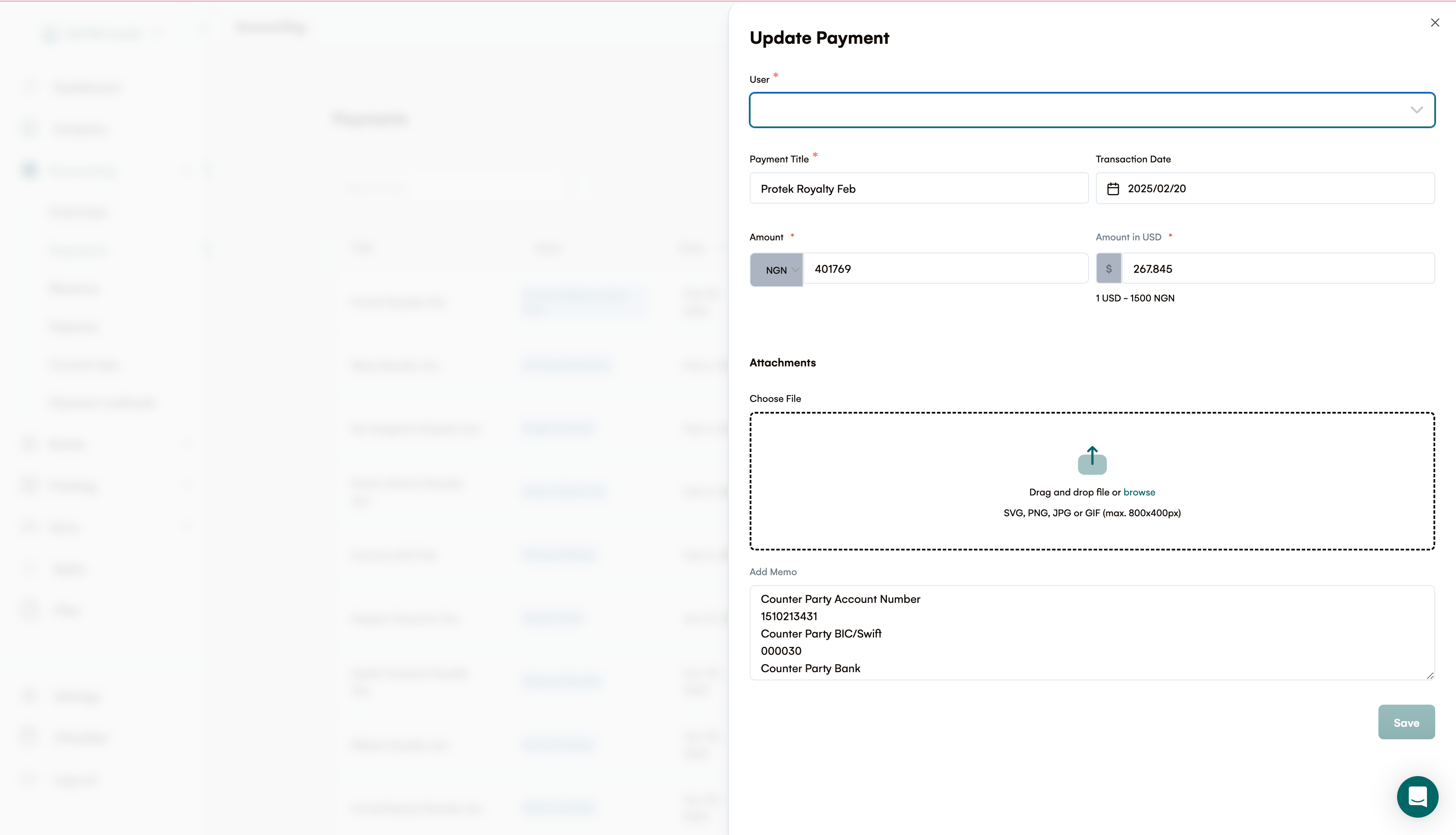
Important Notes About Editing:
-
Required fields are marked with an asterisk (*)
-
The system automatically records the time and user who made the edit
Deleting Item
To remove an accounting item from your records:
Locate the item you want to delete in the table
Click the menu icon (three dots) on the row of the item
A dropdown menu will appear
Select the Delete option from the menu
Confirm your decision in the dialog box that appears
Approving Payment Requests & Advance Recoupment
If a payee has an active advance, approving their payment request may be held back, in full or in part, until the advance is recouped. When this happens, you'll see an inline explanation on the request, not a generic error showing the payee's current advance standing and how much of the request is affected. This is Royalti's advance-recoupment safeguard working as intended, not a bug; review the advance balance on the payee's profile if you need to release or adjust it.
If your workspace has Publishing enabled, note that reconciling statements from BMI, ASCAP, MLC, and other societies happens on a separate page, Publishing → Publisher Statements, which is a distinct feature from the payment items and requests on this page, not a source of items you'll see reconciled here.
Important Notes About Deletion:
-
Deleted items cannot be recovered directly through the interface
-
Some items may not be deletable if they are connected to other active records
-
Deletion is logged in the system for audit purposes
Best Practices
-
Regular Review: Periodically review your accounting entries to ensure accuracy
-
Documentation: Add notes when editing items to track the reason for changes
-
Caution with Deletion: Only delete items when absolutely necessary
-
Check currency settings if an amount looks wrong: payment amounts pulled from royalty processing depend on the source's currency and fee-rate settings and the exchange rate on file for that period. See Royalty processing, source fees & exchange rates before assuming an item is incorrect.
If you need further assistance, please contact our support team.
Related articles
Managing Royalty Sources
Overview The Royalty Sources feature allows you to manage and download royalty data from various platforms. This guide walks you through accessing, managing, and modifying your royalty sources....
Activating and Managing the Releases Feature - The Admin
What is the Releases Feature? The Releases feature is a comprehensive music submission and approval workflow system that allows your users to submit music releases for review and automatic catalog...
Activating and Managing the Releases Feature - The User Guide
What are Releases? Releases are a new way to submit your music to be added to your catalog automatically. Instead of manually creating products and assets, you can now submit complete releases...
Still stuck?
Support answers within one business day — usually much faster.