Activating and Managing the Releases Feature - The Admin
Activating and Managing the Releases Feature - The Admin
What is the Releases Feature?
The Releases feature is a comprehensive music submission and approval workflow system that allows your users to submit music releases for review and automatic catalog creation. It streamlines the process from submission to publication while maintaining quality control. Users can build a release step by step themselves, or start the form and then hand off to Build with Roy — an AI-guided flow that walks them through the rest (tracks, artwork, and submission) from the release creation screen. Once a release is approved and added to your catalog, admins can deliver it to streaming stores using the DDEX/FUGA delivery pipeline (add-on required).
Streamline your release workflow. Enable Releases to let artists submit directly and auto-create catalog entries. Activate Releases →
Key Benefits:
-
Streamlined Workflow: Automated submission-to-catalog process
-
Quality Control: Admin review and approval system
-
Comprehensive Media Support: File uploads and external links
-
Automatic Integration: Approved releases create catalog products/assets automatically
-
Feedback System: Two-way communication between users and admins
Building Releases with Roy
In addition to the standard manual submission form, users can build a release using Build with Roy — a guided, step-by-step flow available from the release creation screen once they've entered a title and added a primary artist on the form. From there, instead of a free-form page, Roy walks the user through the rest of the sequence (tracks, artwork, submission) and can be paused and resumed if they leave partway through.
- This is a feature of Roy, Royalti's built-in AI assistant, and is subject to your workspace's AI credits and Roy Access settings (Settings → AI → Roy Access).
- Releases built with Roy still enter the same review workflow described below — they show up as Submitted releases for admin review just like manually submitted ones.
- For the full picture of what Roy can do and how to configure access, credits, and its knowledge base, see Ask Roy: your AI assistant.
Part 1: Activating the Releases Feature
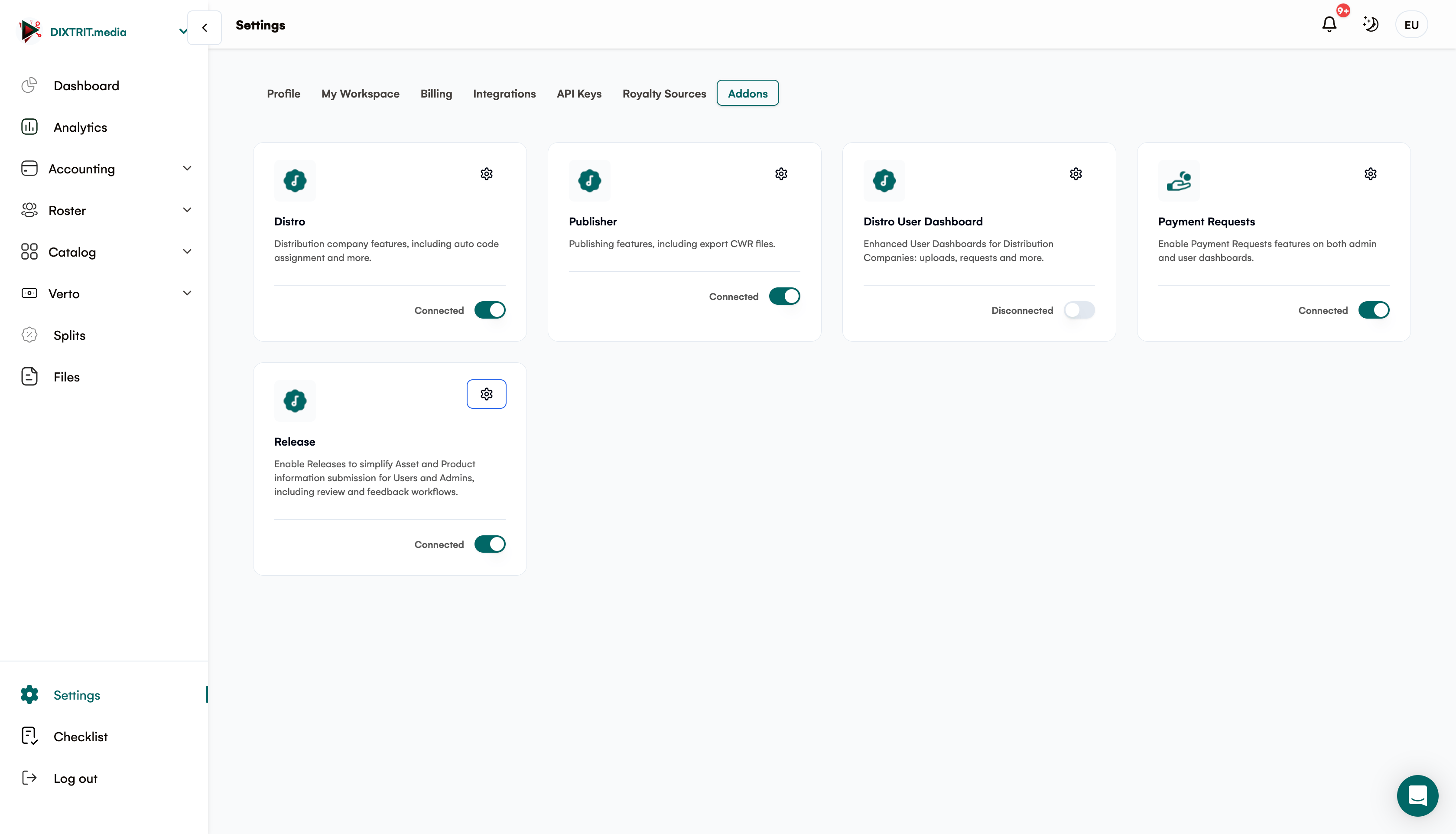
Step 1: Access Addon Settings
Navigate to Settings in your admin panel
Click on Addons from the left sidebar
Look for the Releases addon card
Step 2: Enable the Releases Addon
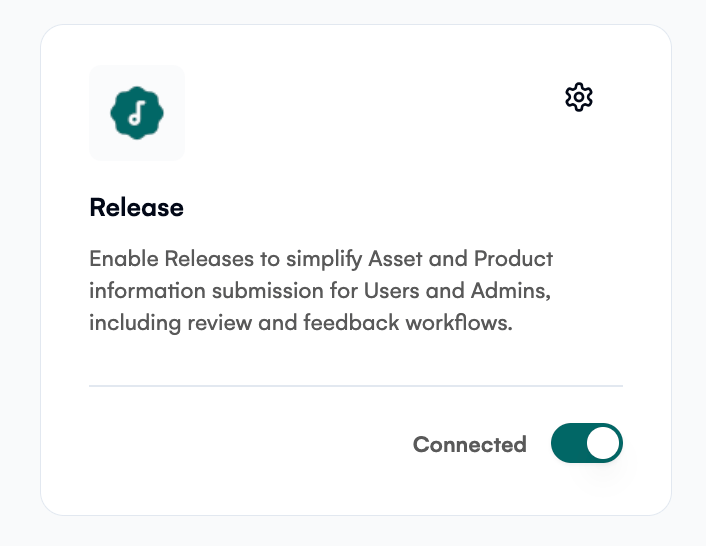
Locate the Releases addon card (may show as "Disconnected")
Click the toggle switch to activate the feature
Confirm the activation when prompted
The status should change to "Connected"
Step 3: Verify Activation
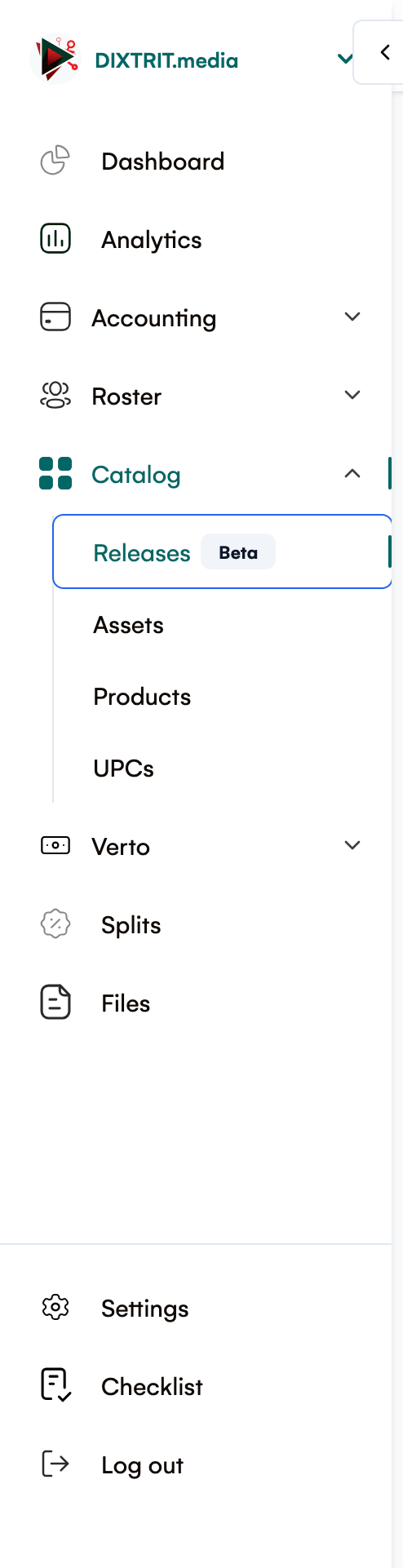
Check that the Releases menu appears in your navigation
Verify users can now see the Releases section in their dashboard
Test the submission workflow with a sample release
Part 2: Managing Release Submissions
Understanding Release Statuses
|
Status
|
Description
|
Actions Available
|
|
Draft
|
User is still working on the release.
|
View, Edit (user), Delete
|
|
Submitted
|
Ready for admin review
|
Review, Add Feedback
|
|
Under Review
|
Currently being reviewed
|
Approve, Reject, Add Feedback
|
|
Approved
|
Approved, auto-creation in progress
|
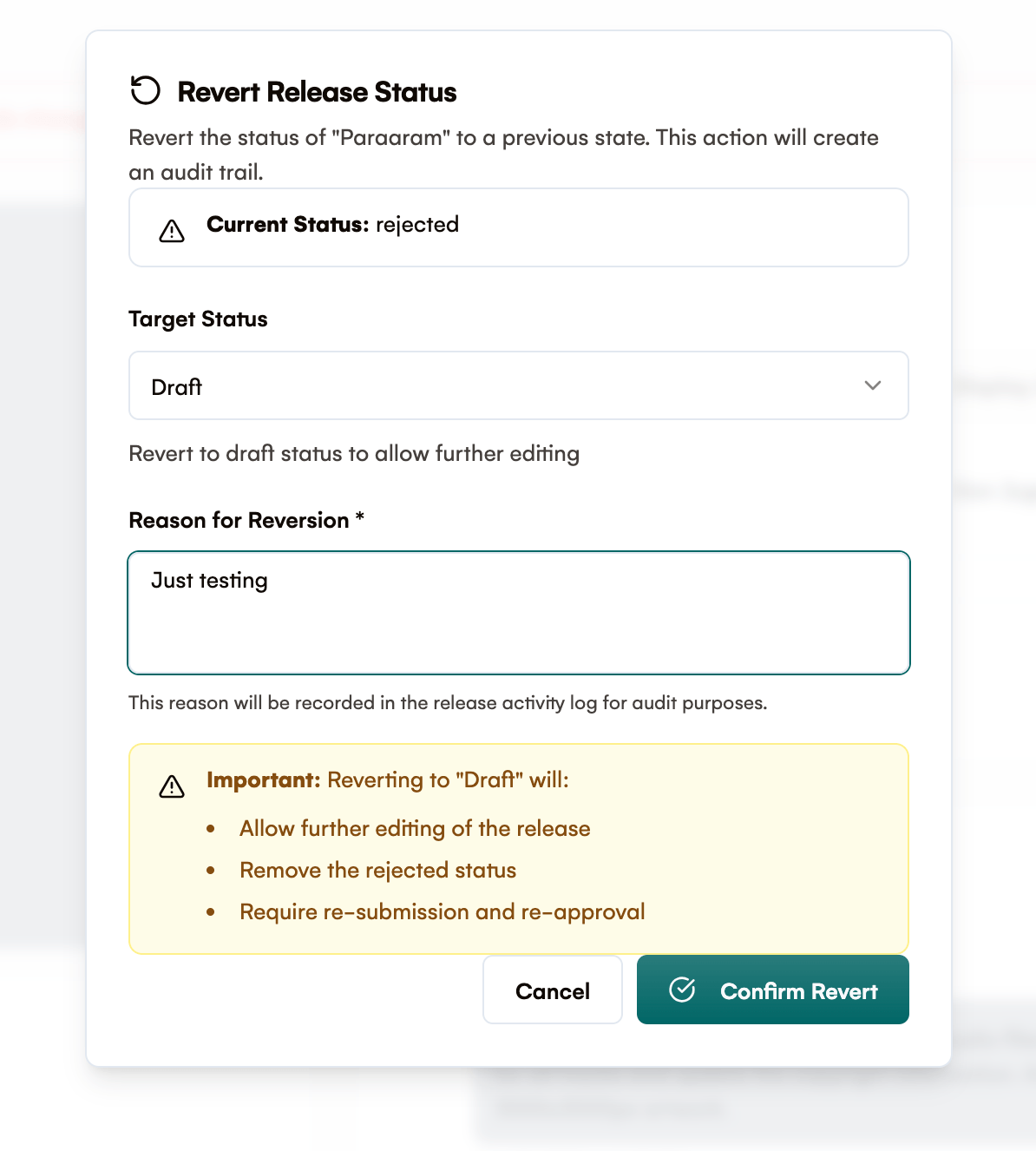
View, Revert Status
|
|
Rejected
|
Needs revision
|
View Feedback, Revert to Submitted
|
|
Completed
|
Successfully added to catalog.
|
View Only
|
Step 4: Review Submitted Releases
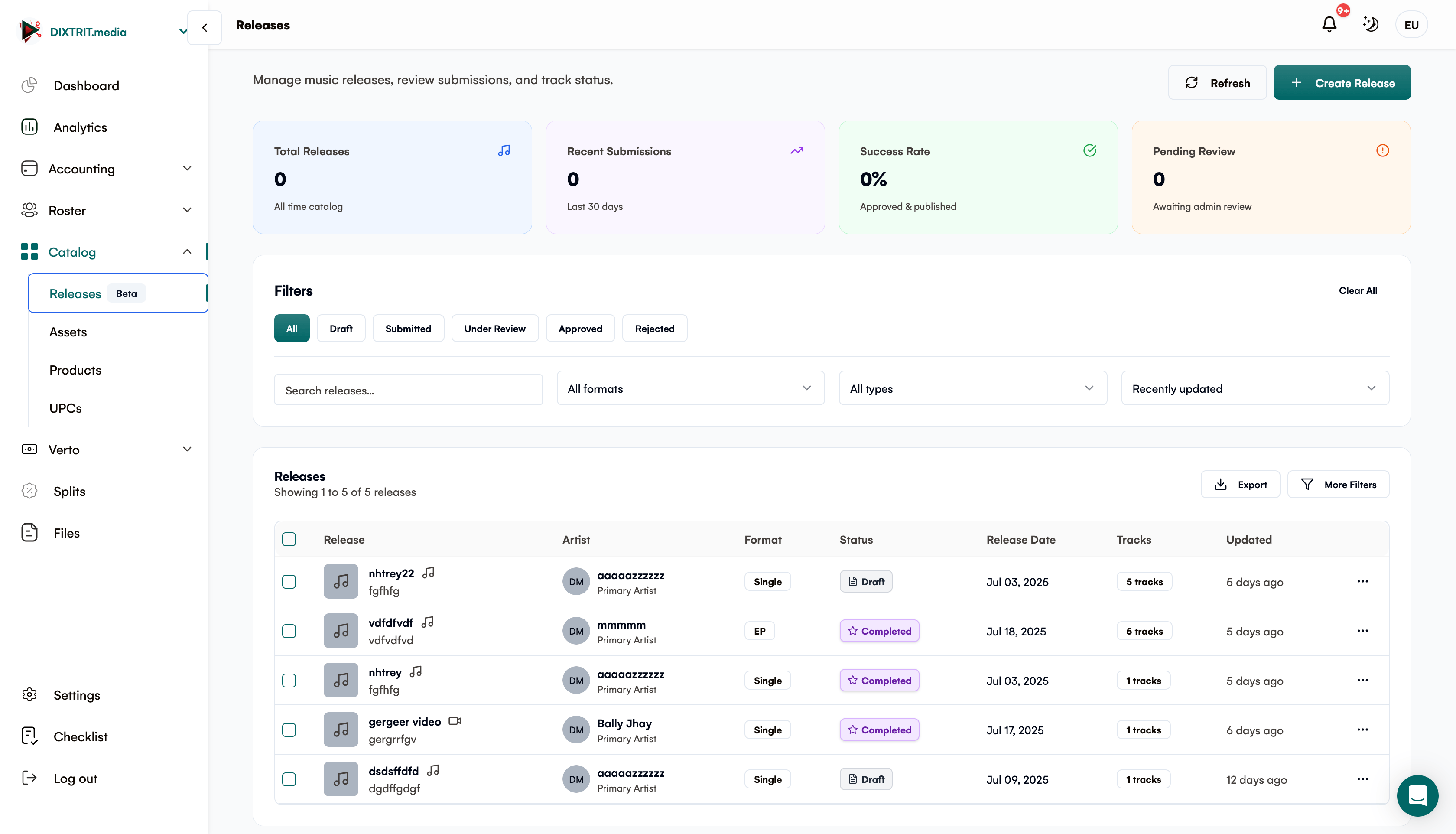
Navigate to Releases in your admin panel
Filter by status: Submitted or Under Review
Click on any release to view full details
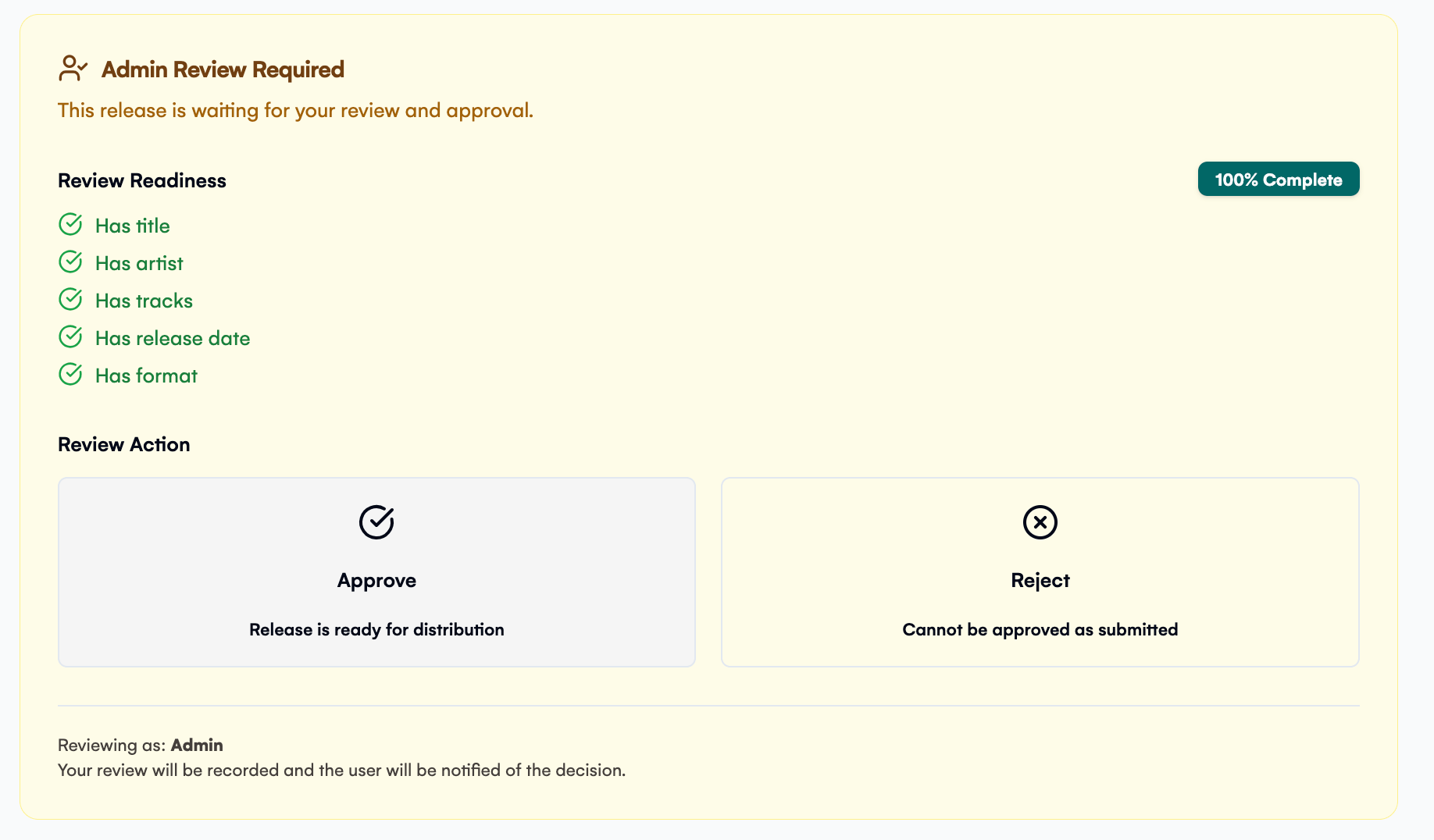
Step 5: Reviewing a Release
When reviewing a release, check for:
Essential Information:
-
✅ Complete title and artist information
-
✅ All tracks have proper metadata
-
✅ Copyright and label information
-
✅ Appropriate content rating (explicit/clean)
-
✅ Valid release dates
Media Requirements:
-
✅ High-quality audio files for each track
-
✅ Album artwork (for releases)
-
✅ Additional documentation if required
📷 [IMAGE: screencapture-app-royalti-io-a-catalog-releases-8d6f3732-0fbb-4c46-8f02-a6a8a478f3de-2025-08-07-18:31:54]
Step 6: Approving a Release
Click the Review button on the release
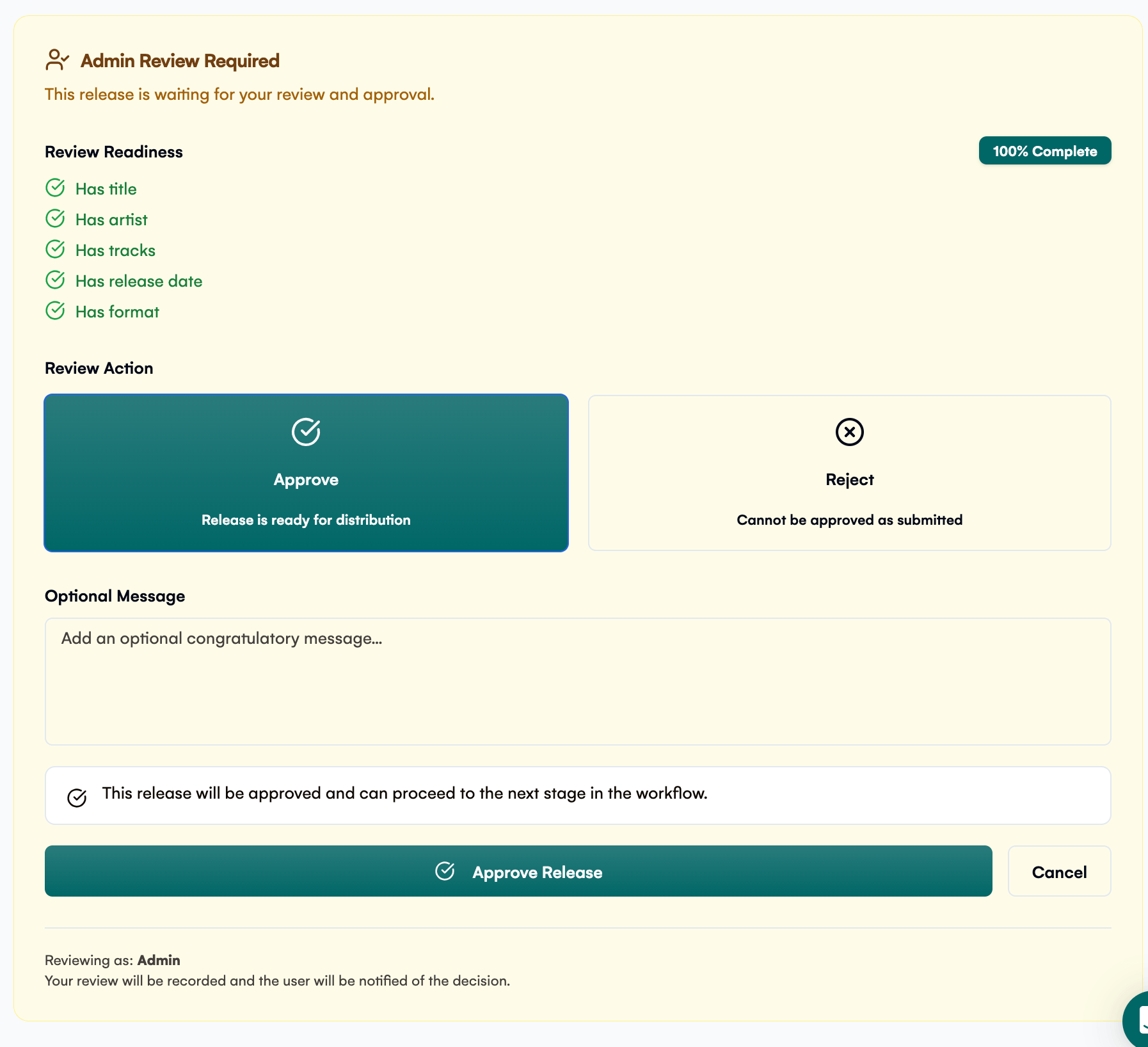
Select the Approve action
Add approval feedback (optional but recommended)
Click Submit Review
Sample Approval Message:`` Excellent submission! All requirements met. Your release will be processed and added to the catalog within 24 hours. ``
Step 7: Rejecting a Release
Click the Review button on the release
Select Reject action
Important: Provide clear, actionable feedback
Click Submit Review
Sample Rejection Messages:```
`Audio Quality: Please upload higher-quality audio files (minimum 320kbps or WAV). Missing Information: Please add ISRC codes for all tracks and update the copyright information. Artwork: Album artwork resolution is too low. Please upload at least 3000x3000px artwork.
`
## Part 3: Advanced Management Features
## Managing User Feedback
-
View all feedback threads on releases
-
Add internal notes (visible only to admins)
-
Respond to user questions about submissions
## Auto-Creation Monitoring
When releases are approved, they automatically create:
-
**Products** in your catalog
-
**Assets** for each track
-
**Proper metadata** and associations**If Auto-Creation Fails:**
Navigate to the release details
Check the **Auto-Creation Status** section
Use **Revert Status** to send back for re-review if needed
Review error logs for technical issues
After Approval: Delivering to Stores
Once a release is approved and its product/assets are auto-created, the next step for most admins is delivering it to streaming stores. Royalti supports this through the DDEX/FUGA delivery pipeline, gated behind the DDEX & Deliveries add-on.
- Open the approved product and go to its Delivery tab to see delivery totals, start a new delivery, and view delivery history.
- Before a release can be delivered, Royalti runs it through a readiness checklist (UPC, ISRC on every track, artwork dimensions, and an active add-on) — anything flagged as a blocker needs to be fixed first.
- If a delivery fails, use Retry all failed on the Delivery tab to requeue it.
If you don't see delivery options on a product, your plan doesn't currently include the DDEX & Deliveries add-on. Talk to your account owner or Royalti about enabling it. For the full connection setup, delivery workflow, and troubleshooting, see Delivering to stores with DDEX & FUGA.
Bulk Actions
-
Filter releases by multiple criteria
-
Export release reports
-
Bulk status updates (coming soon)
Part 4: Best Practices for Admins
✅ Review Guidelines
Be Thorough: Check all metadata, audio quality, and required fields
Be Timely: Aim to review submissions within 24-48 hours
Be Clear: Provide specific, actionable feedback for rejections
Be Consistent: Use standardized criteria for all submissions
✅ Communication Tips
-
Use positive language even when rejecting.
-
Provide specific examples of what needs to be fixed.
-
Include reference links to guidelines when helpful.
-
Encourage resubmission after corrections
✅ Quality Control Standards
Audio Standards:
-
Minimum 320kbps MP3 or lossless formats
-
Proper mastering levels (no clipping)
-
Complete tracks (no cut-offs or gaps)
Metadata Standards:
-
Accurate spelling of all names
-
Proper capitalization
-
Complete copyright information
-
Valid ISRC/ISWC codes when available
Part 5: Troubleshooting Common Issues
Issue: Auto-Creation Failed
Solution: Check the release details for error messages and revert status if needed.
Issue: User Cannot Upload Files
Solution: Verify file size limits and supported formats in your system settings.
Issue: Release Stuck in Review
Solution: Use the status management tools to move releases through the workflow manually.
Issue: Missing Tracks After Approval
Solution: Check auto-creation logs and verify all track data was properly submitted.
Getting Support
If you encounter issues with the Releases feature:
Check the system logs for error details
Review the API documentation for technical details
Contact technical support with specific error messages
Use the feedback system to report bugs or suggest improvements
The Releases feature is designed to streamline your content management while maintaining quality standards. Regular monitoring and consistent review practices will ensure smooth operation for your users.
Related articles
Managing Payment Items in Royalti.io
This guide explains how to view, edit, and delete payment of the Accounting Management system. Getting Started To manage individual accounting items: 1. Log in to your Royalti.io account 2. Select...
Managing Royalty Sources
Overview The Royalty Sources feature allows you to manage and download royalty data from various platforms. This guide walks you through accessing, managing, and modifying your royalty sources....
Activating and Managing the Releases Feature - The User Guide
What are Releases? Releases are a new way to submit your music to be added to your catalog automatically. Instead of manually creating products and assets, you can now submit complete releases...
Still stuck?
Support answers within one business day — usually much faster.