Activating and Managing the Releases Feature - The User Guide
Activating and Managing the Releases Feature - The User Guide
What are Releases?
Releases are a new way to submit your music to be added to your catalog automatically. Instead of manually creating products and assets, you can now submit complete releases (singles, EPs, albums) for review, and they'll be automatically processed into your catalog once approved.
Benefits of Using Releases:
-
Faster Catalog Creation: Automatic processing once approved
-
Quality Assurance: Admin review ensures everything is correct before going live
-
Complete Submission: Submit all tracks and metadata at once
-
Progress Tracking: See exactly where your submission stands
-
Feedback System: Get specific guidance if changes are needed
Part 1: Getting Started
Step 1: Check if Releases are Available
If you can see a Releases section in your navigation menu, the feature is active for your workspace.
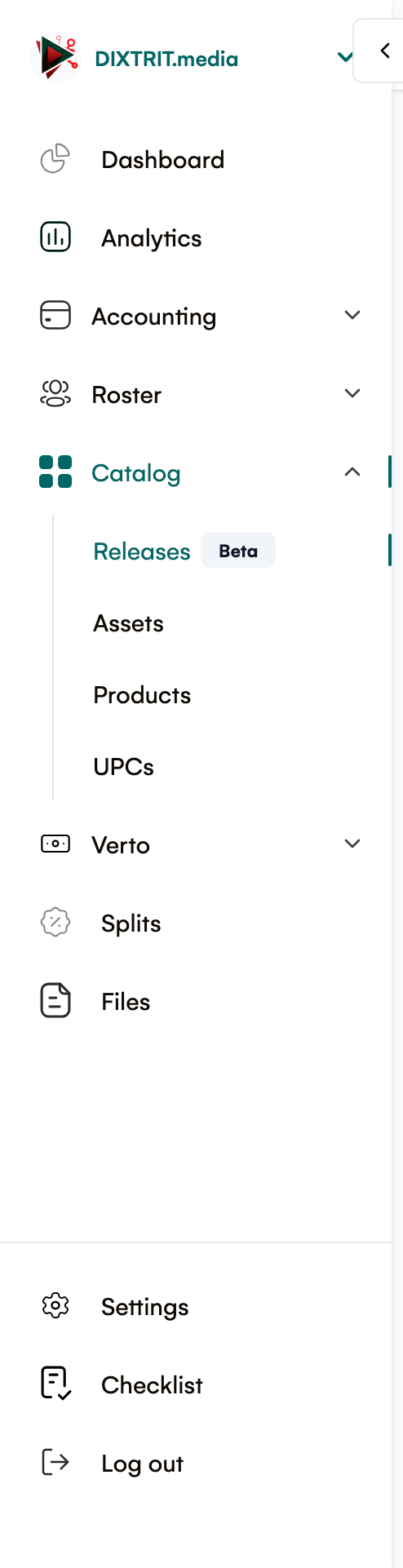
Step 2: Access Your Releases
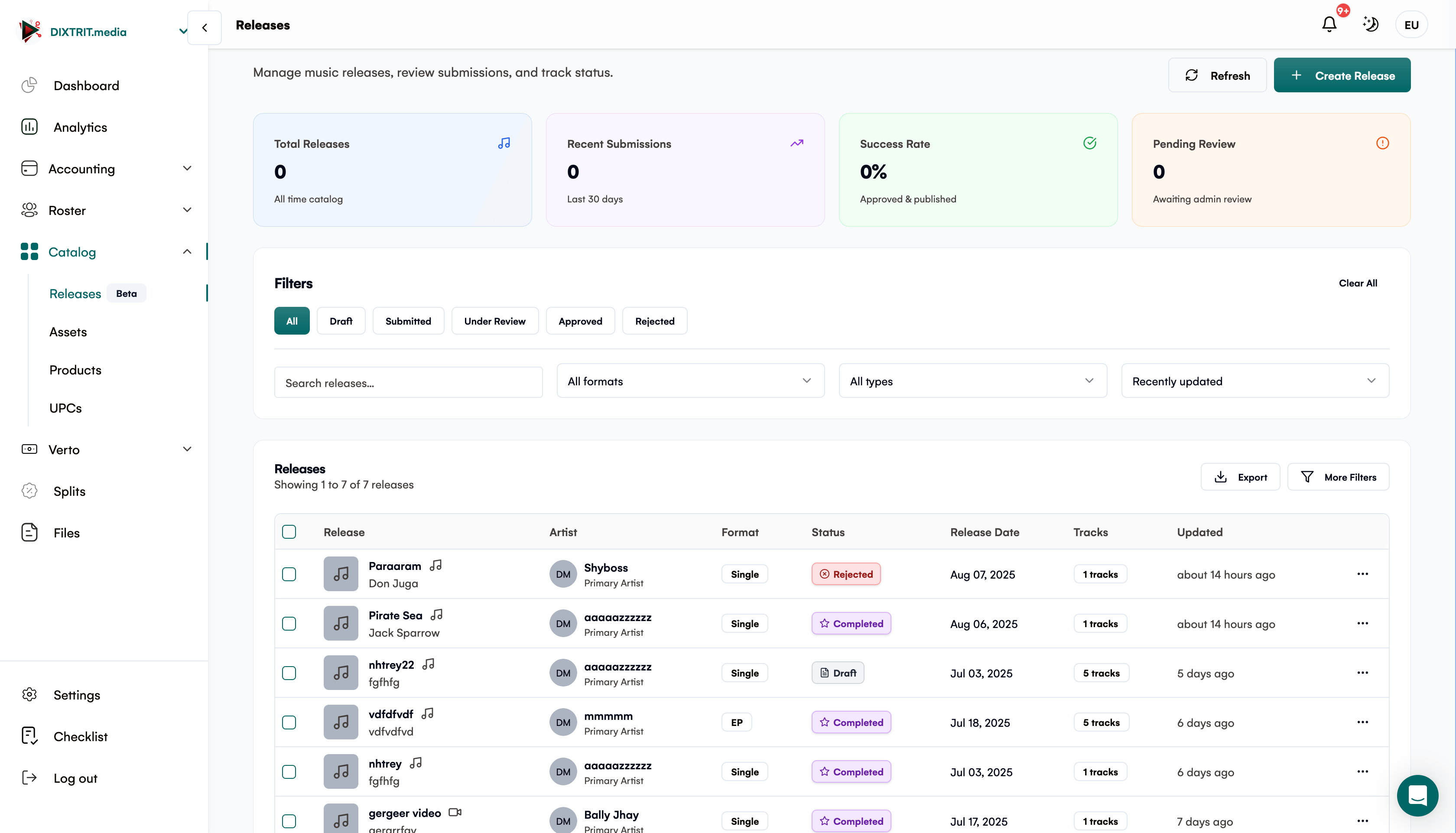
Click Releases in your main navigation
You'll see your releases dashboard with:
-
Quick stats (drafts, submitted, approved, etc.)
-
List of all your releases
-
Filter and search options
Part 2: Creating Your First Release
Step 3: Start a New Release
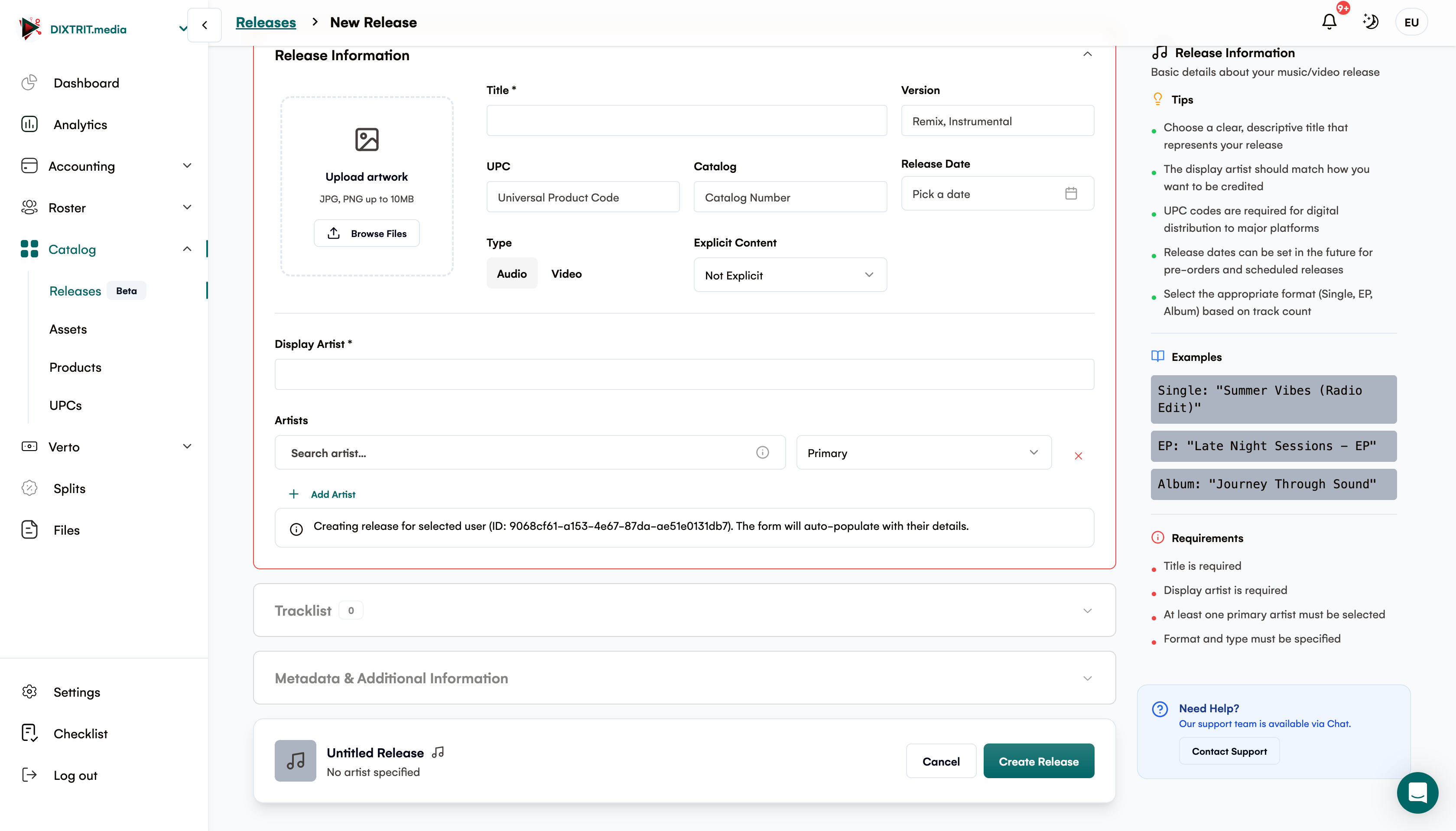
Click the Create Release button
You'll be taken to the release creation form
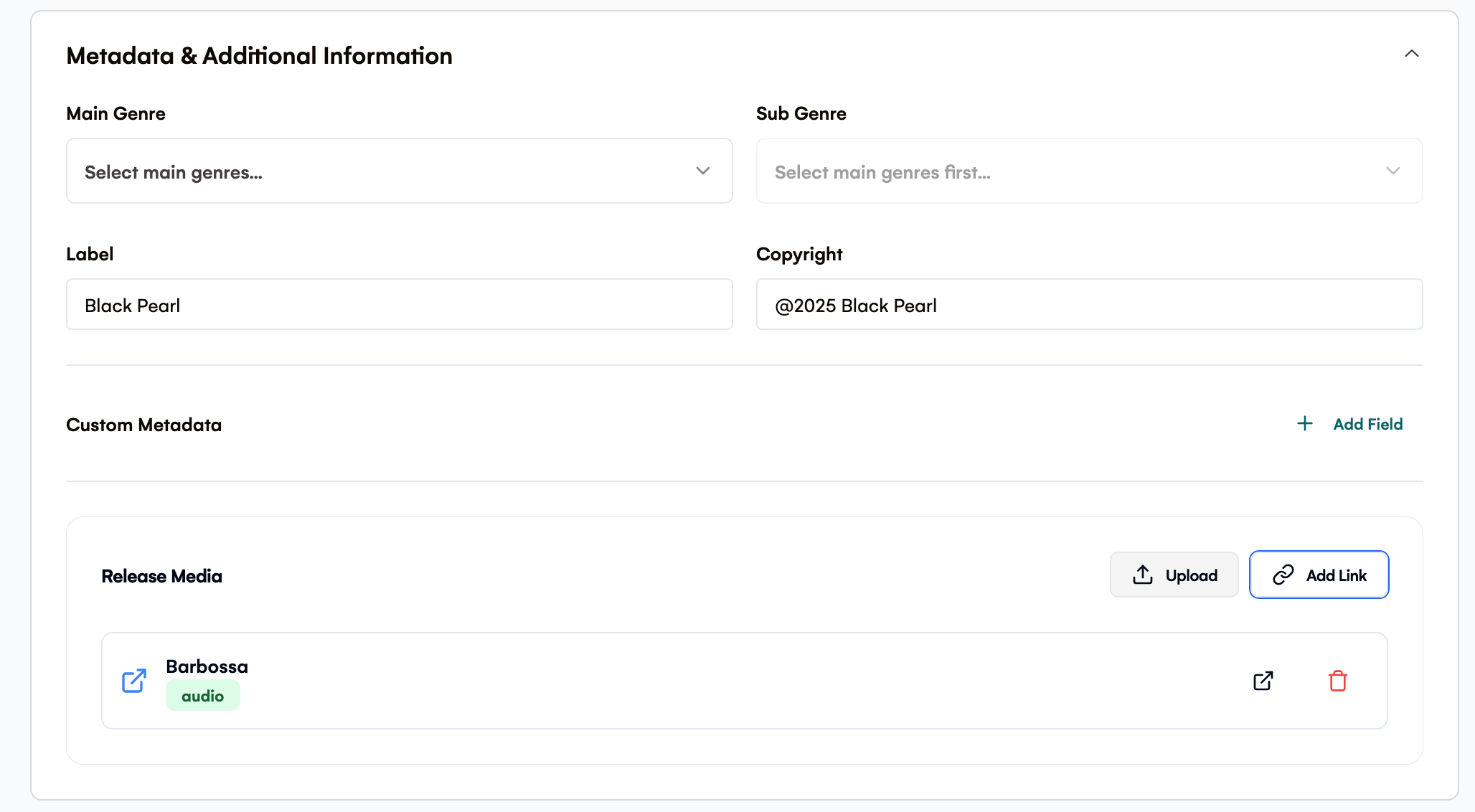
Step 4: Fill in Release Information
Basic Information:
-
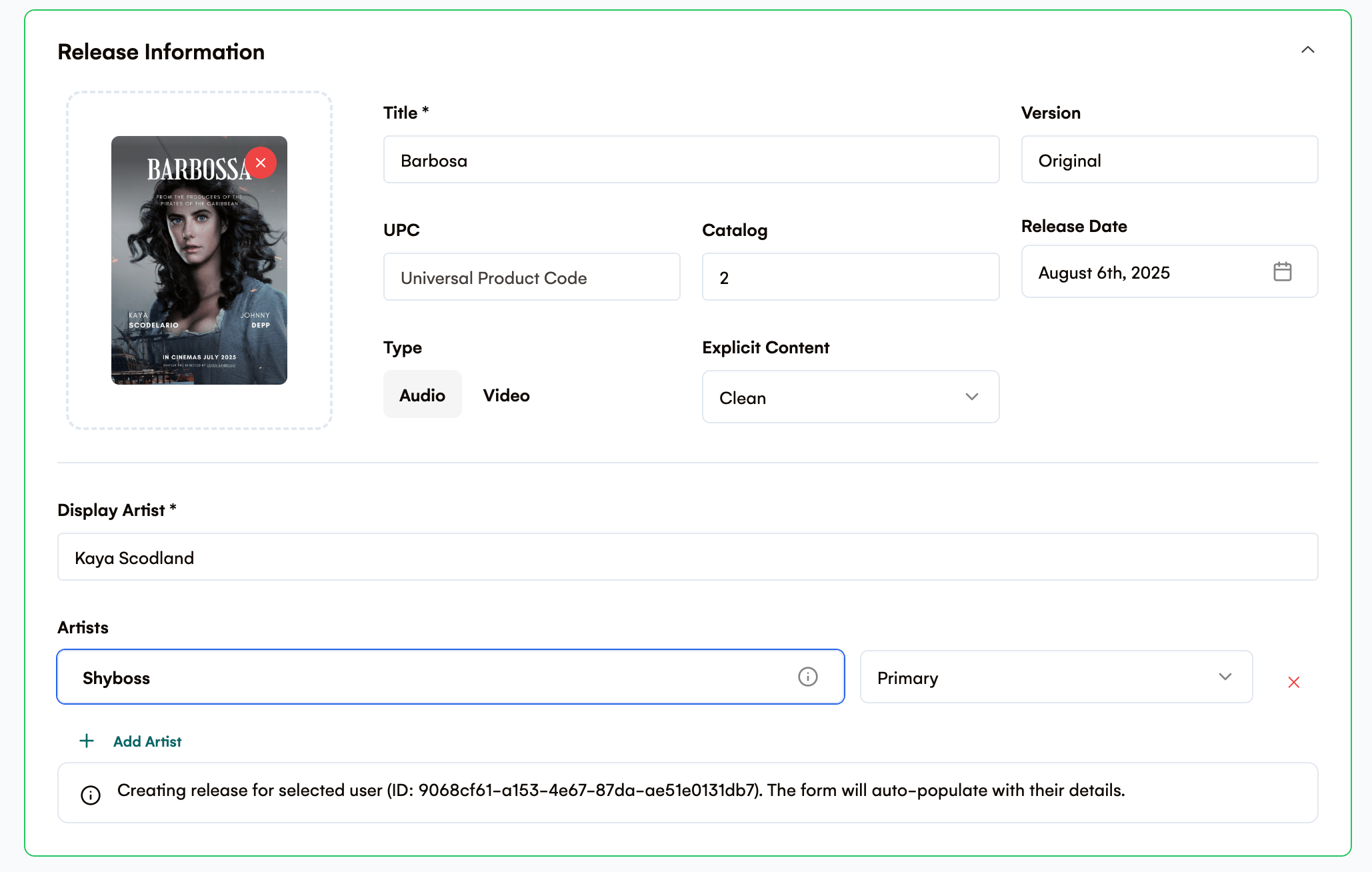
Title: Your release title (e.g., "My Debut Album")
-
Display Artist: How the artist name should appear
-
Format: Choose from Single, EP, Album, LP, or Video
-
Type: Audio or Video content
Advanced Information (Optional):
-
Version: Special edition info (e.g., "Deluxe Edition")
-
Label: Record label name
-
Copyright: Copyright statement
-
Release Date: When you want it to be released
-
Pre-Release Date: Early access date (if applicable)
Step 5: Add Artists
Search for existing artists or create new ones
Assign roles:
-
Primary: Main artist(s)
-
Featuring: Featured artists
At least one Primary artist is required

Step 6: Set Genres and Contributors
-
Main Genres: Primary music styles
-
Sub-Genres: More specific classifications
-
Contributors: Producers, songwriters, etc.

Part 3: Adding Your Tracks
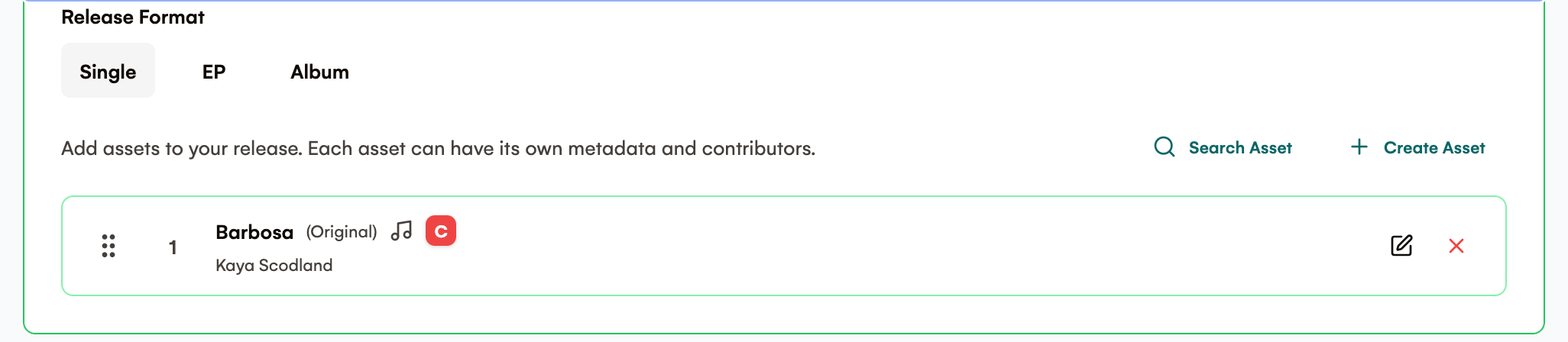
Step 7: Create Track Listings
For each track in your release:
Required Information:
-
Track Title: Name of the song
-
Display Artist: Can be different from the release artist
-
Track Artists: Who performs on this specific track
Optional but Recommended:
-
Version: Remix, edit version, etc.
-
Duration: Length in seconds
-
ISRC Code: International Standard Recording Code
-
ISWC Code: International Standard Musical Work Code
-
Lyrics: Full song lyrics
-
Language: Primary language of the track
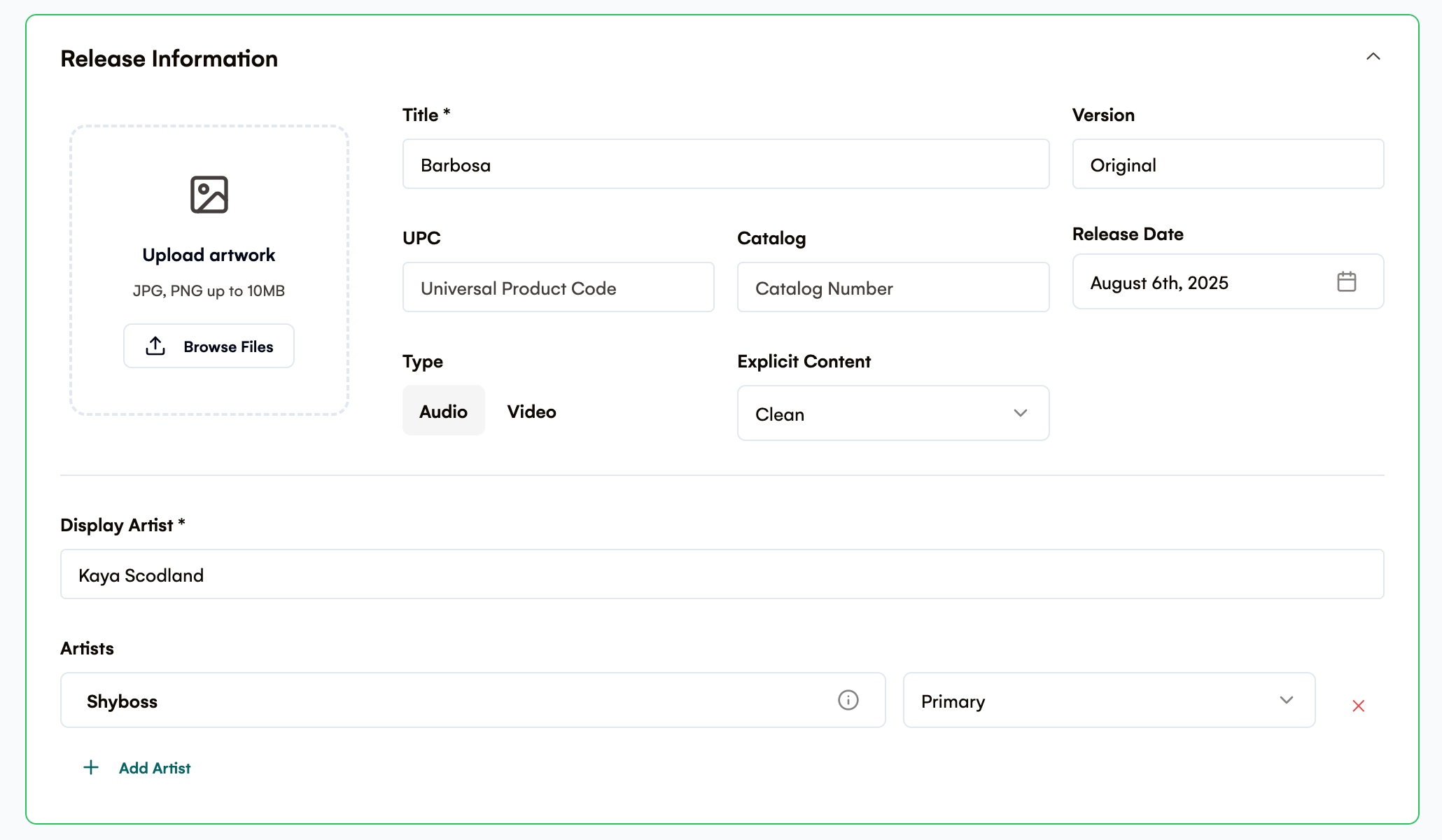
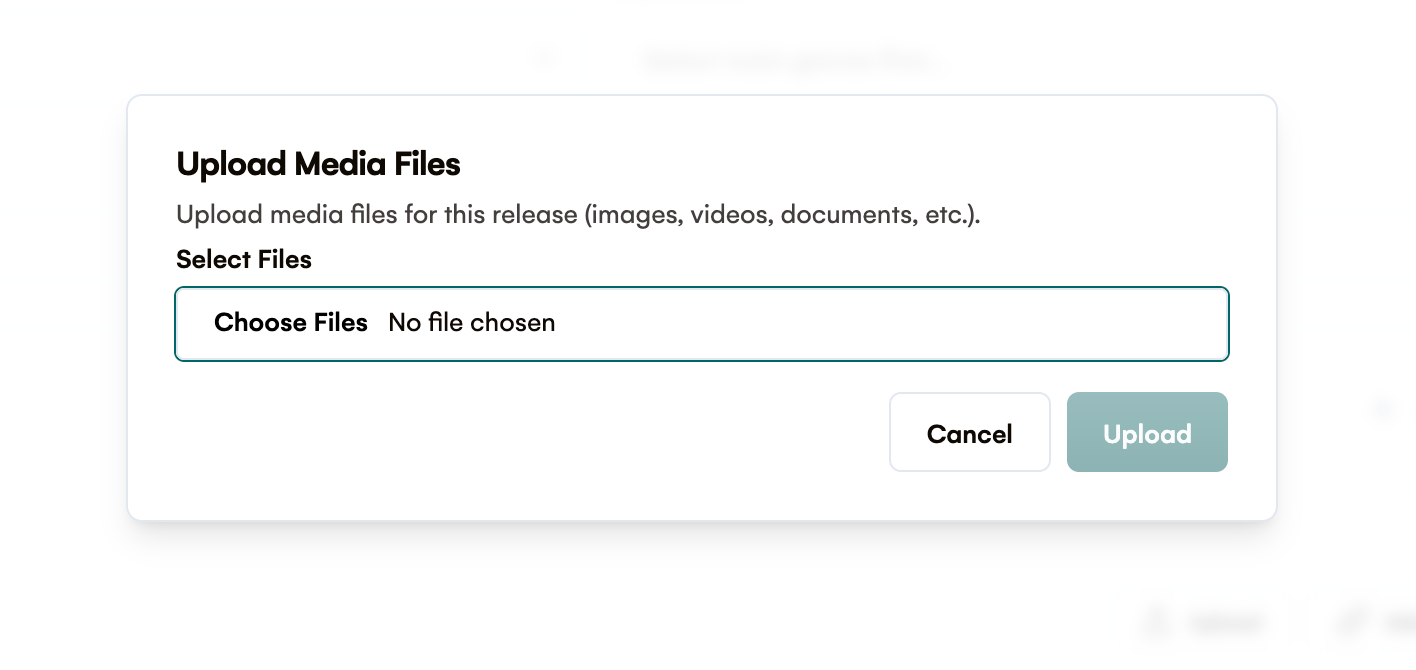
Step 8: Upload Media Files
For Each Track:
-
Upload high-quality audio files (MP3 320kbps minimum or WAV/FLAC)
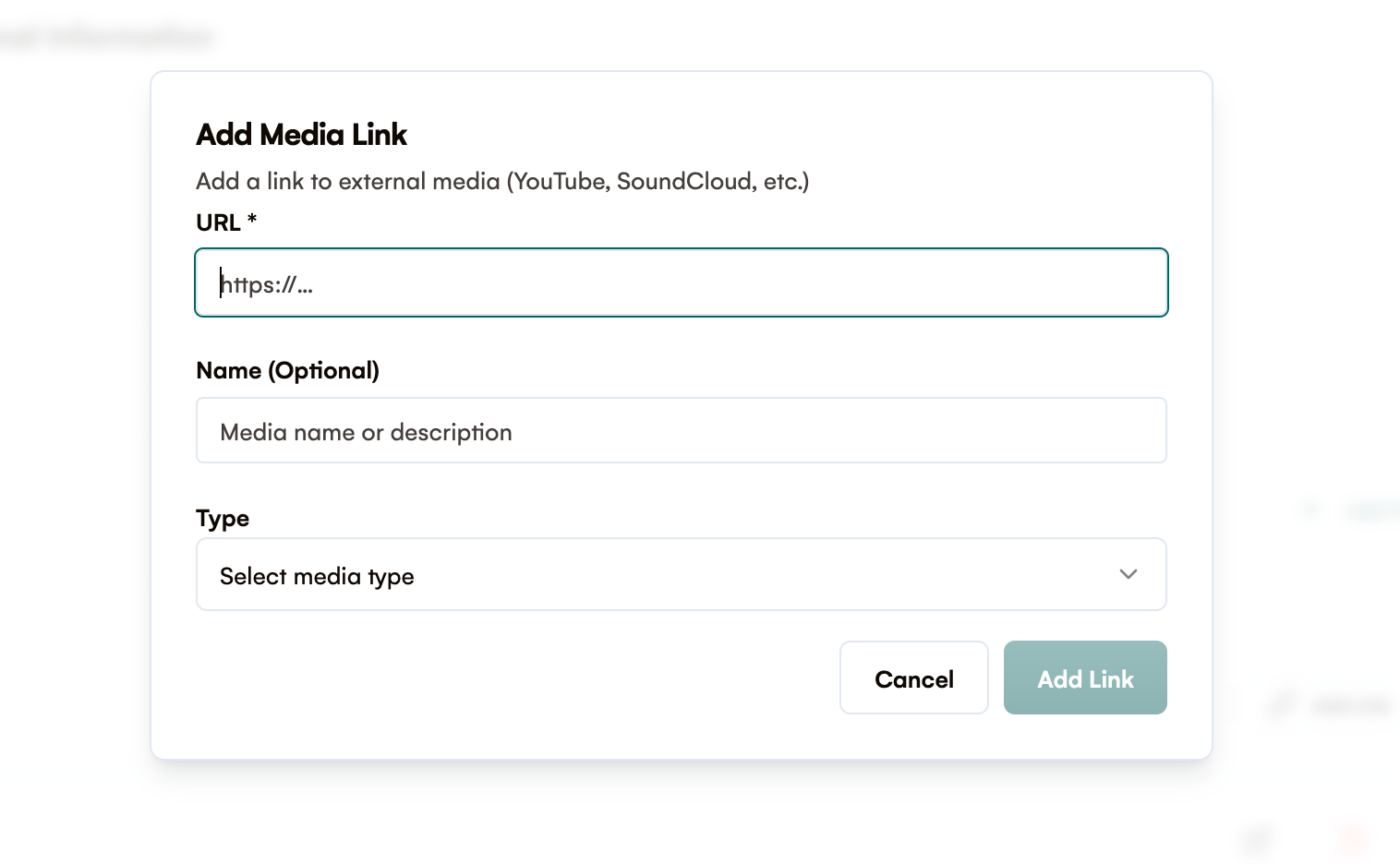
-
Alternative: Submit links to files (WeTransfer, Google Drive, etc.)For the Release:
-
Upload album artwork (minimum 3000x3000px recommended)
-
Additional documentation or press materials
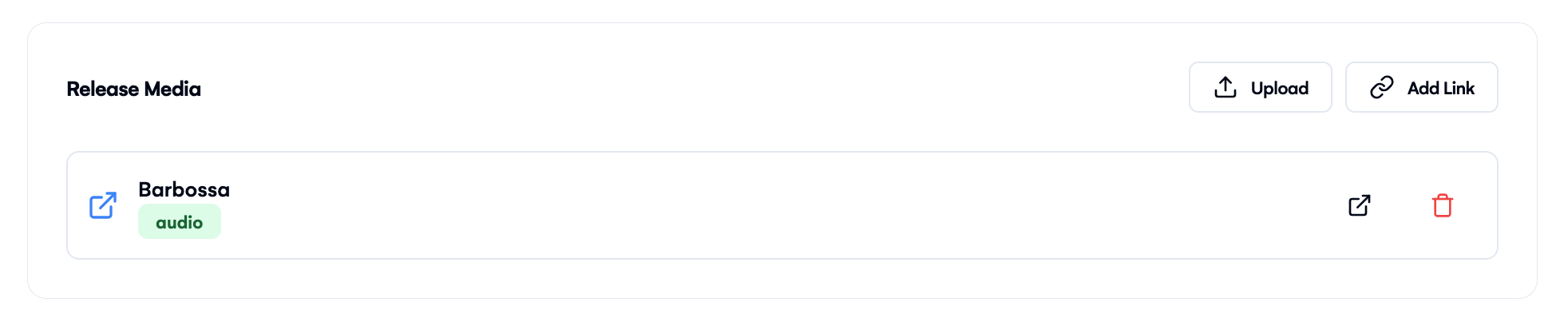
To upload a file
To add a file link
File Upload Tips:
-
✅ Use high-quality source files
-
✅ Ensure files are properly named
-
✅ Check that audio levels are appropriate
-
✅ Upload artwork in RGB color mode
-
❌ Don't upload low-bitrate or compressed files
-
❌ Avoid files with digital artifacts or clipping
Part 4: Review and Submit
Step 9: Review Your Release
Before submitting, double-check:
-
✅ All track information is accurate
-
✅ Artist names are spelled correctly
-
✅ Copyright information is complete
-
✅ All audio files are uploaded and working
-
✅ Artwork meets quality standards
-
✅ Explicit content is properly marked
📷 [IMAGE: screencapture-app-royalti-io-a-catalog-releases-f2548e70-b0de-4603-a681-84147f60225f-2025-08-08-08:47:22]
Step 10: Save as Draft or Submit
-
Save Draft: Keep working on it later
-
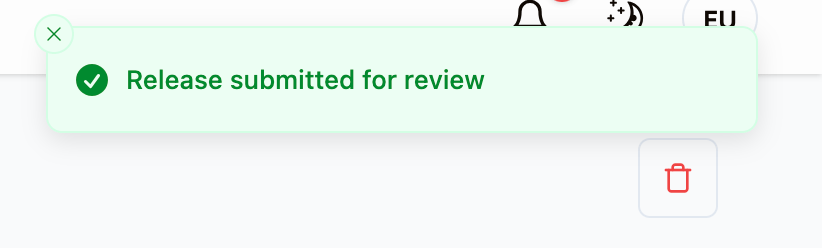
Submit for Review: Send to admins for approval

Part 5: Understanding the Review Process
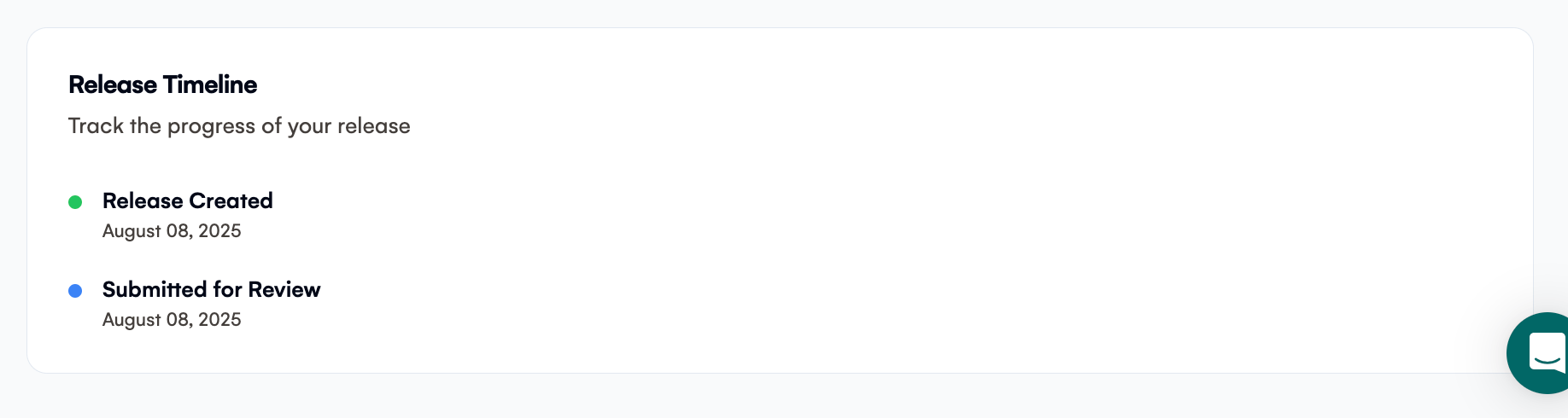
What Happens After You Submit?
Submitted: Your release enters the review queue
Under Review: An admin is actively reviewing your submission
Approved: Your release will be automatically processed into your catalog
Rejected: Changes are needed - you'll receive specific feedback
Typical Review Timeline:
-
Standard Reviews: 24-48 hours
-
Complex Releases: Up to 72 hours
-
Peak Periods: May take longer during busy times
Part 6: Managing Your Releases
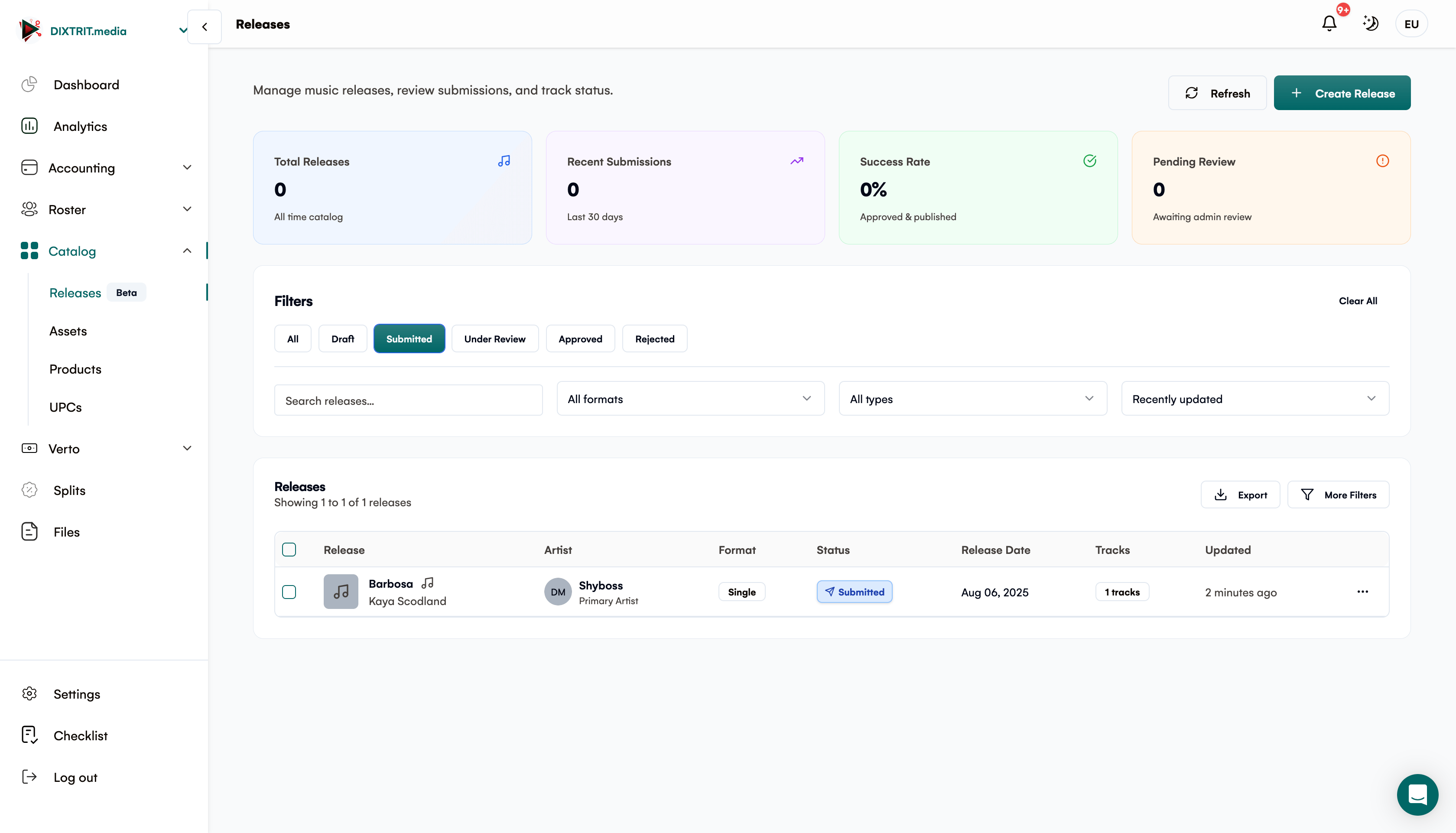
Viewing Release Status
Track your releases on the main Releases page:
-
Status badges show current state
-
Filter options help you find specific releases
-
Quick actions available for each status
Responding to Feedback
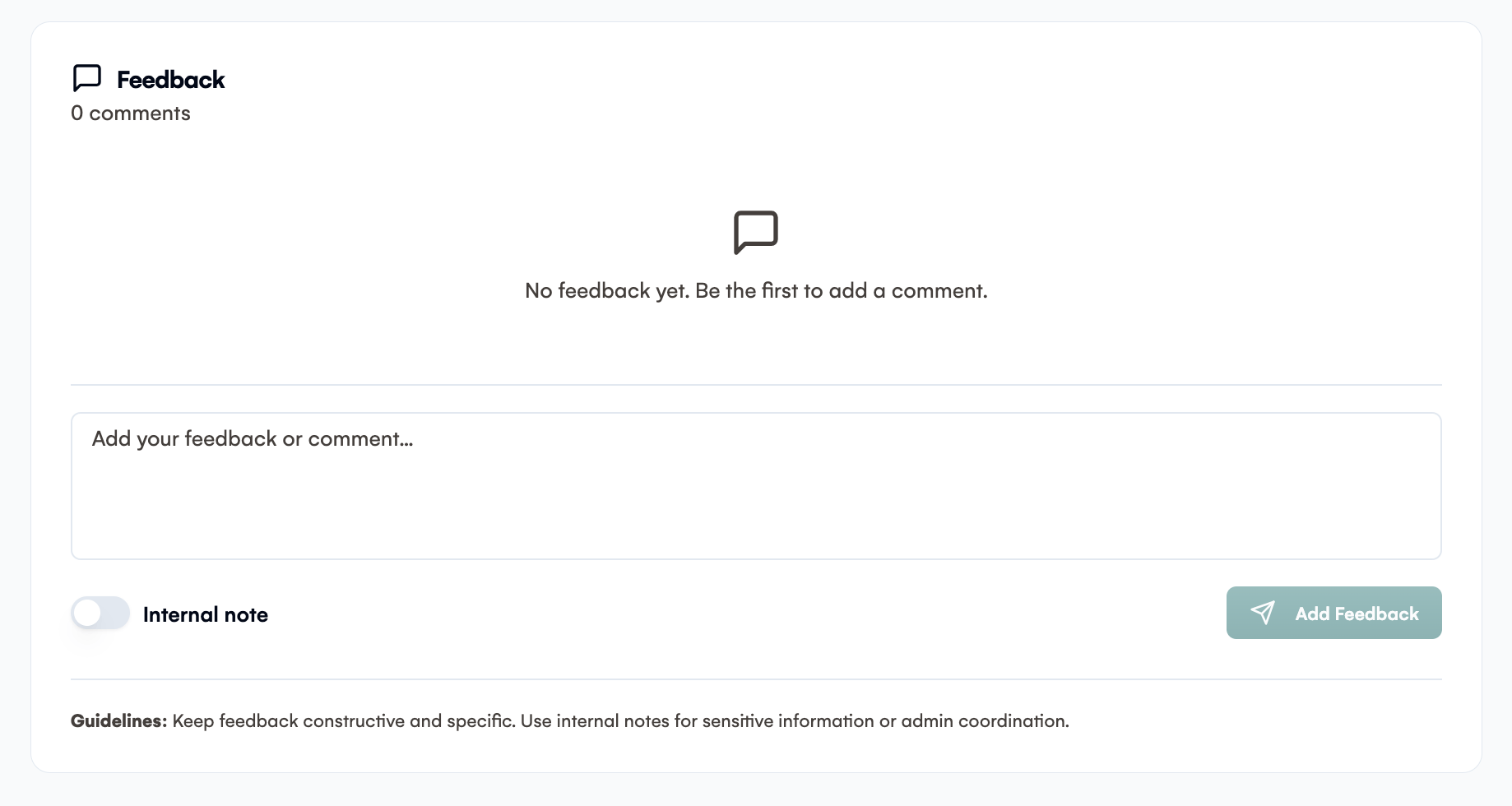
If your release is rejected:
Read the feedback carefully - it contains specific instructions
Make the requested changes to your release
Re-submit once corrections are complete. Common Feedback Topics:
-
Audio quality improvements needed
-
Missing or incorrect metadata
-
Artwork resolution issues
-
Copyright information clarification
Editing Releases
You can edit releases that are in:
-
Draft status: Full editing available
-
Rejected status: Make corrections and resubmit
Once submitted and under review, releases cannot be edited until the review is complete.
Part 7: After Approval
Auto-Creation Process
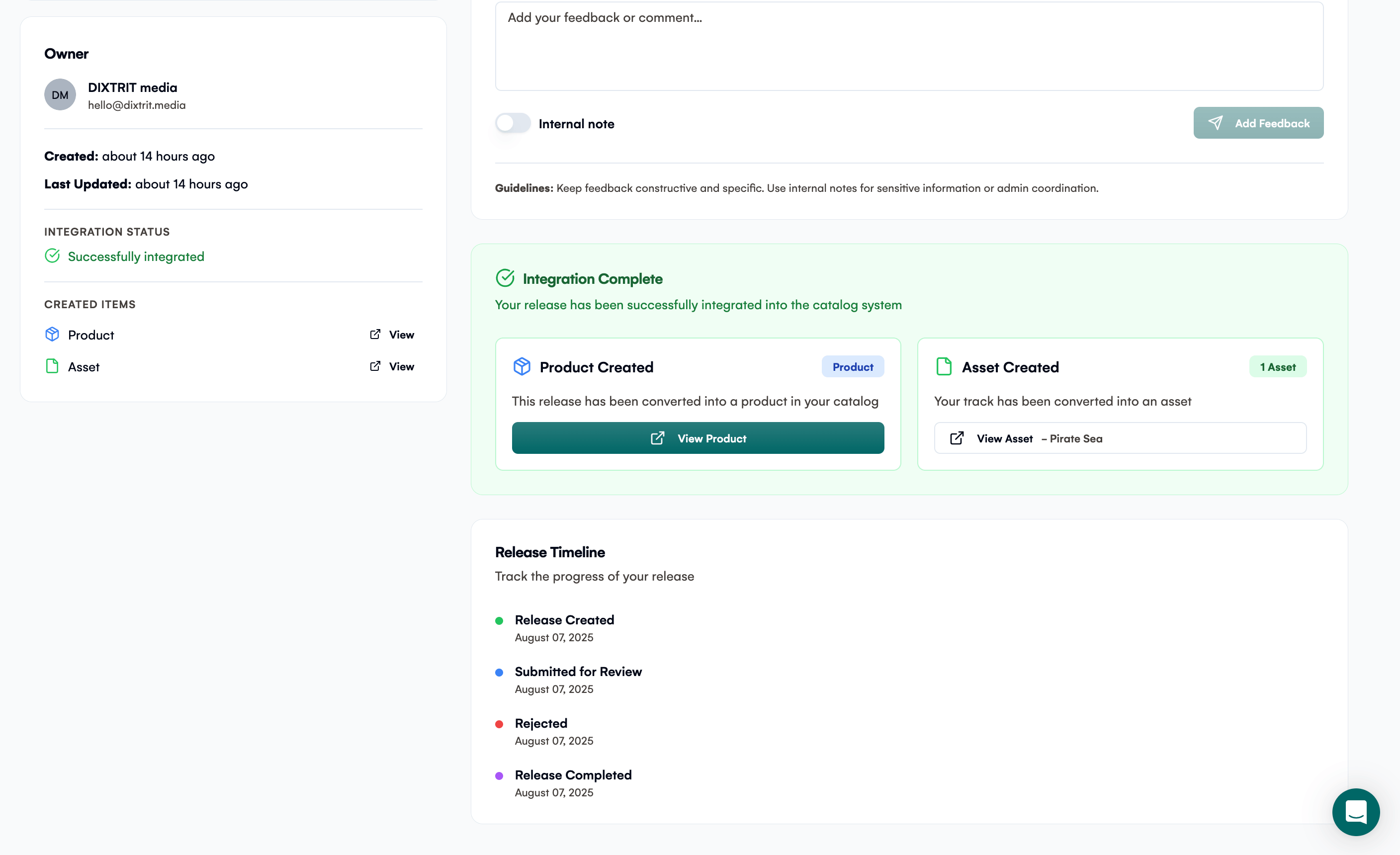
When your release is approved:
Products are automatically created in your catalog
Assets are created for each track
Metadata is properly configured
Files are moved to permanent storage
Status updates to "Completed"

Finding Your Created Content
Approved releases automatically appear in:
-
Products section of your catalog
-
Assets section with all track details
-
Reports and analytics (once data begins flowing)
Part 8: Best Practices
✅ Before You Submit
-
Use professional, mastered audio files
-
Double-check all spelling and metadata
-
Ensure artwork is high-resolution and properly formatted
-
Include all required copyright and label information
-
Test your audio files to ensure they play correctly
✅ File Preparation
-
Audio: WAV/FLAC preferred, MP3 320kbps minimum
-
Artwork: PNG/JPG, 3000x3000px or higher, RGB color mode
-
File Naming: Use clear, descriptive names
-
Organization: Keep track of which files belong to which tracks
✅ Communication
-
Respond promptly to feedback requests
-
Ask questions if feedback isn't clear
-
Use the feedback system to communicate with reviewers
Part 9: Troubleshooting
Common Issues and Solutions
"I can't upload my files"
-
Check file size limits
-
Ensure files are in supported formats
-
Try uploading one file at a time
-
Use link submission for very large files
"My release was rejected, but I don't understand why"
-
Read the feedback section carefully
-
Contact support if feedback is unclear
-
Use the comment system to ask specific questions
"I made changes but can't resubmit"
-
Ensure all required fields are completed
-
Check that you've addressed all feedback points
-
Save as draft first, then review before submitting
"Where did my approved release go?"
-
Check your Products section
-
Look in Assets for individual tracks
-
Allow up to 24 hours for auto-creation to complete
Getting Help
Need assistance with your releases?
Check this guide for common questions
Use the feedback system to communicate with reviewers
Contact support for technical issues
Review submission guidelines for quality standards
The Releases feature is designed to make getting your music into your catalog faster and easier while maintaining quality standards. Take your time with submissions to ensure the best results!
Related articles
Managing Payment Items in Royalti.io
This guide explains how to view, edit, and delete payment of the Accounting Management system. Getting Started To manage individual accounting items: 1. Log in to your Royalti.io account 2. Select...
Managing Royalty Sources
Overview The Royalty Sources feature allows you to manage and download royalty data from various platforms. This guide walks you through accessing, managing, and modifying your royalty sources....
Activating and Managing the Releases Feature - The Admin
What is the Releases Feature? The Releases feature is a comprehensive music submission and approval workflow system that allows your users to submit music releases for review and automatic catalog...
Still stuck?
Support answers within one business day — usually much faster.