How to Import Royalty Data
How to Import Royalty Data
Looking to import your catalog instead? This article covers uploading royalty statement files (the ones you get from Africori, TuneCore, DistroKid, etc.). If you want to pull recording and release metadata titles, ISRCs, UPCs directly from your connected streaming sources instead, use the Import from DSPs wizard (admin/owner only). See Import your catalog from DSPs.
Quickstart
To import your data:
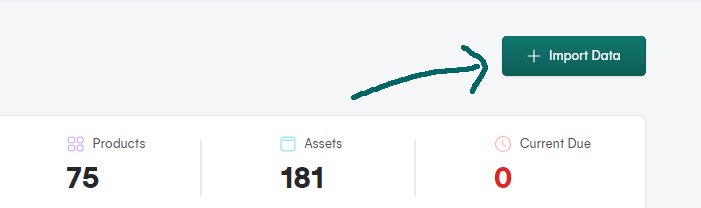
Start by clicking on the "Import Data" button located in the top-right corner of the Dashboard page
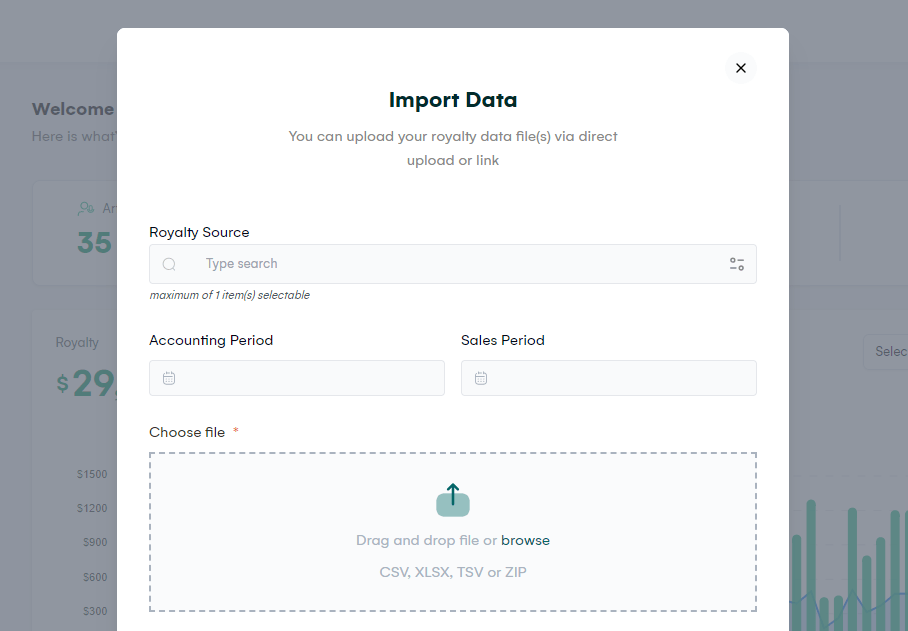
Once you do this, a form will pop up, which you will need to fill out with accurate information
After you have filled out the form, click on the "Submit" button to upload your data.
Please note that the upload process time can vary depending on the size of your data file, and it can take anywhere from 10 to 60 seconds
Once the upload is complete, you can refresh the dashboard page by either clicking the refresh button or using the keyboard shortcut "Command + R" for Mac or "Ctrl + R" for Windows
The newly imported data will now appear on your dashboard.
Duplicate Uploads
If you upload a file that matches one you've already uploaded- same royalty source, reporting period, and filename- Royalti detects it automatically and blocks the second upload with a "this file has already been uploaded" message. No setup is needed; this check runs on every upload, before the file is even sent to storage. See Royalty processing, source fees & exchange rates for the full walkthrough.
Royalty Source
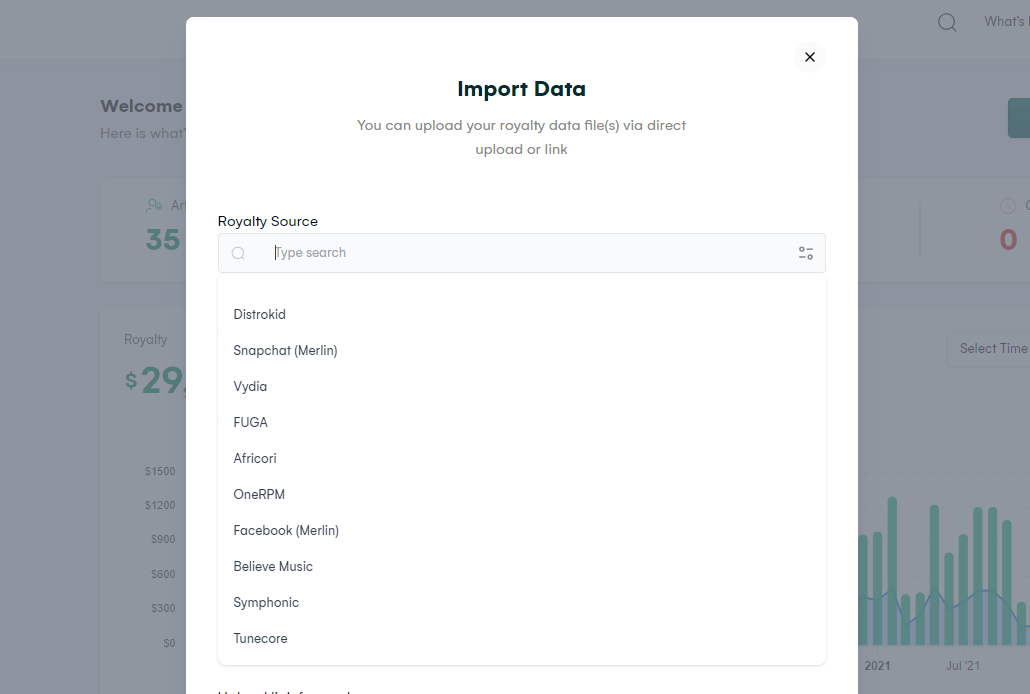
There are more than 20 Royalty Sources you can select from, including Africori, TuneCore, DistroKid, Merlin, and many more.
It is highly recommended to upload royalty files exactly as received from the source, without opening or editing them, to prevent file corruption by spreadsheet applications.
Each royalty source can also have its own fee rate and currency configured under Settings → Royalty Sources, so Royalti applies the right deduction and currency conversion automatically when it processes files from that source. See Royalty processing, source fees & exchange rates for details.
File Formats
The following are allowed file formats:
-
TXT
-
CSV
-
TSV
-
XLSX
-
ZIP
Note:
-
If you have CSV, TXT, or TSV files that are larger than 20MB, compress them into a ZIP file before uploading.
-
If you have multiple files for the same accounting period (such as Facebook through Merlin), compress them into a ZIP file before uploading.
Next Steps
After importing your royalty data:
[Using the Checklist Page](https://help.royalti.io/en/articles/8841374-using-the-checklist-page) - Find missing assets and products in your imported data
[Bulk Import Assets from CSV](https://help.royalti.io/en/articles/9663014-bulk-import-assets-from-csv) - Import your catalog assets in bulk
[Bulk Import Products from CSV](https://help.royalti.io/en/articles/9664540-bulk-import-products-from-csv) - Import albums and releases in bulk
Related articles
Find statement income that isn't reaching your works
Find society statement lines paid on a work number your catalogue doesn't carry, or paid against no work, and decide what to do with each one.
Deleting your Royalti account
Delete your Royalti account from Settings. You're signed out straight away, and you have 30 days to cancel with the link we email you.
Download and Send Royalty Data
On the Royalti.io platform, you can download Royalty data from your workspace in CSV, XLSX or PDF formats. The Royalty data can be downloaded for specific artists, territories, DSPs, Assets, Products
Still stuck?
Support answers within one business day — usually much faster.