Download and Send Royalty Data
Download and Send Royalty Data
On the Royalti.io platform, you can download Royalty data from your workspace in CSV, XLSX, or PDF formats. The Royalty data can be downloaded for specific artists, territories, DSPs, Assets, Products, and more.
Note: PDF and Excel downloads use your workspace's branding (logo and color palette), so files you share with artists or partners look like official label documents. Full tenant-wide downloads are available to Admin/Owner roles; other team members can download their own scoped analytics only. See Understanding Royalti analytics & reports for the full picture of what each role can see.
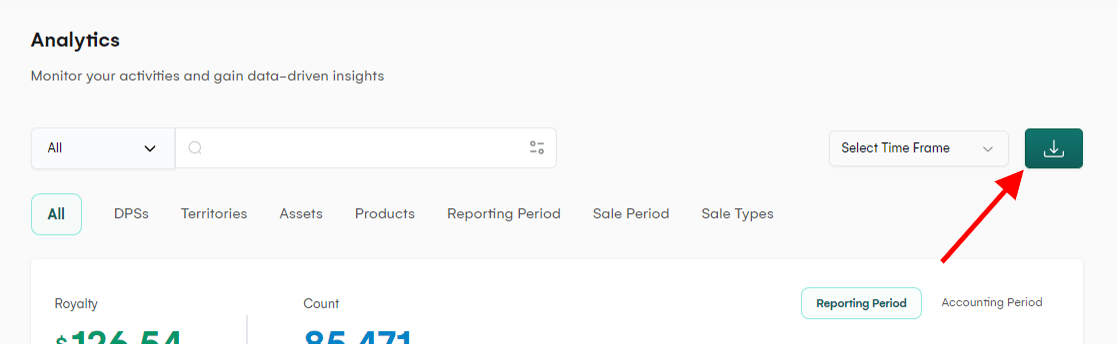
Click on the Download button from the Analytics page to open the Download form.
Download Filters
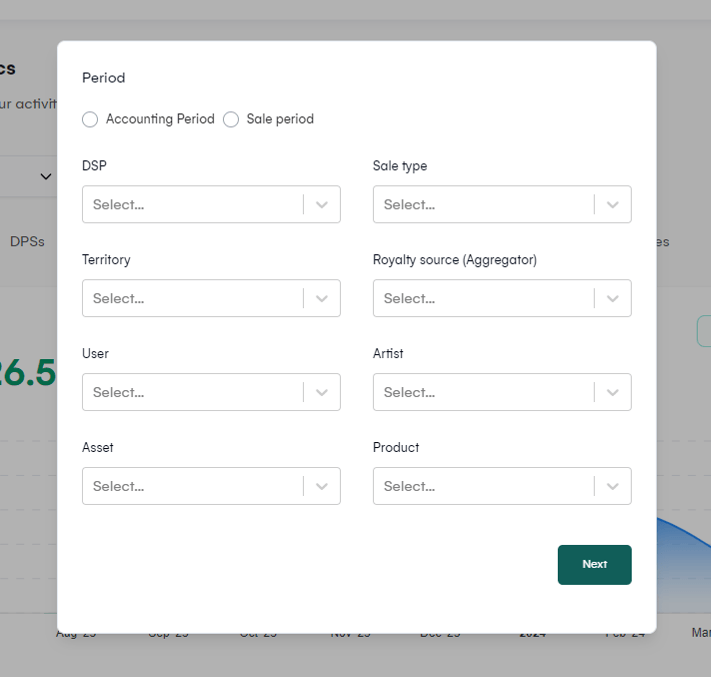
On the first page of the Download Data form, you can add filters to download specific data. The filters include:
-
Accounting Period
-
Sale Period
-
DSP
-
Territory
-
Sale Type
-
Aggregator
-
Artist
-
User
-
Assets
-
Products
Download Formats

On the second page of the form, you can specify the format of the downloaded file(s):
-
CSV — comma-separated raw data
-
XLSX — Excel spreadsheet
-
PDF — a formatted, branded document using your workspace's logo and colors
PDF and Excel exports carry your workspace branding automatically; there's no separate branding step to complete before downloading.
Download Aggregations
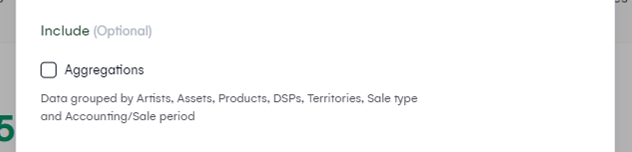
The Include section on this page is no longer a single checkbox; choose from up to three options, shown as toggle cards:
-
Raw Data — full raw royalty data rows
-
Aggregates — data grouped by Accounting/Sale Periods, Artists, DSPs, Territories, Sale Types, Assets, and Products
-
Source (Admin/Owner only) — data grouped by royalty source/aggregator instead of the dimensions above
You can select more than one each becomes its own file/section in the download.
Faster ways to export
The Download form is the right tool for a full, filtered, multi-format export. For smaller or more frequent needs, a shortcut is also available from the Analytics workspace:
-
Per-card export — export a single chart or table (as a PNG image, CSV, or JSON) directly from its own export button, without opening the full Download form.
-
Saved views — save your current filters, period, and view mode so a recurring look (like a monthly label summary) doesn't need to be rebuilt each time. Available to any Analytics viewer, not just Admin/Owner.
See Understanding Royalti analytics & reports for more on per-card export, Saved Views, Compare mode, and the consolidated Rights view.
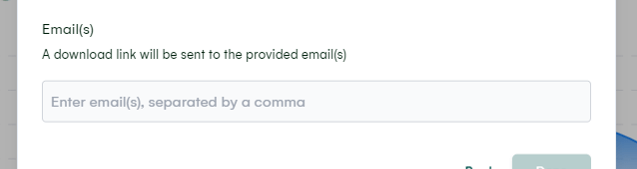
In the Email field, provide a comma-separated list of email addresses where a Download link to the generated file(s) will be sent.
Click Done after providing the required information. An email with a Download link will be sent to the provided email address(es).
Note: Generated Download links are active for 24 hours only.
Related articles
Find statement income that isn't reaching your works
Find society statement lines paid on a work number your catalogue doesn't carry, or paid against no work, and decide what to do with each one.
Deleting your Royalti account
Delete your Royalti account from Settings. You're signed out straight away, and you have 30 days to cancel with the link we email you.
How to Import Royalty Data
start by clicking on the "Import Data" button located on the top-right corner of the Dashboard page
Still stuck?
Support answers within one business day — usually much faster.