Import your catalog from DSPs
What this is
Import from DSPs pulls recording and release metadata for an artist's catalog straight from your workspace's connected streaming sources, with no manual re-entry of titles, ISRCs, or release details. This guide walks through starting an import, tracking the fetch, reviewing every proposed change, and applying it to your catalog.
Who can use this
Import from DSPs is an admin/owner-only tool. If you don't see it, you're signed in with a member or artist role rather than a workspace admin or owner. Ask your workspace admin to run the import, or to promote your role if you manage the catalog.
How it works, at a glance
The importer runs as a four-step wizard:
- Source search for an artist or paste a list of ISRCs/UPCs.
- Fetch a background job that pulls metadata from your active sources and cross-checks it across all of them.
- Review changes: every proposed create, update, or conflict is staged for your review before anything is applied to your catalog.
- Apply: you confirm, and only then does the import write to your Assets and Products.
Nothing is written to your catalog until you explicitly confirm on the Apply step; search, fetch, and review are all read-only against your live catalog.

Starting an import
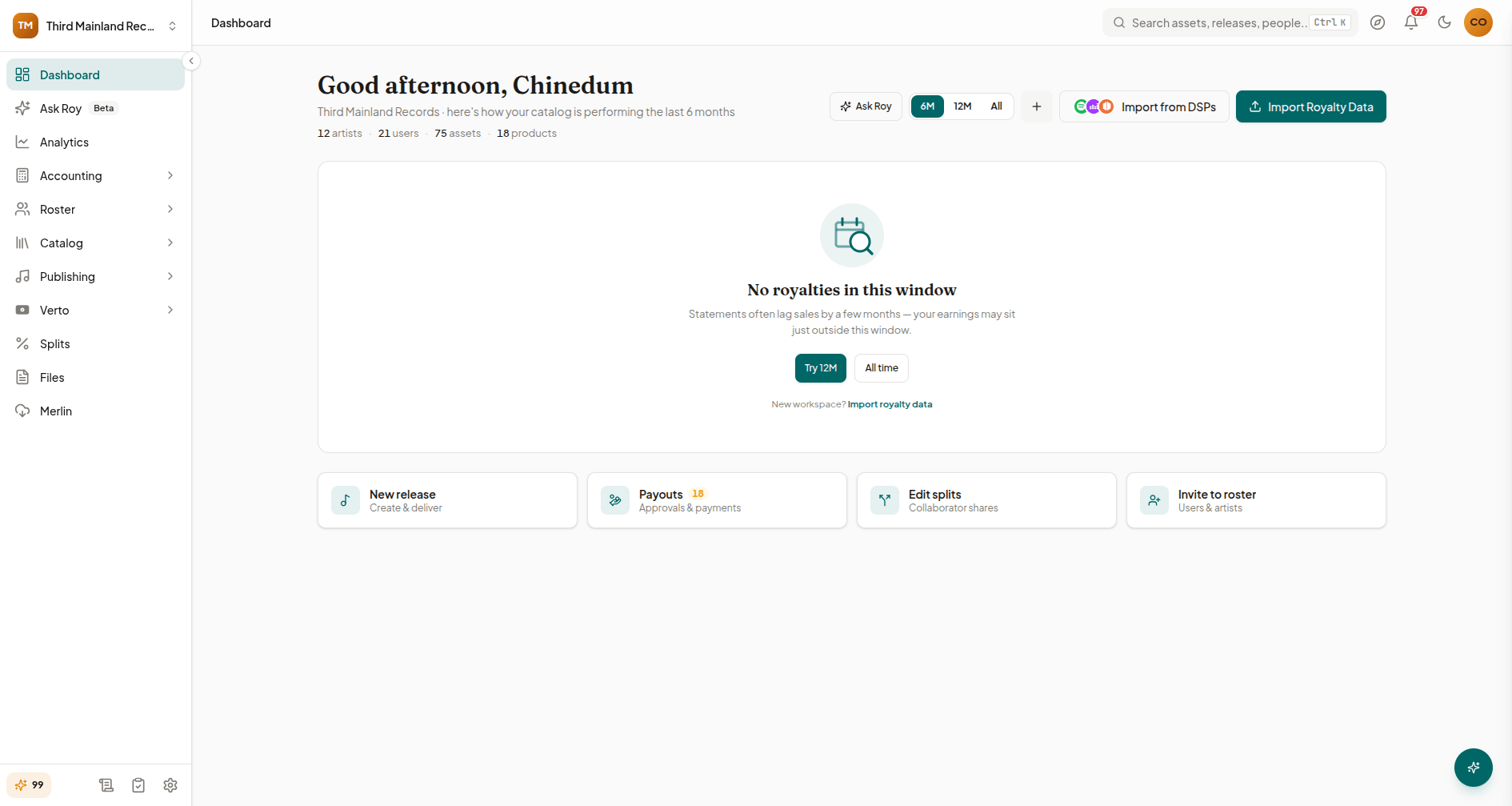
- From your admin dashboard, select Import from DSPs. (This button only appears if your workspace has at least one active metadata source and you have admin access.)
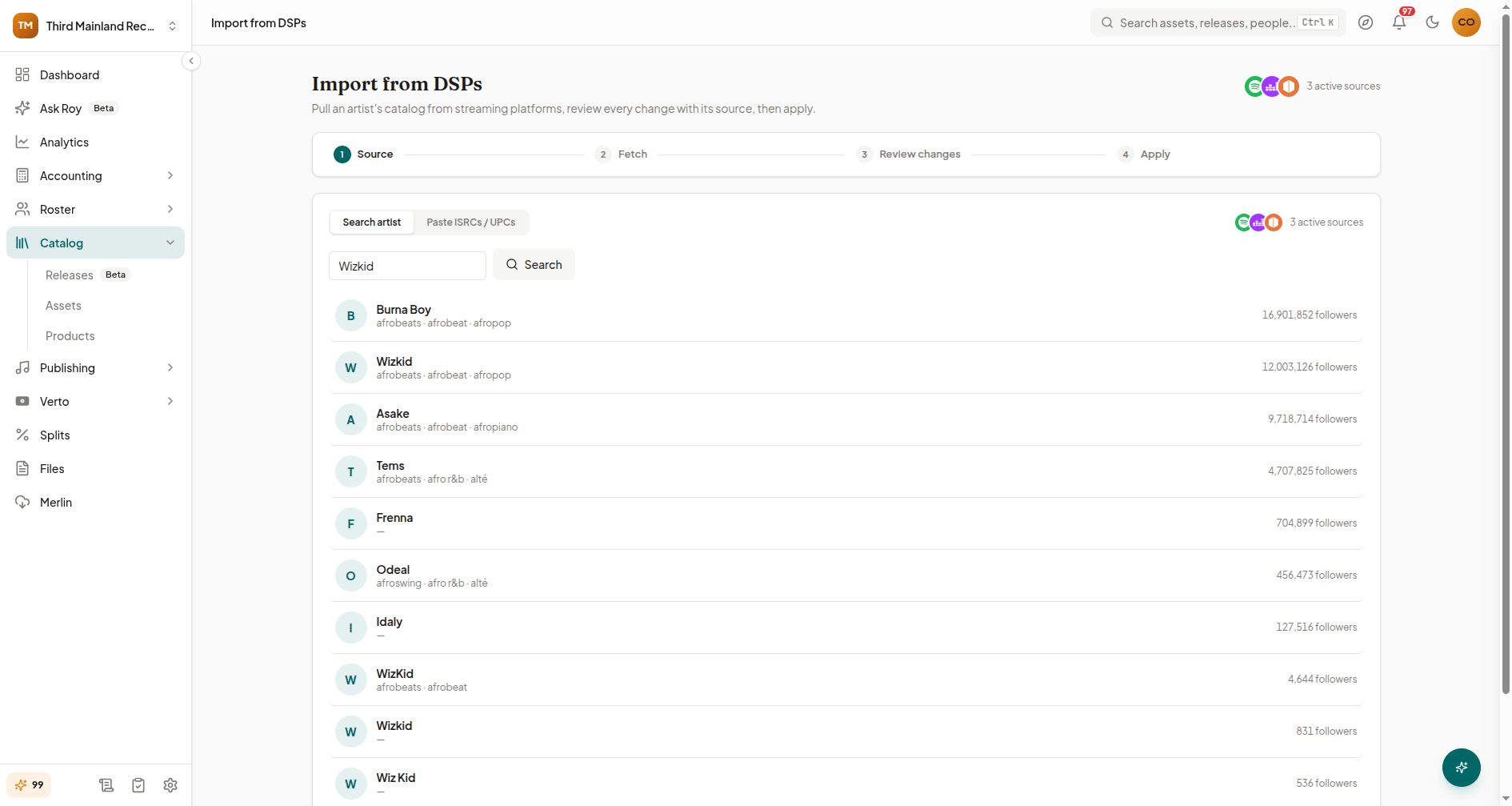
- Choose how you want to source the import:
- Search artist: search across your workspace's active sources and pick the matching artist from the results.
- Paste ISRCs / UPCs: paste a list of ISRCs and/or UPCs (separated by spaces, commas, or new lines) to import specific recordings or releases directly. Lists are capped at 500 identifiers per import.
- Select Fetch [artist]'s catalog (or Fetch metadata for an identifier list) to start the job.
A full-catalog fetch walks every release from your primary source, then cross-checks each ISRC/UPC against your other active sources. Large catalogs can take a few minutes to complete.
Tracking the fetch
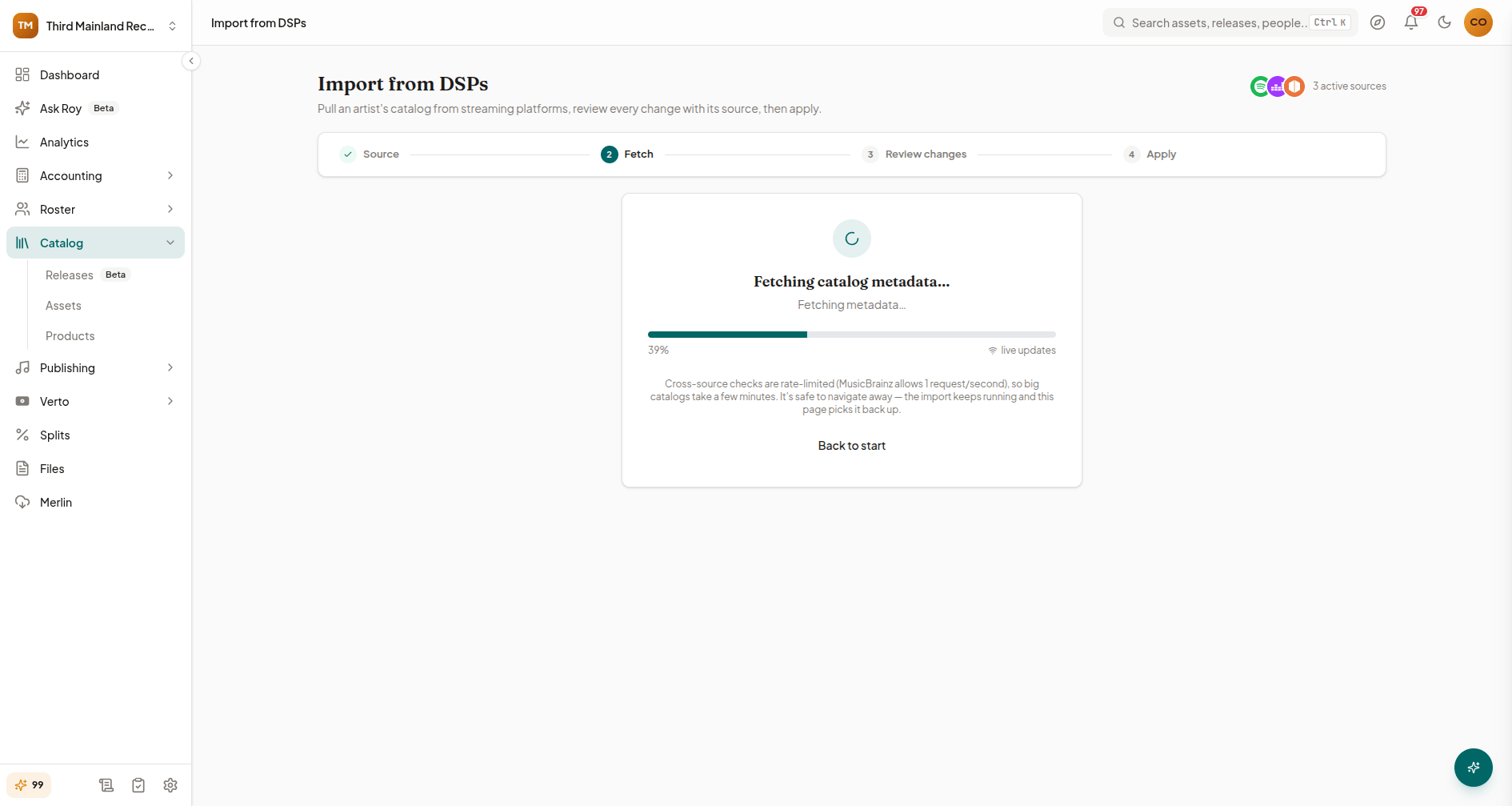
Once a fetch starts, you'll see a live progress bar. Cross-source matching is rate-limited by some providers, so bigger catalogs take longer. It's safe to navigate away; the fetch keeps running on our servers, and returning to the Import from DSPs page picks the same job back up.
Reviewing changes before anything is applied
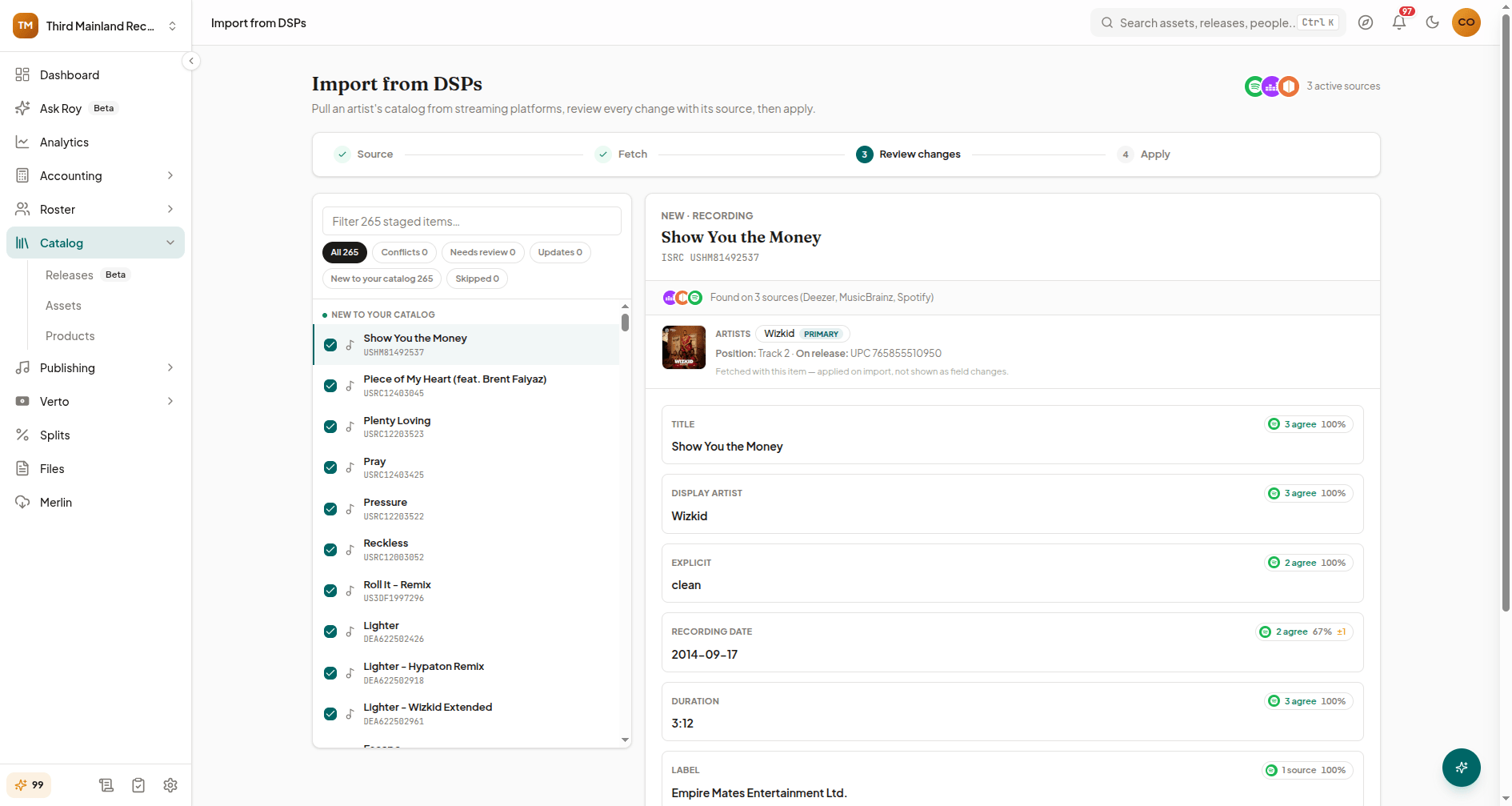
When the fetch completes, staged items are grouped so you can see exactly what's about to happen:
- Conflicts: the source data disagrees with what's already in your catalog on a specific field. These are excluded by default; open the item to see the field-by-field difference and resolve it before it can be included.
- Needs review: a fuzzy match the importer isn't fully confident about. Also excluded by default until you confirm it.
- Updates: fills in fields that are currently empty in your catalog. Never overwrite data you already have.
- New to your catalog: a recording or release that doesn't exist in your catalog yet.
- Skipped: nothing to do; your catalog already matches the source.
Select items to include using the checkboxes, or use the filter and group chips to work through a large batch. Conflicts and fuzzy matches always start unselected; you have to actively resolve or confirm them before they're included in the apply step. If you'd rather not proceed at all, Reject batch discards every staged item from this fetch.
Applying the import
Once you've selected what to include, Continue to apply shows a summary: new recordings, new releases, field updates, and resolved conflicts on one side; unresolved conflicts, unconfirmed fuzzy matches, and skips on the other. Select Apply [n] changes to confirm this is the only step that writes to your catalog.
After applying, you'll see a result summary with counts of imported and failed items. Any item that fails shows its specific error so you can fix it and retry.
Re-running an import safely
You can re-run the same import later for a catalog update or to catch anything you skipped the first time. Re-running is idempotent: items that already match what's in your catalog stage as zero duplicates, so you'll only see genuinely new or changed data to review.
What's next
- Catalog Health checklist runs a broader health check across your full catalog, including items imported this way.
- Audio auto-extraction metadata: pulls automatically from files you upload directly.
- Roles & permissions: manage who on your team has admin access to run catalog imports.
Related articles
Delivering to Stores with DDEX & FUGA
How to connect FUGA, deliver releases to stores over DDEX, track delivery status, and troubleshoot failed deliveries.
Setting Up the Royalti MCP Server
Connect your AI assistant to your Royalti workspace in about 5 minutes. No installation required—just add your API key and start querying your royalty data.
Still stuck?
Support answers within one business day — usually much faster.