Deleting your Royalti account
You can delete your Royalti account yourself from Settings. As soon as you confirm, you're signed out everywhere. The account is deleted 30 days later, and if you change your mind before then, you can cancel using the link we email you.
Before You Delete Your Account
- It deletes your login, not one workspace. If you belong to several workspaces, you lose access to all of them.
- Where workspaces need another owner first. If you're the only owner of a workspace, you can add another owner to it before you delete your account. Royalti tells you which workspace needs one.
- Some records are kept. After 30 days, your profile, sign-in details, and personal data are deleted. Financial records which we are required by law to keep, such as royalty statements and payments, are kept in anonymised form.
How to Delete Your Account
- Open Settings and go to Security. In the admin view, go to Profile instead.
- Scroll to Delete account and select Delete my account.
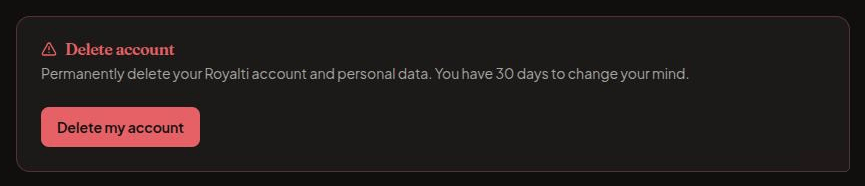
- Read the summary, then select Continue.
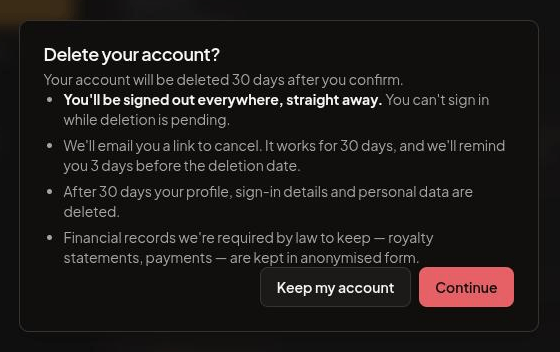
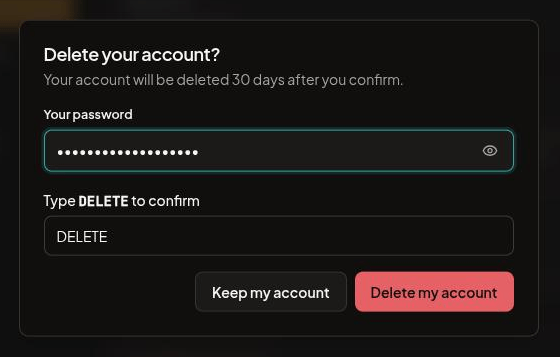
- Confirm it's you. If you sign in with a password, enter it. If you sign in with Google and have no password, select Email me a code and enter the 6-digit code we send you. A code lasts 10 minutes, and you can ask for a new one after a minute.
- Type DELETE in the confirmation box, then select Delete my account.
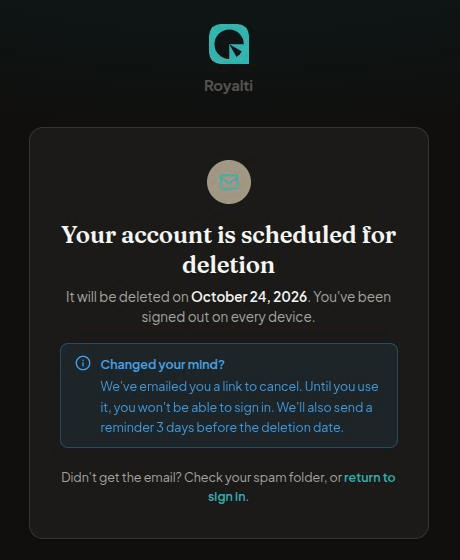
A confirmation page shows the date your account will be deleted.
What Happens Next?
- You are now signed out on every device, straight away.
- You can't sign in while deletion is pending. If you try, you will see a message pointing you to the cancel link.
- We will email you a cancel link just in case, and send a reminder 3 days before the deletion date.
- On the deletion date, your account is deleted. This can't be undone.
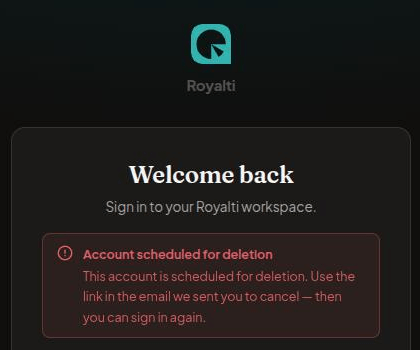
Changed Your Mind? Cancel It
- Open the email we sent when you asked to delete your account. If you can't find it, check your spam folder.
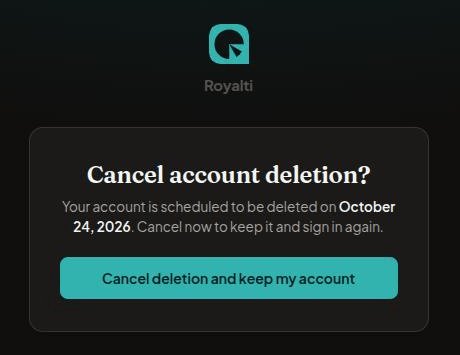
- Select the cancel link. The page shows the date your account is due to be deleted.
- Select Cancel deletion and keep my account.
Your account is restored, and you can sign in again.
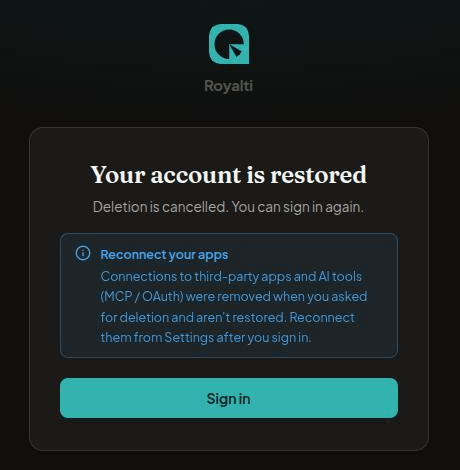
Connections to third-party apps and AI tools, such as MCP or OAuth apps, are removed when you ask to delete your account. Cancelling doesn't restore them, so reconnect them from Settings after you sign in.
If Something Goes Wrong
- “You’re the only owner of the workspace”: add another owner to that workspace, or contact support. Nothing about your account has changed.
- “This account can’t be deleted automatically”: contact support and we'll help you delete it.
- “Sign in as yourself to delete this account”: you're viewing a workspace as another user, or using an API key or connected app. Sign in with your own account and try again.
- Too many incorrect passwords: deletion is locked for 15 minutes. Wait, then try again.
- Too many incorrect codes: wait an hour, then ask for a new code.
- The cancel link doesn't work: the 30 days may have passed, or deletion may already be underway. Contact support.
- The email didn't arrive: check your spam folder. You can't sign in to have it resent, so contact support.
Was this article helpful?
Still stuck?
Support answers within one business day — usually much faster.