Accounting Management in Royalti.io
Accounting Management in Royalti.io
The Accounting module tracks all financial activity in your workspace: payments to artists, revenue received, and expenses incurred. This guide covers navigating each section and managing your royalty finances.
Need help setting up accounting? Book a demo → to get personalized onboarding for your workspace.
Getting Started
To access Accounting Management features:
Log in to your Royalti.io account
Select your Workspace
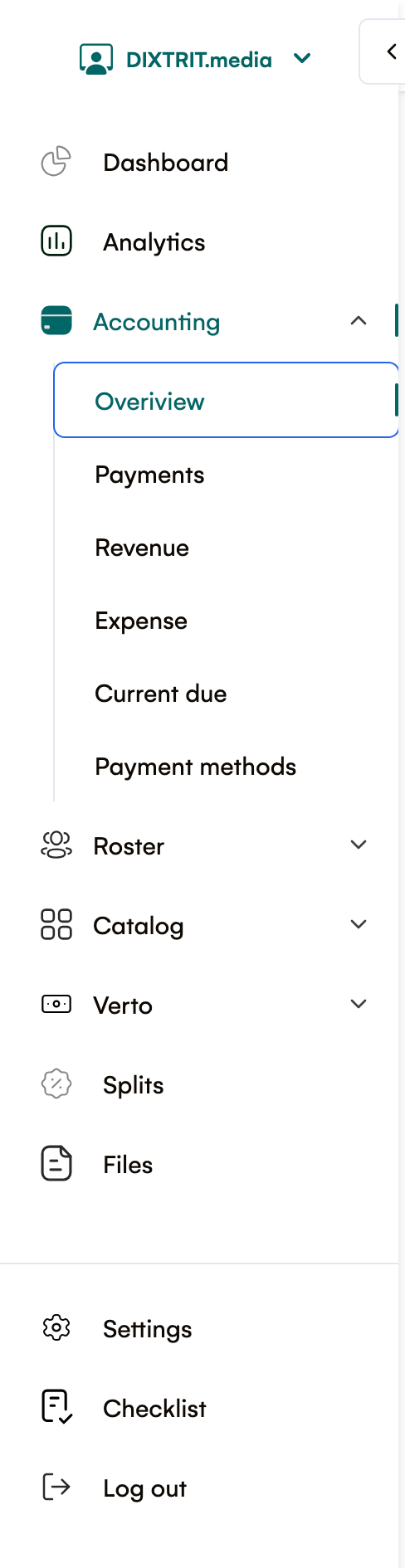
On the left navigation sidebar, select Accounting
A dropdown menu will appear with the following options:
-
Overview
-
Payments
-
Revenue
-
Expense
-
Current Due
-
Statements
-
Payment Method
Overview
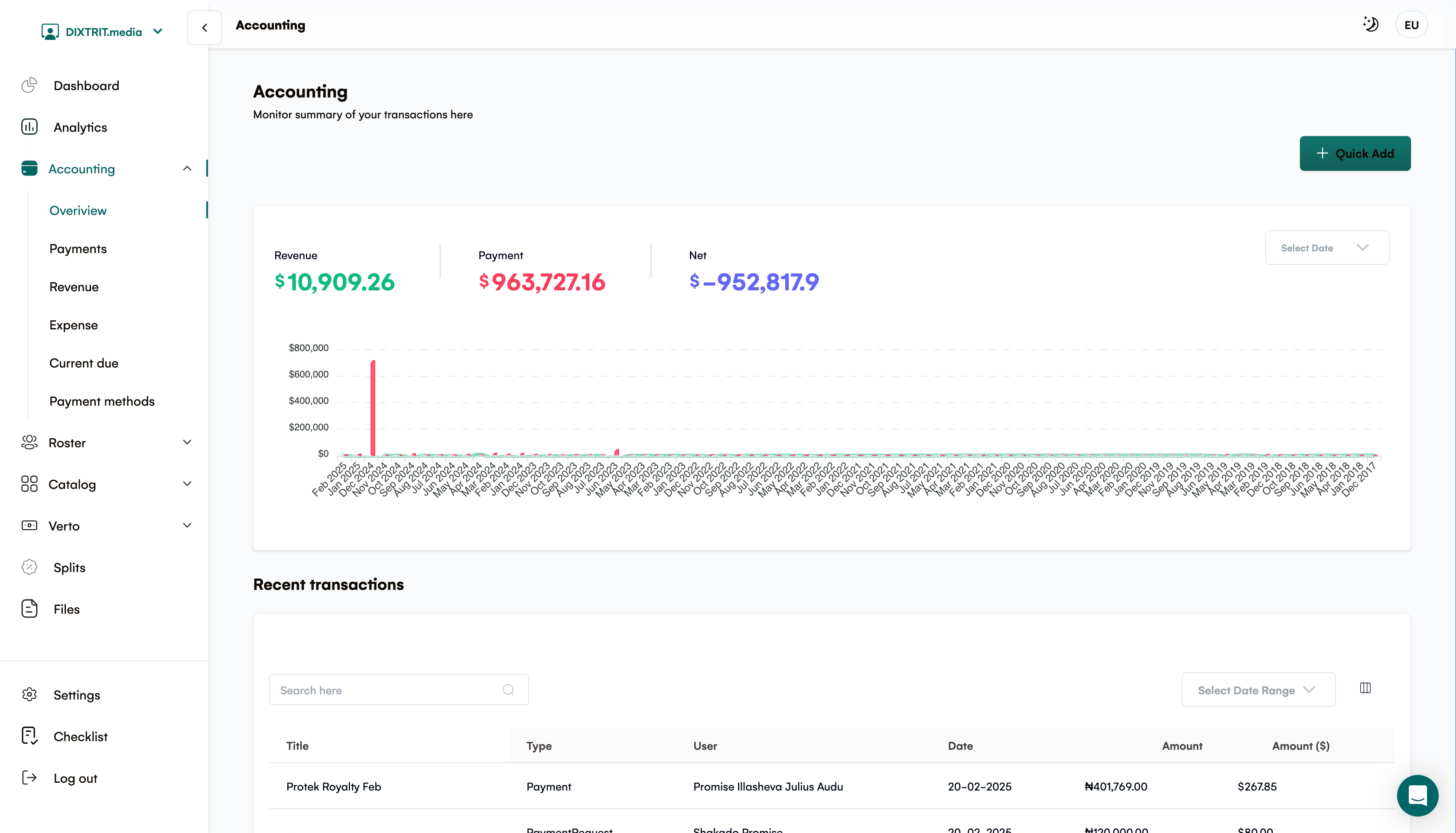
The Overview page provides a summary dashboard of your financial activities:
-
Chart View: Visual representation of your transaction history
-
Recent Transactions Table: Lists your most recent financial activities with the following columns:
-
Title: Description of the transaction
-
Type: Category of transaction (payment, revenue, expense)
-
User: Person associated with the transaction
-
Date: When the transaction occurred
-
Amount: Value in your local currency
-
Amount ($): Value converted to USD
Key Features:
-
Search: Quickly find specific transactions
-
Date Filters: Sort and filter transactions by date or date range
-
Quick Actions: Create new payments, expenses, or revenue entries directly from this page
From the Overview page, you can initiate new financial entries by clicking the respective buttons. Learn more about creating new entries
Payments
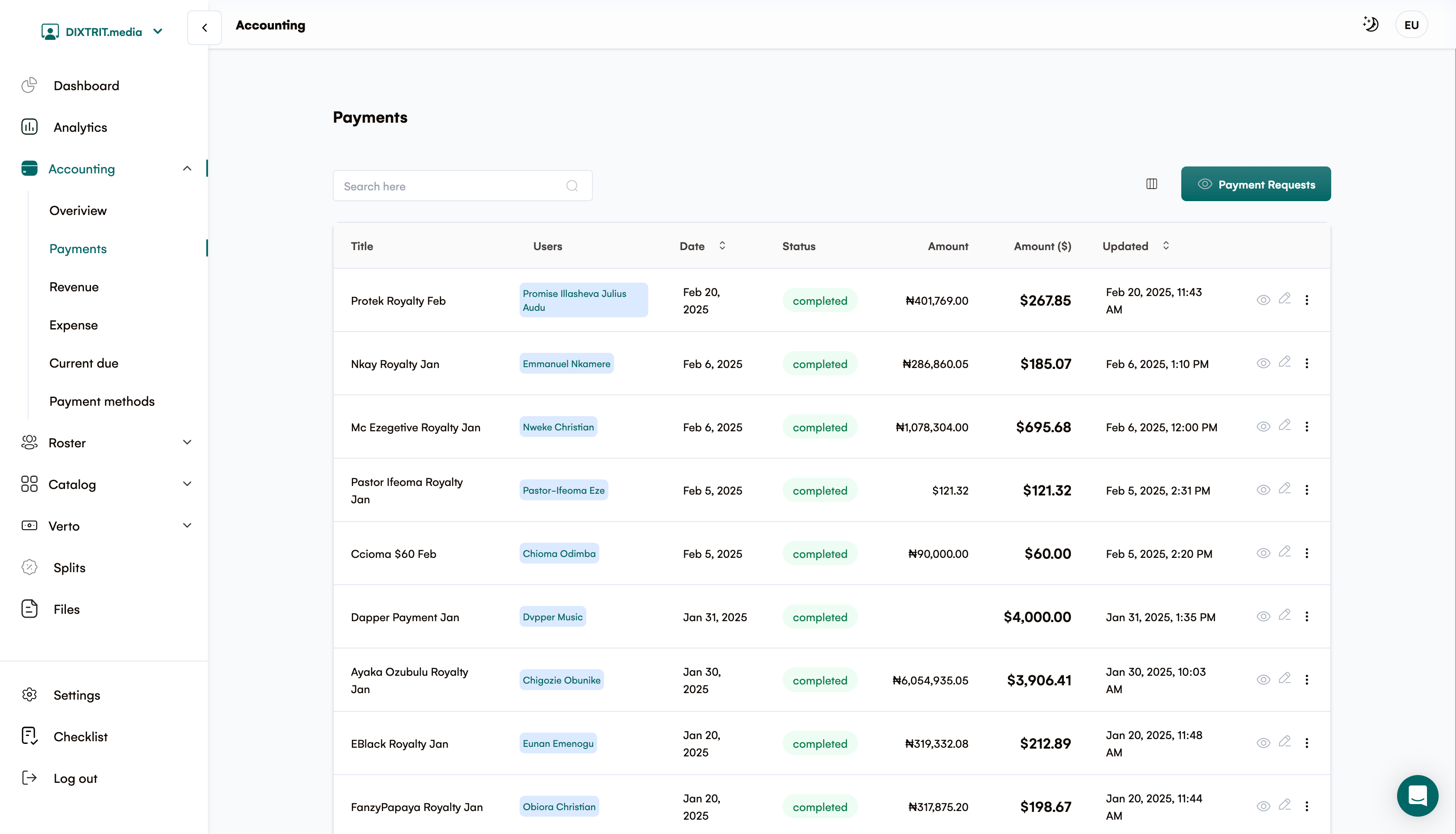
The Payments page is your payments hub it displays all payment transactions in your account with the following information:
-
Title: Description of payment
-
Users: Recipients of the payment
-
Date: When the payment was processed
-
Status: Current state of the payment (pending, completed, etc.)
-
Amount: Value in your local currency
-
Amount ($): Value converted to USD
-
Updated: Last modification date
You can view, edit, and delete your payment entry. learn more
Payment Requests
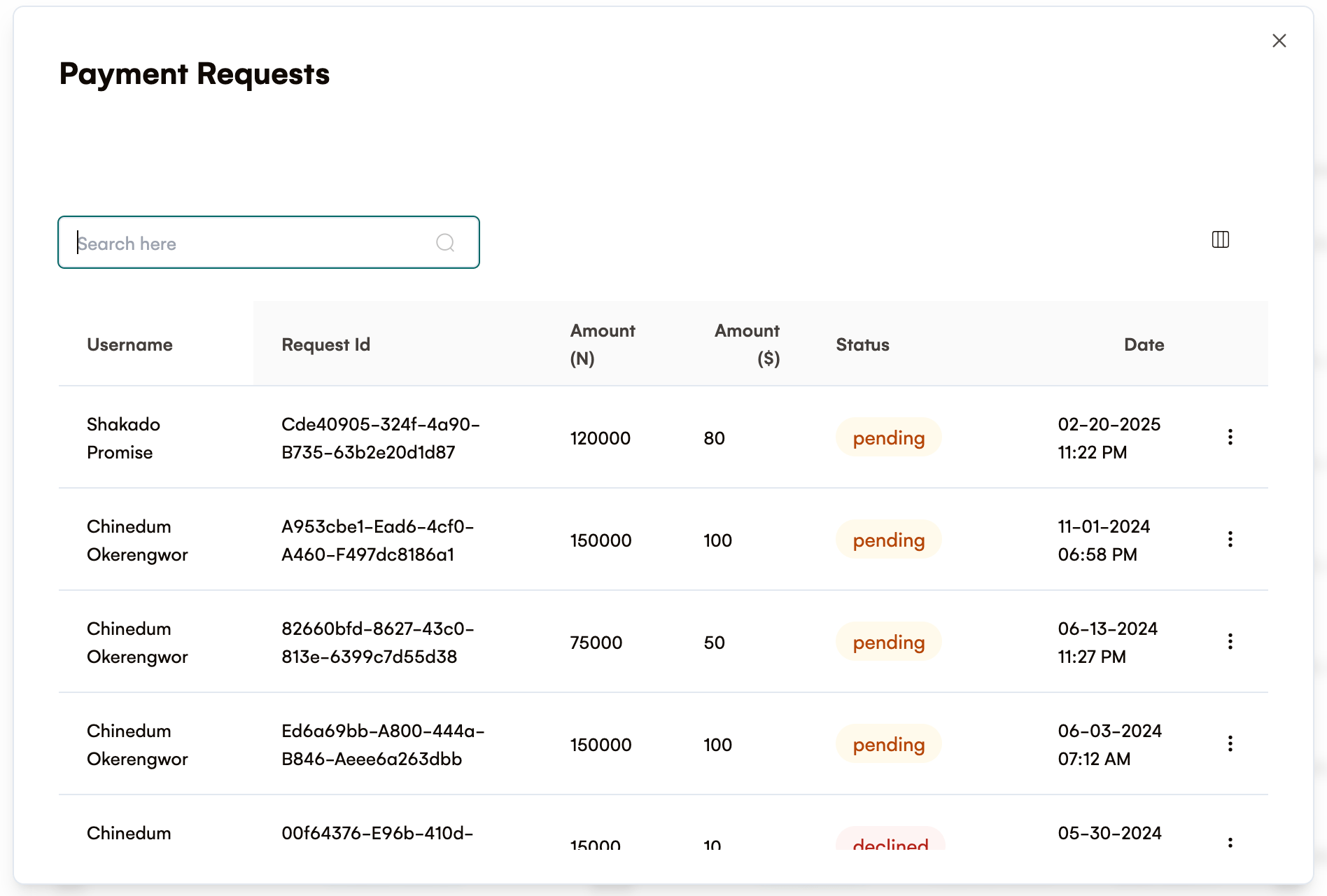
At the top of the Payments page, you'll find the Payment Requests button. Clicking this opens a modal showing all incoming payment requests with:
-
Username: Person requesting payment
-
Request ID: Unique identifier for the request
-
Amount (N): Requested amount in local currency
-
Amount ($): Requested amount in USD
-
Status: Current state of the request
-
Date: When the request was submitted
Statements
The Statements view gives artists and writers a clear, downloadable record of their royalty balance for each period. This view is currently in beta.
- Recoupment tracking: If an artist or writer has an outstanding advance, Royalti automatically tracks recoupment against it royalty earnings are applied to the advance balance first, and the statement shows how much has been recouped and what remains outstanding. Expenses linked to an artist can also be marked recoupable, in which case they're deducted from that artist's future earnings the same way.
- Balance carry-forward: Any unpaid or unrecouped balance carries forward automatically into the next period, so statements always reflect a running, accurate balance rather than resetting each cycle. Carry-forward is tracked per currency; a balance only carries forward within the same currency it was recorded in.
- Downloadable PDF statements: Each artist or writer can download a per-period PDF statement showing gross earnings, deductions, recoupment applied, and the resulting balance broken down by split where applicable.
- Notifying members a statement is ready: Once a statement is closed for a period, an admin can send a "Notify members" email from the Statements page. This is a manual action, not automatic. If a payee is asking where their statement is, check whether notifications have been sent for that period yet.
The Statements view and the recoupment/carry-forward/PDF features above are available to all workspaces (currently in beta) they are not gated behind the Publisher add-on. The Publisher add-on instead gates a separate, publisher-specific reconciliation view (Publishing → Publisher Statements) for reconciling BMI/ASCAP/MLC-style society statements a different feature from the artist/writer statements described here.
Learn more about how source-level fee rates and currencies feed into these statement totals in Royalty processing, source fees & exchange rates.
Revenue
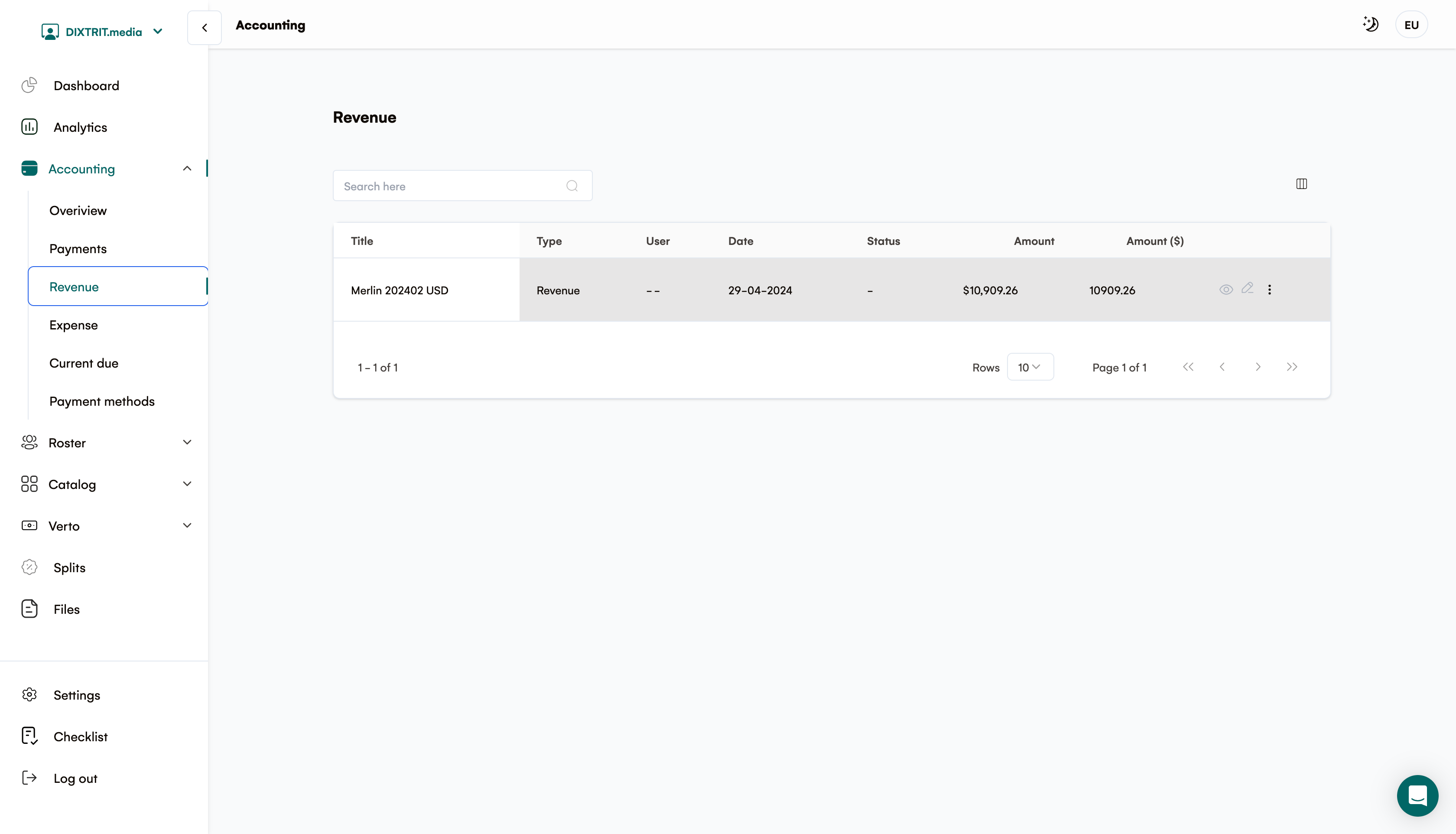
The Revenue page lists all income sources with the following details:
-
Title: Description of the revenue
-
Type: Category of revenue
-
User: Person associated with the revenue
-
Date: When the revenue was received
-
Status: Current state of the revenue entry
-
Amount: Value in your local currency
-
Amount ($): Value converted to USD
You can view, edit, and delete your Revenue entry. learn more
Expense
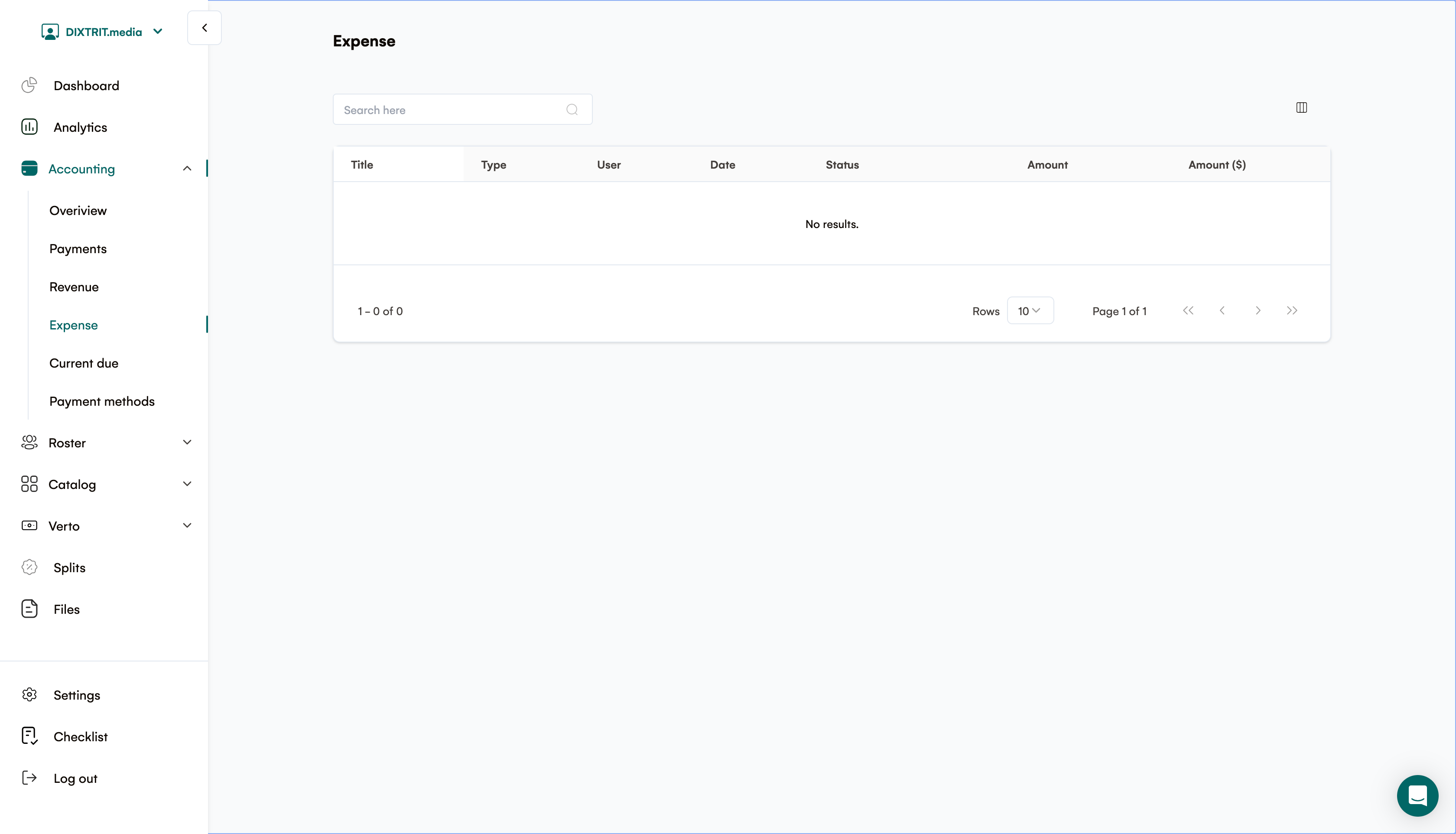
The Expense page tracks all costs and expenditures with these columns:
-
Title: Description of the expense
-
Type: Category of expense
-
User: Person who incurred or reported the expense
-
Date: When the expense occurred
-
Status: Current state of the expense entry
-
Amount: Cost in your local currency
-
Amount ($): Cost converted to USD
Current Due
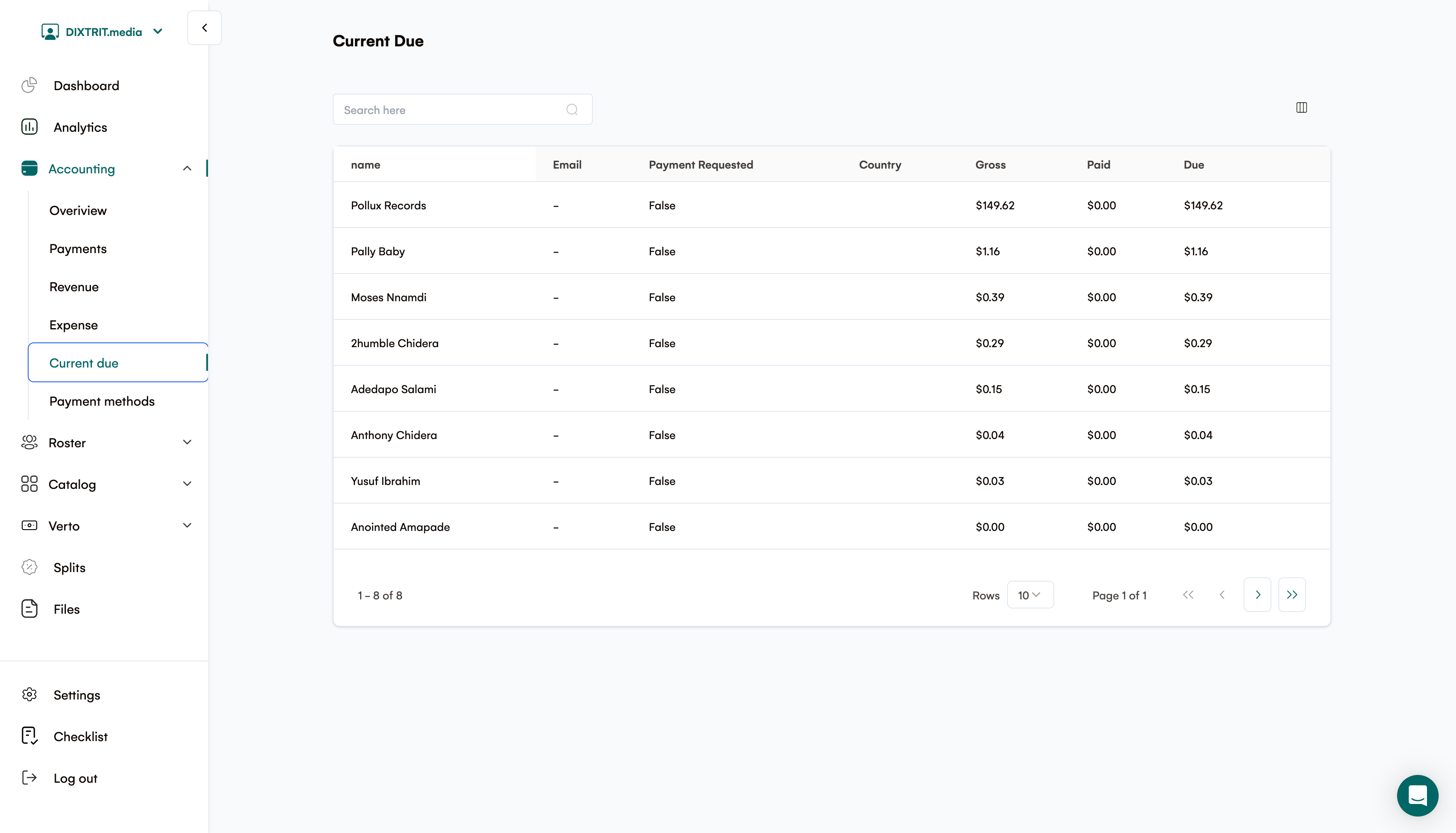
The Current Due page manages outstanding payments with these details:
-
Name: Recipient's name
-
Email: Recipient's contact email
-
Payment Requested: Amount requested for payment
-
Country: Recipient's location
-
Gross: Total amount before deductions
-
Paid: Amount already paid
-
Due: Remaining balance to be paid
Payment Method
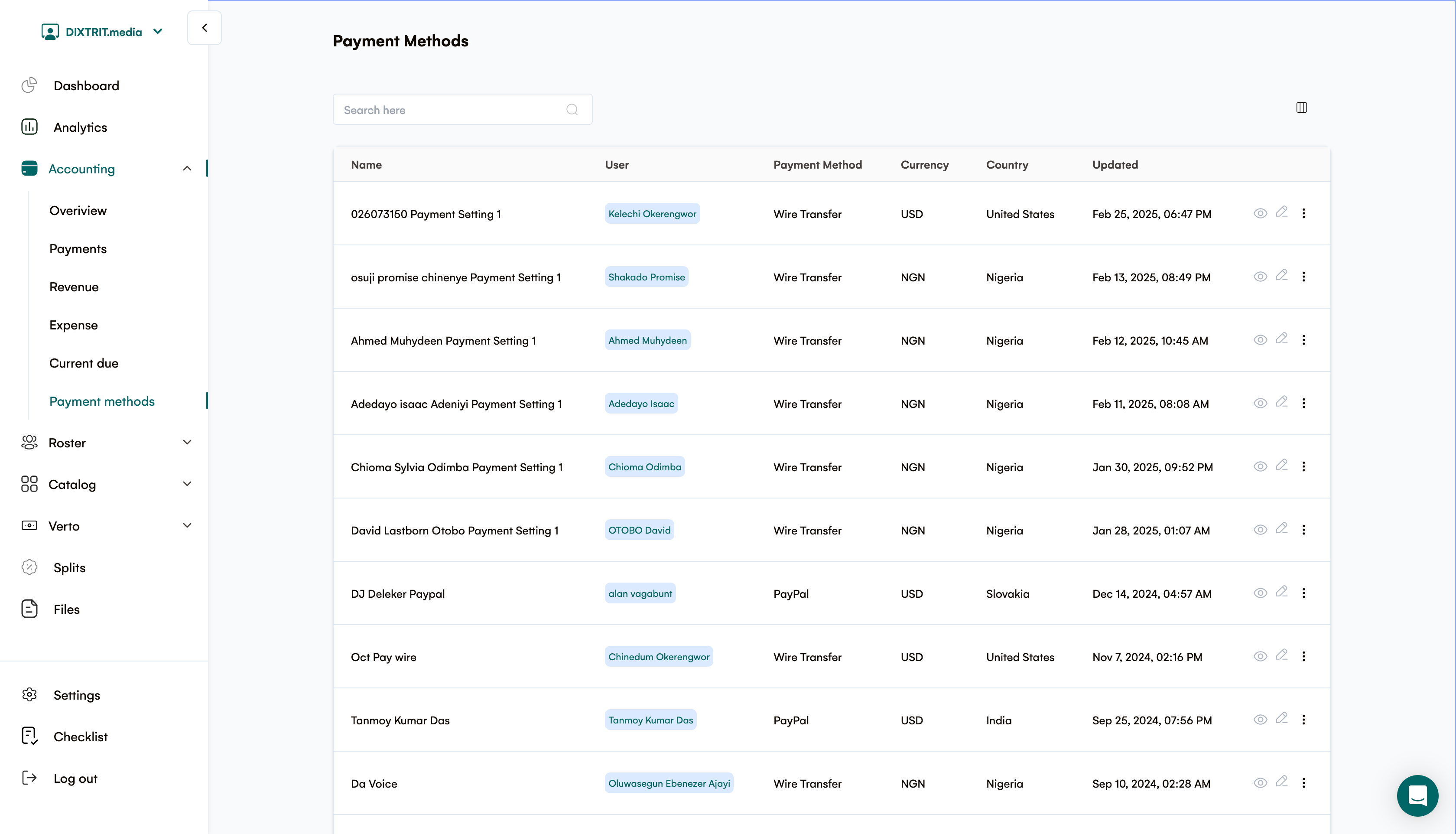
The Payment Method page lists all available payment options with:
-
Name: Type of payment method (Wire Transfer, PayPal, etc.)
-
User Payment Method: Specific method associated with the user
-
Currency: Currency used for the payment method
-
Country: Country where the payment method is registered
-
Updated: Last modification date
You can view, edit, and delete your Payment Method entry. learn more
Next Steps
Now that you understand the basics of Accounting Management in Royalti.io, you can effectively track your financial activities and manage payments across your entertainment royalty business.
For more detailed information about specific features, check out our other help articles or contact our support team.
Related articles
Managing Payment Items in Royalti.io
This guide explains how to view, edit, and delete payment of the Accounting Management system. Getting Started To manage individual accounting items: 1. Log in to your Royalti.io account 2. Select...
Managing Royalty Sources
Overview The Royalty Sources feature allows you to manage and download royalty data from various platforms. This guide walks you through accessing, managing, and modifying your royalty sources....
Activating and Managing the Releases Feature - The Admin
What is the Releases Feature? The Releases feature is a comprehensive music submission and approval workflow system that allows your users to submit music releases for review and automatic catalog...
Still stuck?
Support answers within one business day — usually much faster.