User Management
User Management
This article guides you through viewing, managing, filtering, and editing user information in your [Royalti.io](https://royalti.io) workspace.
Getting Started
Sign In and Navigate to Your Workspace
Log in to your [Royalti.io](https://app.royalti.io) account.
Select the desired workspace where you want to manage users.
Viewing Users
Access the User Page
On the left navigation sidebar, click on the "Roster Management" dropdown.
Select "Users" to navigate to the User page.
User Table Overview
-
By default, users are displayed in a table format.
-
The default table columns include: Name, Email Address, Artists, Country, Role, Splits, Updated
Detailed User View
View Detailed User Information
Hover over any user row in the table.
Click the eye icon at the end of the row.

This will take you to the User Page, displaying more detailed information about the user, including:
-
Profile details.
-
Associated artists and roles.
-
Splits and historical data.
📷 [IMAGE: screencapture-appdev-royalti-io-a-roster-users-a6d01b61-6e20-4f66-aef7-f5f84aab0e43-2025-02-19-10:30:39]
Editing User Information
Edit User Information
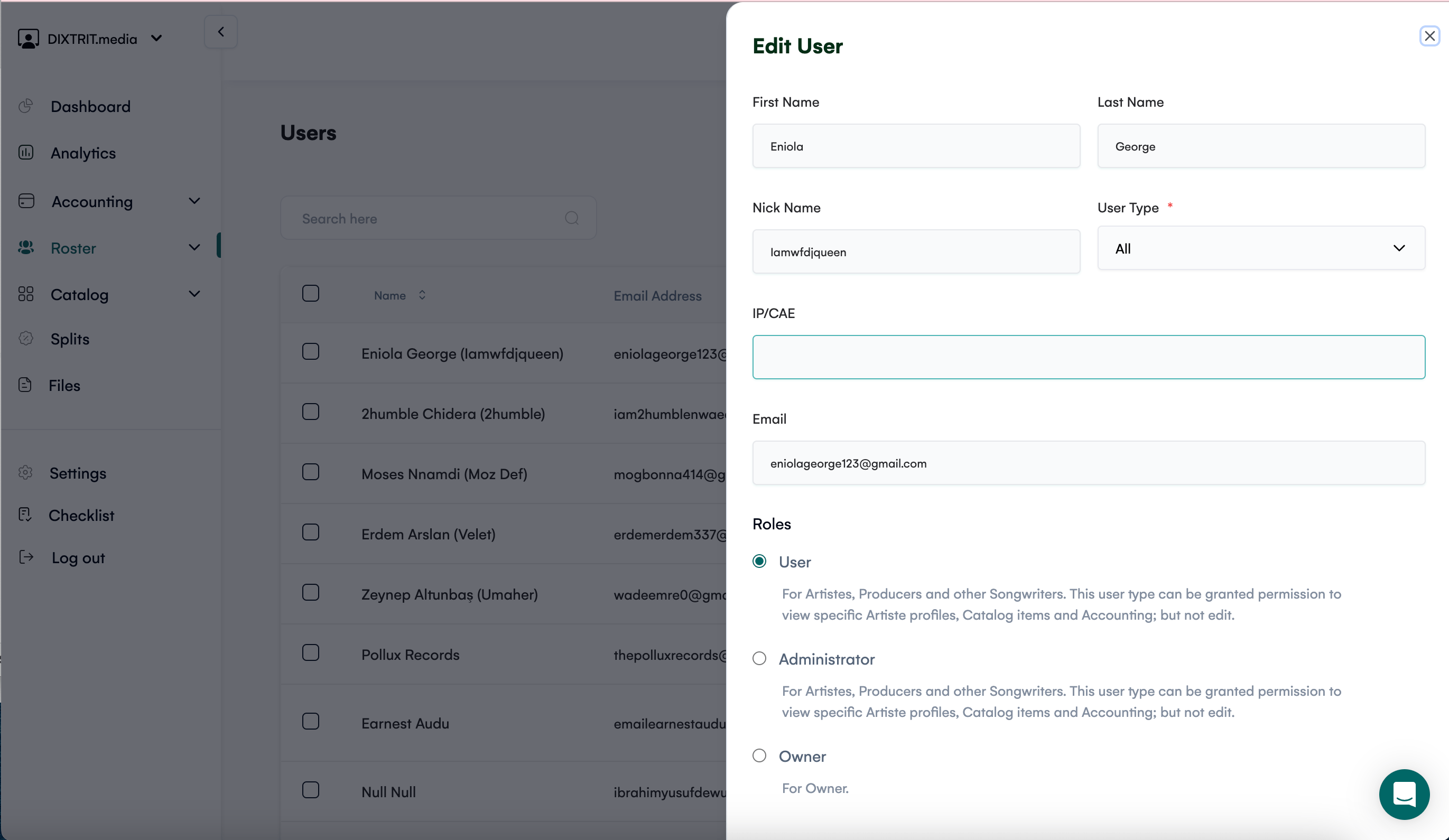
Hover over the user row in the table.
Click the pencil/edit icon at the end of the row.
A right-hand sidebar will appear where you can update the user’s information.
After making changes, click the Save button.
Changes will be reflected in the table immediately.
Filtering Users
Filter User Data
To filter the User Data,

Select from the list of available filter parameters. The available filters are:
-
Role(s)
Select the desired filter(s).

Deleting Splits
Delete Splits for One or More Users
Select one or more users by checking the boxes next to their rows in the table.
Click the menu icon at the top of the table.
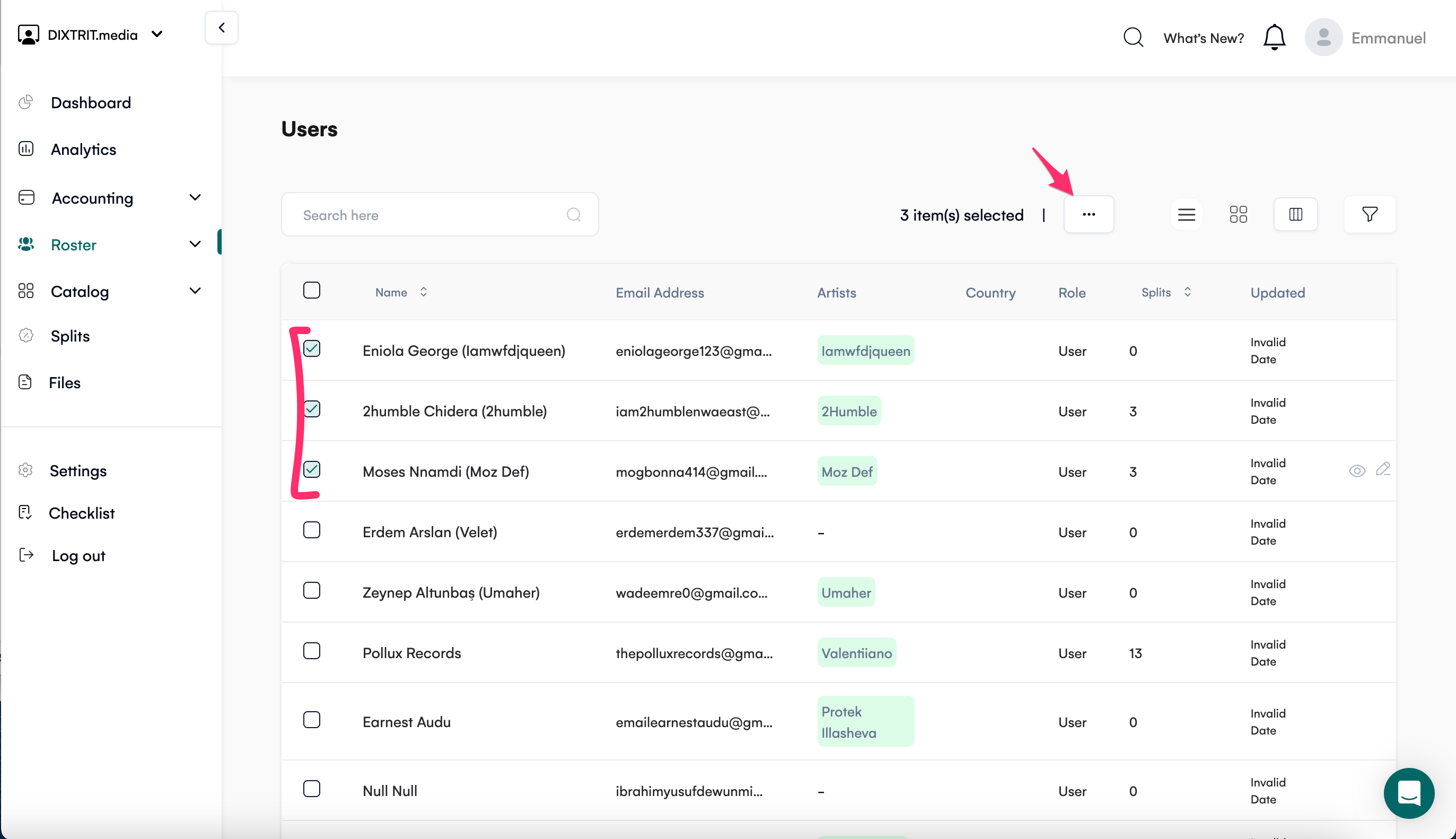
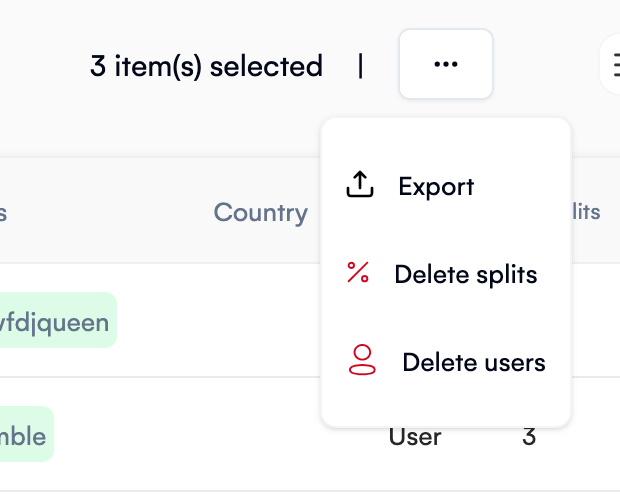
From the dropdown options, select Delete Splits.
Deleting Users
Delete a Single User
Hover over the user row in the table.
Click the menu icon at the end of the row.
From the dropdown options, select Delete.
Delete Multiple Users
Select multiple users by checking the boxes next to their rows in the table.
Click the menu icon at the top of the table.
Select Delete Users from the dropdown options.
Conclusion
The User Management feature in Royalti.io enables you to handle user-related data with ease. From viewing detailed user profiles to editing, filtering, and managing splits, you can effectively streamline your workspace operations.
Start managing your users today and optimize your music business operations!
Related articles
Managing Payment Items in Royalti.io
This guide explains how to view, edit, and delete payment of the Accounting Management system. Getting Started To manage individual accounting items: 1. Log in to your Royalti.io account 2. Select...
Managing Royalty Sources
Overview The Royalty Sources feature allows you to manage and download royalty data from various platforms. This guide walks you through accessing, managing, and modifying your royalty sources....
Activating and Managing the Releases Feature - The Admin
What is the Releases Feature? The Releases feature is a comprehensive music submission and approval workflow system that allows your users to submit music releases for review and automatic catalog...
Still stuck?
Support answers within one business day — usually much faster.