Updating My Workspace Settings on Royalti.io
Updating My Workspace Settings on Royalti.io
This guide walks you through updating your workspace settings on Royalti.io, including Label Data, Default Preferences, and Social Links. Follow the steps below to customize your workspace.
Getting Started
Step 1: Log In to Your Royalti.io Account
Visit Royalti.io.
Enter your email and password to log in.
Step 2: Select Your Workspace
-
If you manage multiple workspaces, use the dropdown menu at the top of the dashboard to select the workspace you want to update.
Step 3: Navigate to Settings
From the left navigation panel, click Settings.
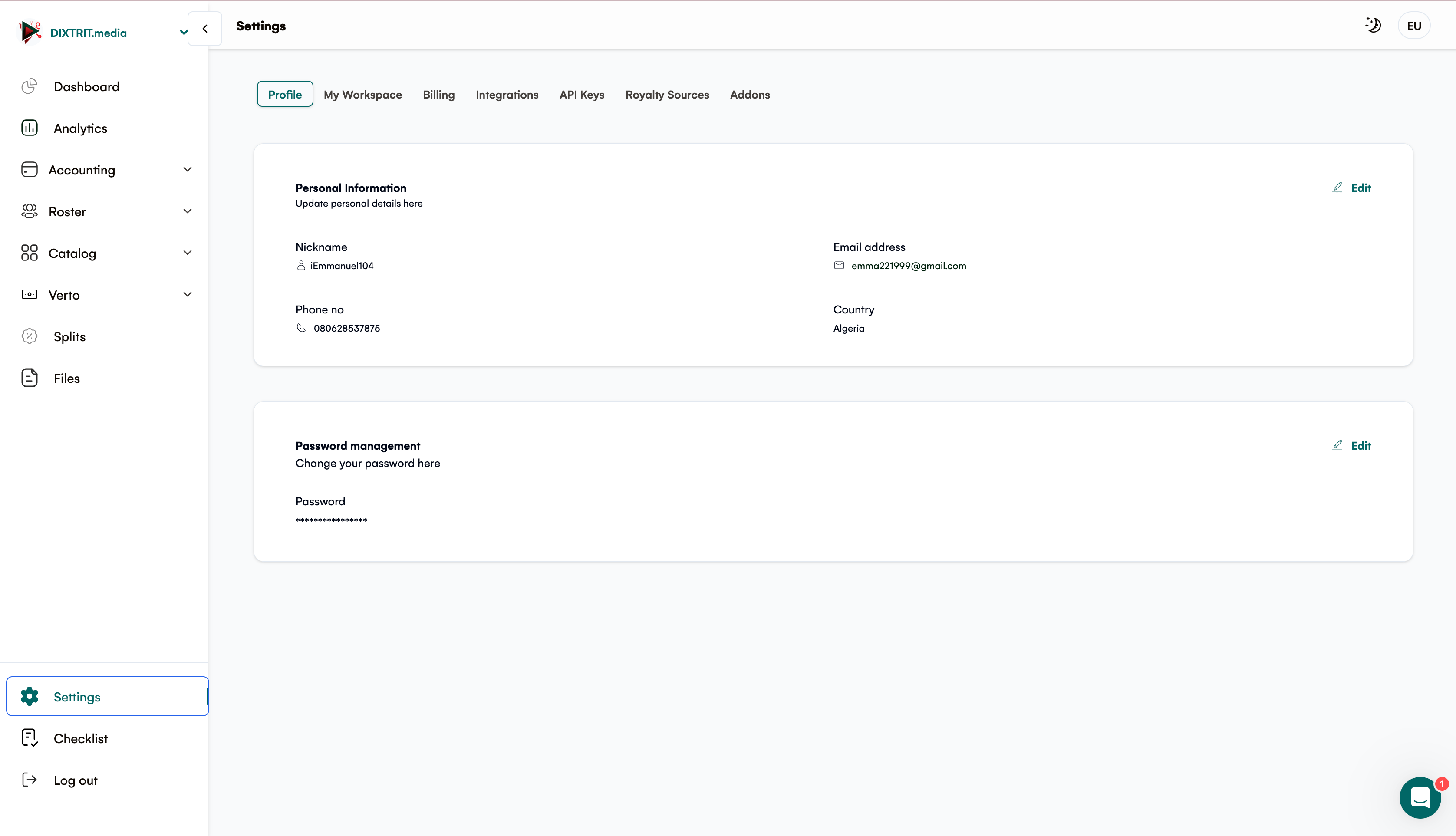
Select the My Workspace tab to access workspace-specific configurations.
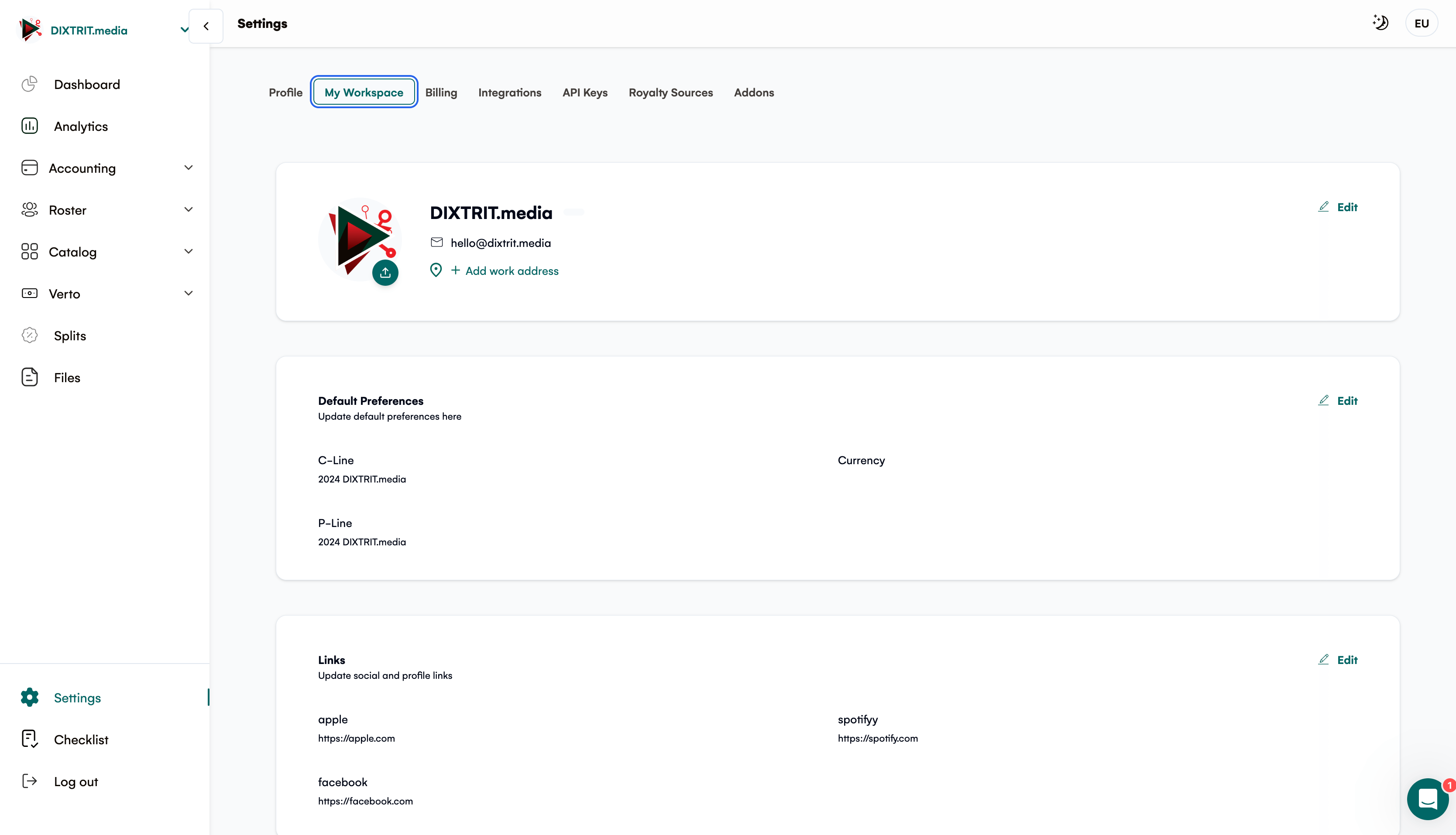
Editing Workspace Settings
1. Label Data
This section displays your label’s core information.
-
Label Picture: Upload or update your label’s logo/image.
-
Company Name: Edit your registered company name.
-
Email Address: Update the primary contact email.
-
Contact Number: Add or edit a phone number.
-
Office Address: Modify your street address, city, state, and country.How to Edit:
Click the Edit button (located at the top-right corner of the section).
Update the fields as needed.
Click Save Changes to confirm.
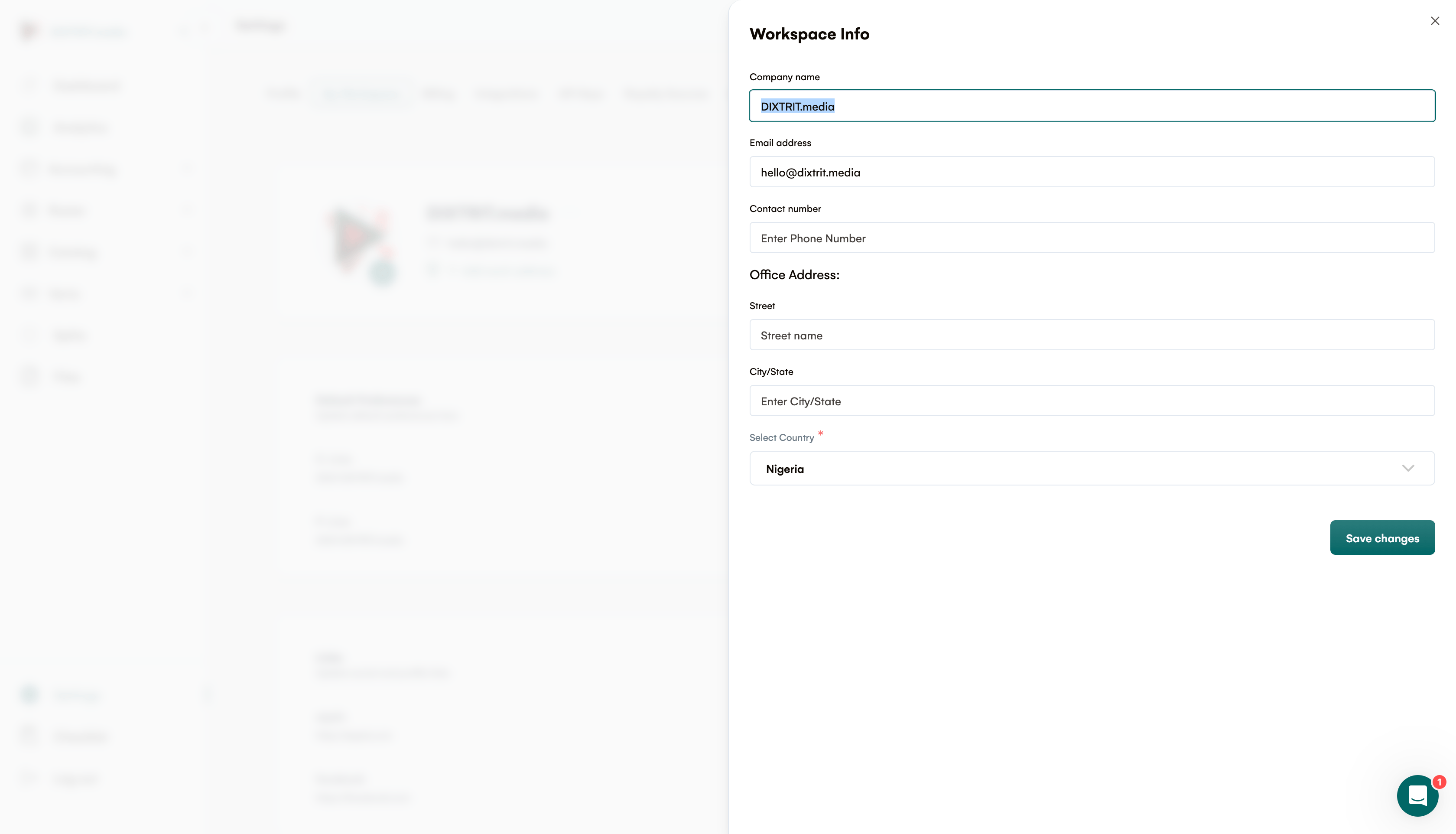
2. Default Preferences
Configure default settings for content and transactions.
-
C-Line: Update the copyright line (e.g., "2024 DIXTRIT.media").
-
P-Line: Modify the phonographic copyright line (e.g., "2024 DIXTRIT.media").
-
Currency: Set your workspace’s default currency (e.g., USD, EUR).How to Edit:
Click the Edit button (top-right corner of the section).
Adjust the fields.
Click Save Changes to apply updates.
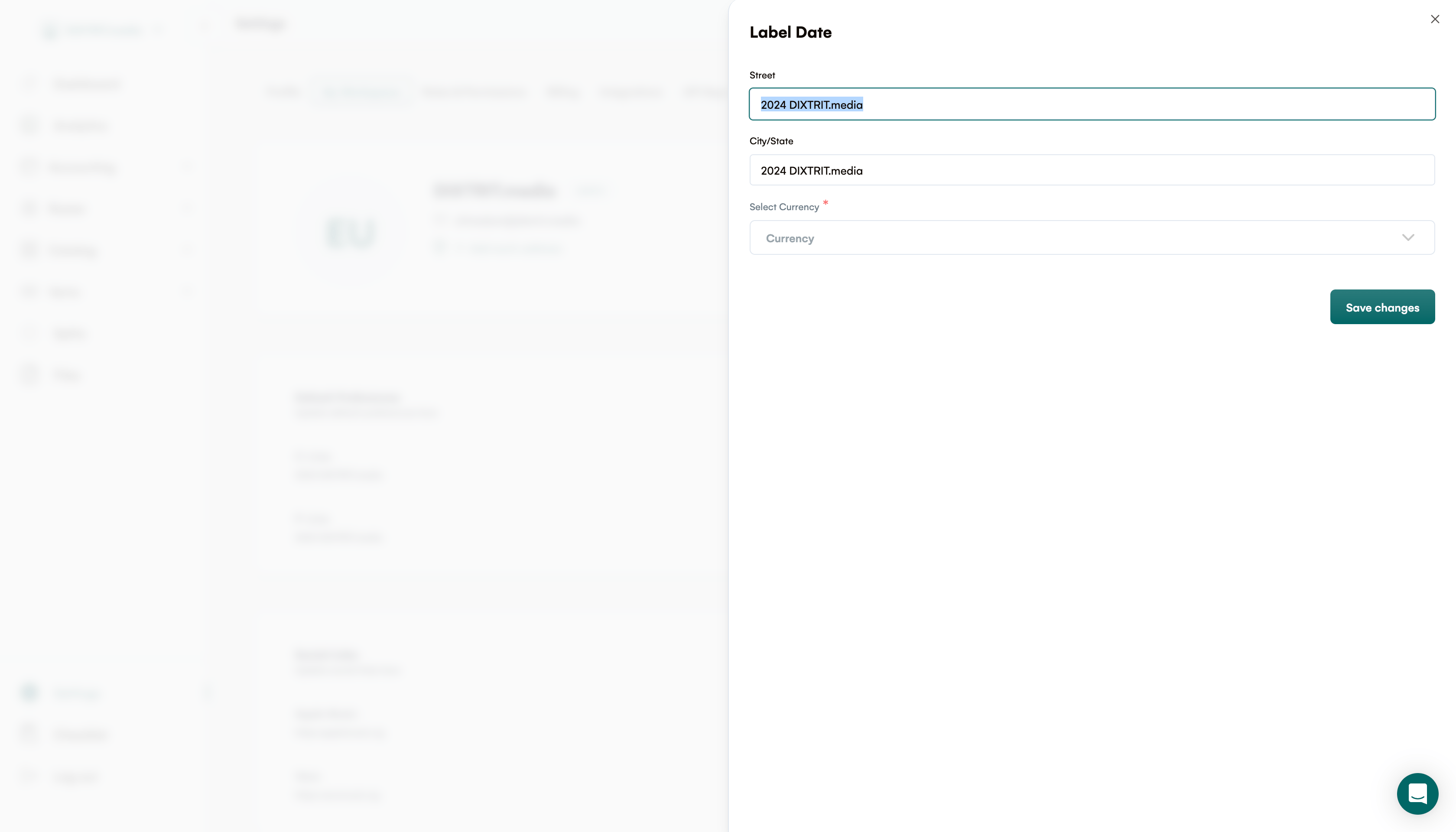
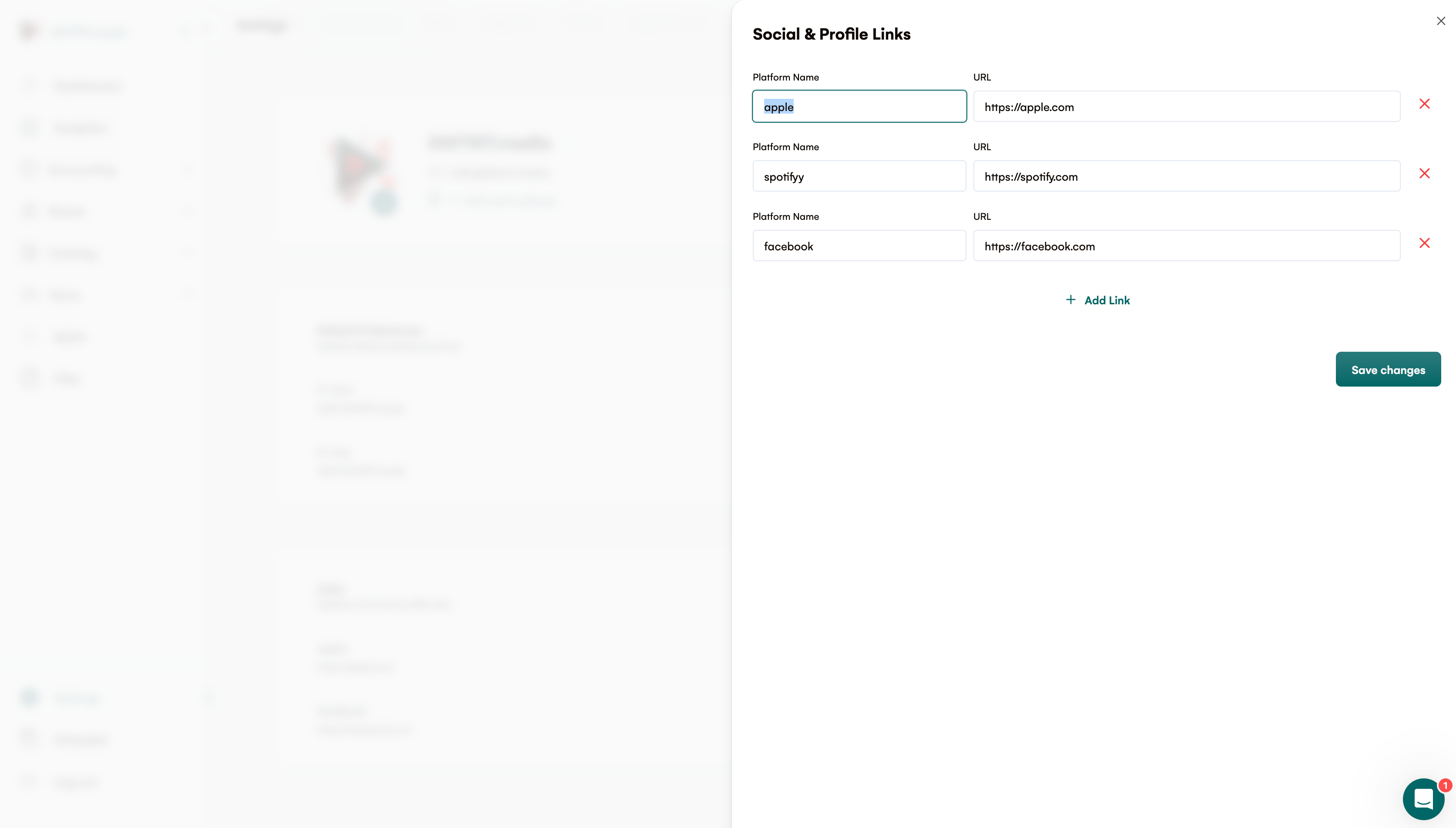
3. Social Links
Add or update links to your label’s social/media profiles.
-
Apple Music: Link to your Apple Music profile.
-
Spotify: Link to your Spotify profile.
-
Vevo: Link to your Vevo profile.
-
Audiomack: Link to your Audiomack profile.How to Edit:
Click the Edit button (top-right corner of the section).
Paste or update the URLs in the fields.
Click Save Changes to finalize.
Need Further Assistance?
Contact our support team at [support@royalti.io](mailto:support@royalti.io) or use the live chat feature in your dashboard.
Related articles
Managing Payment Items in Royalti.io
This guide explains how to view, edit, and delete payment of the Accounting Management system. Getting Started To manage individual accounting items: 1. Log in to your Royalti.io account 2. Select...
Managing Royalty Sources
Overview The Royalty Sources feature allows you to manage and download royalty data from various platforms. This guide walks you through accessing, managing, and modifying your royalty sources....
Activating and Managing the Releases Feature - The Admin
What is the Releases Feature? The Releases feature is a comprehensive music submission and approval workflow system that allows your users to submit music releases for review and automatic catalog...
Still stuck?
Support answers within one business day — usually much faster.