Time-based (scheduled) royalty splits
What is this?
Time-based splits let you attach a start date and/or end date to a royalty split, so ownership shares can change automatically on a schedule instead of being edited by hand every time a deal period changes. This guide covers how date ranges work on a split, how to check for gaps or conflicts between splits, and how to plan a smooth handover from one split to the next (succession).
Who this is for
Splits (and time-based splits) are managed from the admin panel by label admins and owners. Splits apply to assets (tracks) and products (releases) and control how royalties are divided among the users on your roster.
How date ranges work on a split
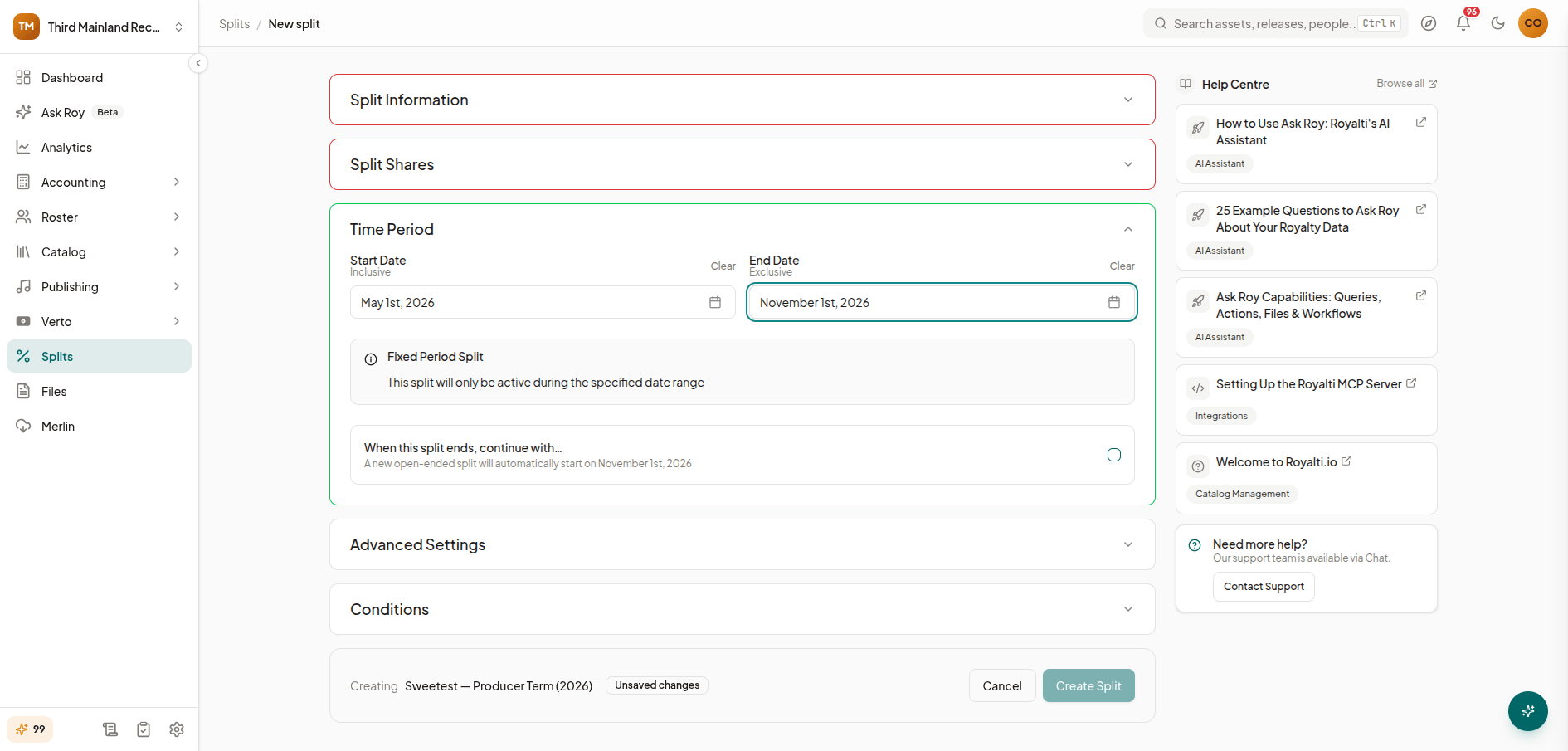
Every split, whether created from scratch or edited later, has two optional date fields:
- Start Date- inclusive. The split is active from this date onward.
- End Date- exclusive. The split is active until (but not including) this date.
Leaving both dates empty makes the split permanent (the default); it applies at all times and has the lowest priority if other splits overlap it. Setting one or both dates turns it into a time-based split, which takes priority over a permanent split for the period it covers.
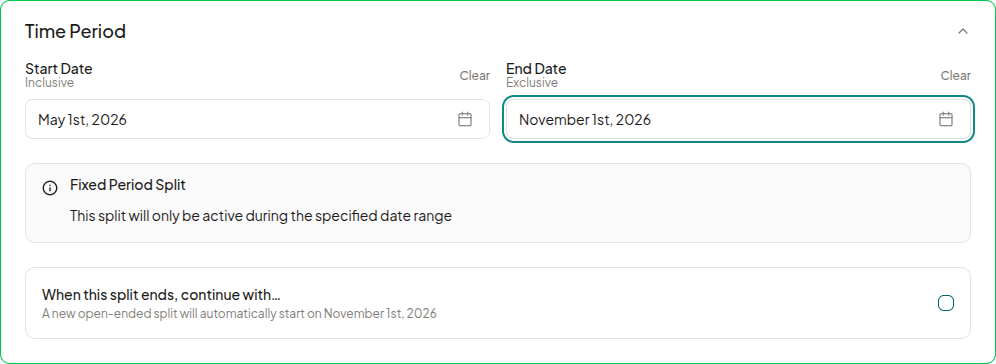
The split form labels the resulting configuration for you:
- Permanent: no dates set; active for all time periods.
- Open-ended: start date only; active from that date onward with no end date.
- Fixed Period: both start and end date set; active only within that range.
- Until Date: end date only; active up to that date.
Example: a split with Start Date: Jan 1, 2025 and End Date: Apr 1, 2025 covers January 1 through March 31; the end date itself is excluded.
Creating or editing a time-based split
- Go to Splits in the admin panel and open an existing split (or start a new one) for the asset or product you want to schedule.
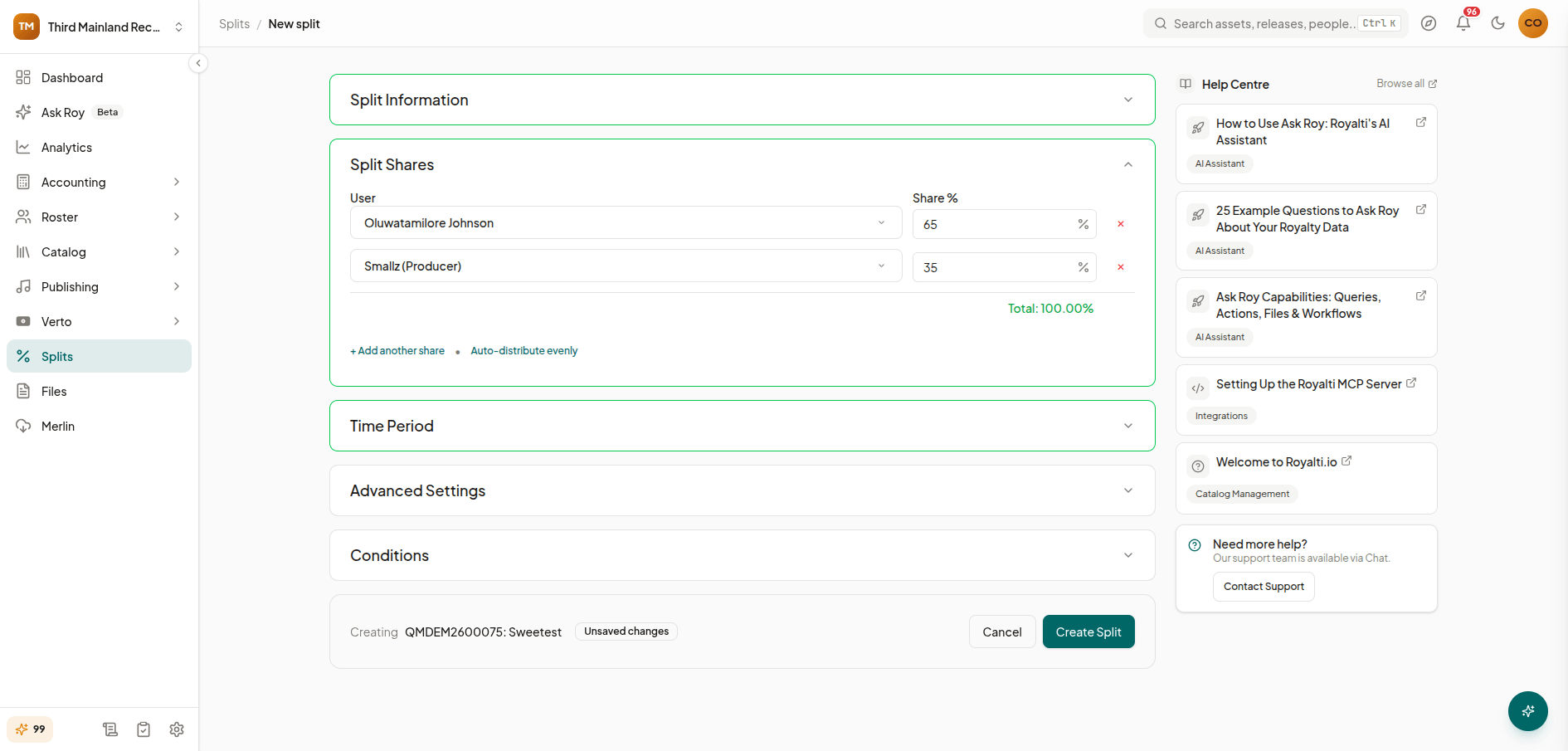
- Fill in the split Type (None, Mechanical, Publishing, Video, or Physical), the Product/Asset it applies to, and the royalty shares must total exactly 100% across all users on the split.
- Under the date fields, set a Start Date and/or End Date. The form shows "Inclusive" under Start Date and "Exclusive" under End Date as a reminder of how the range is evaluated.
- As soon as you set a date, the form displays the resulting period type (for example, "Fixed Period Split") with a short explanation of when it will be active.
- Save the split.
Checking coverage: gaps, overlaps, and adjacent splits
When an asset or product has multiple time-based splits, Royalti runs a coverage analysis to help you spot problems before they affect a royalty run:
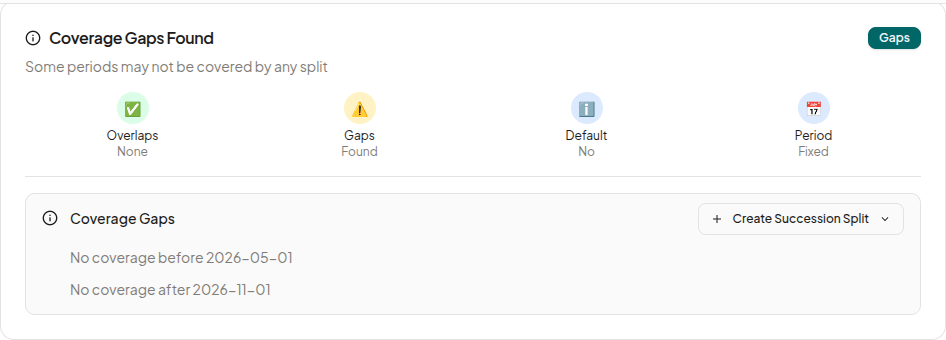
- Overlaps: two or more splits with conflicting date ranges for the same asset/product/type. Overlapping periods should be resolved before processing, since it's ambiguous which split should apply.
- Gaps: stretches of time with no active split (before the first split starts, after the last one ends, or between two splits). A gap means royalties earned in that window have no owner assigned.
- Adjacent splits: the predecessor (the split ending just before) and successor (the split starting just after) around a given split, shown so you can confirm a clean handover.
- Default split coverage: whether a permanent (no-date) split exists to catch any period not covered by a time-based split.
A coverage summary and a visual timeline of all splits for the asset/product are available from the split view, making it easier to see at a glance where periods line up or don't.
Filling a gap with a succession split
If the coverage check finds a gap, for example, a split ended, and nothing was scheduled to pick up ownership afterward, you can create a succession split directly from the gap:
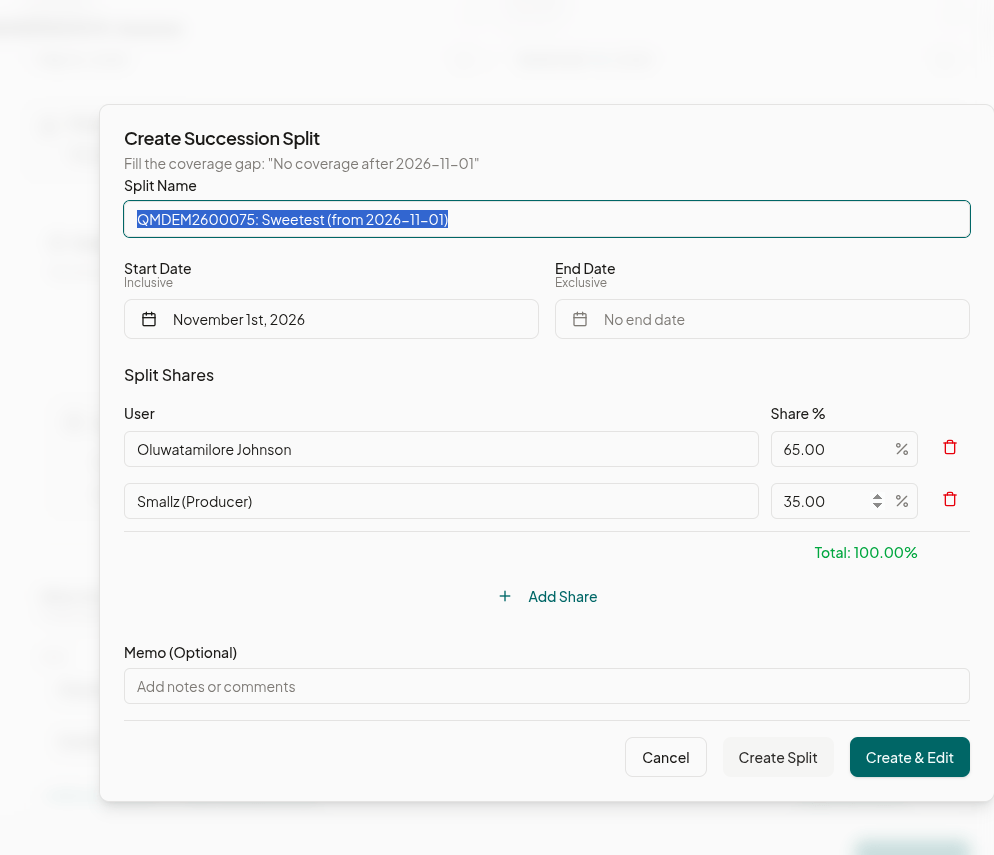
- From the coverage view, choose to fill the identified gap.
- A dialog opens pre-filled with a suggested Split Name, the same shares as the split it follows (as a starting point, edit as needed), and a Start Date that lines up with where the previous split ended.
- Adjust the name, dates, and shares as needed. Shares must total 100%, and each user can only appear once.
- Choose Create Split to save it, or Create & Edit to save and jump straight into the full split editor for further changes (for example, adding conditions).
Things to watch for
- Shares must total 100% on every split, time-based or not; the form blocks saving otherwise and flags duplicate users.
- Overlapping periods will be rejected or flagged to resolve conflicts before they affect a royalty processing run.
- A gap in coverage means no split applies during that window, which leaves royalties earned in that period unassigned. Use the coverage check regularly on the catalog with time-based splits.
What's next
- Catalog Health checks flag some split issues automatically as part of your overall catalog health score.
- Royalty statements reflect whichever split was active for the period being reported. Review your splits before running a statement if you've recently made a schedule change.
- If you need to update ownership across many assets at once, bulk split tools are available from the Splits list.
Questions about a specific split configuration? Reach out to support via the in-app help widget.
Related articles
Managing Payment Items in Royalti.io
This guide explains how to view, edit, and delete payment of the Accounting Management system. Getting Started To manage individual accounting items: 1. Log in to your Royalti.io account 2. Select...
Managing Royalty Sources
Overview The Royalty Sources feature allows you to manage and download royalty data from various platforms. This guide walks you through accessing, managing, and modifying your royalty sources....
Activating and Managing the Releases Feature - The Admin
What is the Releases Feature? The Releases feature is a comprehensive music submission and approval workflow system that allows your users to submit music releases for review and automatic catalog...
Still stuck?
Support answers within one business day — usually much faster.