Managing Revenue in Royalti.io
Managing Revenue in Royalti.io
Getting Started
To manage individual accounting items:
Log in to your Royalti.io account
Select your Workspace
Select the revenue page from the Accounting dropdown menu:
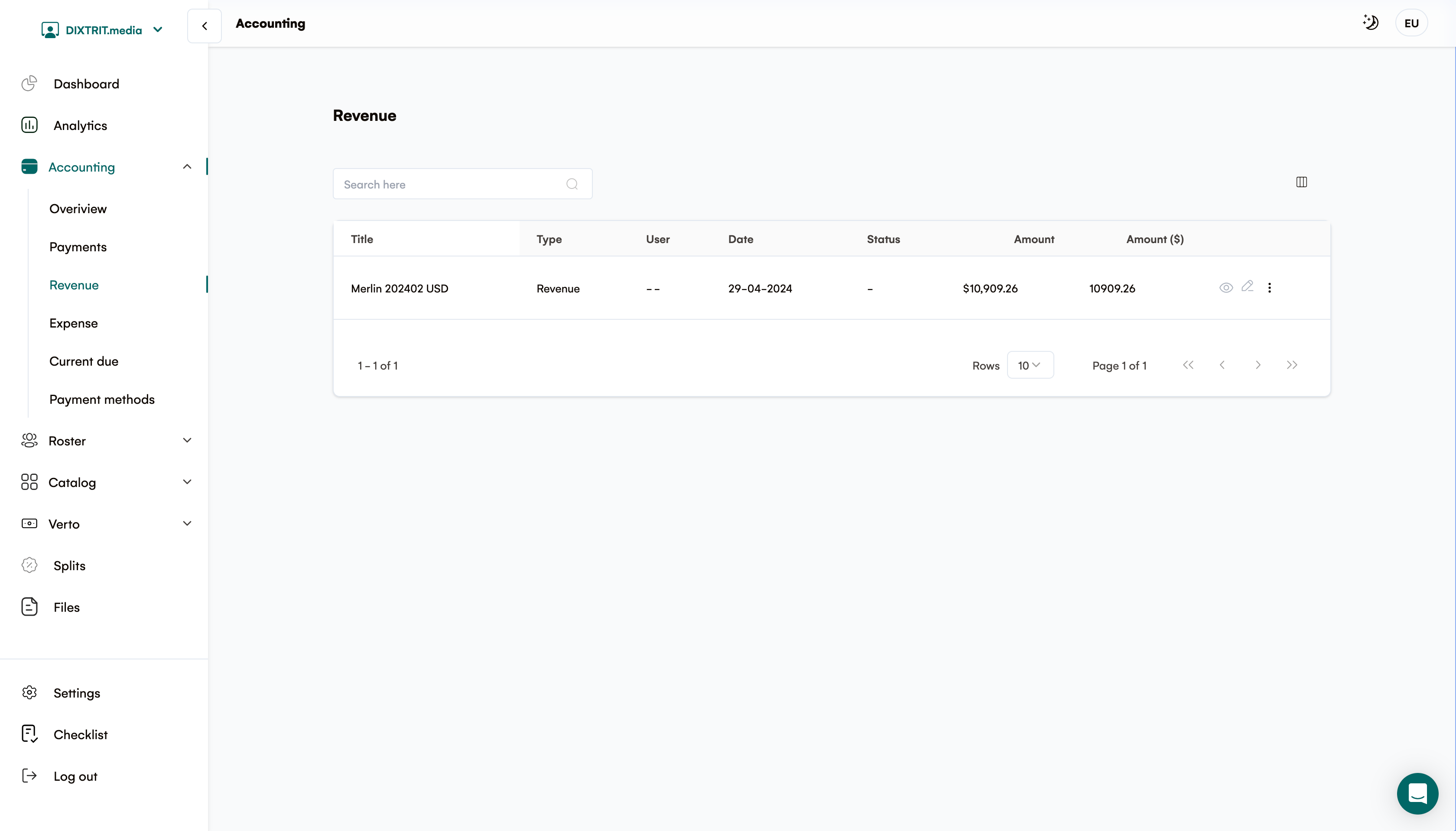
Where Revenue Items Come From
Accounting items in this table are generated when a royalty file is processed. Each connected royalty source (DSP, aggregator, or PRO) has its own fee rate and currency configured at Settings → Royalty Sources, so amounts here can differ between sources even for similar sales. Royalti also automatically checks new uploads against previously processed files with the same source, period, and file name, warning you before you accidentally create duplicate revenue items. Re-uploading the identical file for the same period is caught, but uploading a differently-named file for the same source and period is not.
For details on configuring source-level fee rates and currencies, what happens when a duplicate upload is detected, and how exchange rates are applied to multi-currency amounts, see Royalty processing, source fees & exchange rates.
Viewing Item Details
To view complete information for any accounting item:
Locate the item you want to examine in the table
Click the eye icon on the row of the item
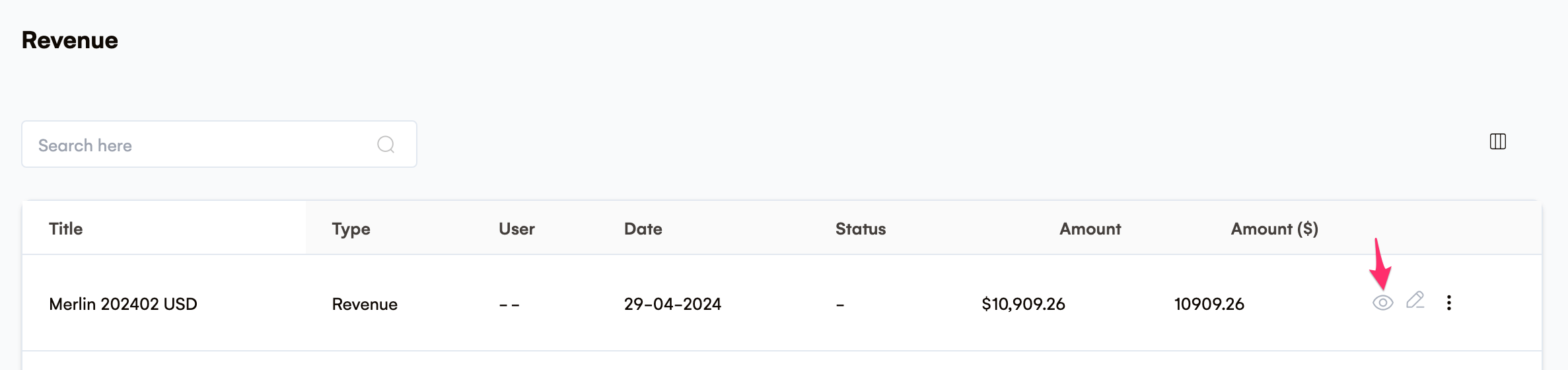
A modal or sidebar will open displaying all information related to the selected item
The view panel includes all details associated with the entry, allowing you to review the complete information without making any changes.
Editing Items
To modify information for any accounting item:
Locate the item you want to change in the table
Click the edit icon (pencil) on the row of the item
After this,
A sidebar will open with editable fields
Make your desired changes to the information
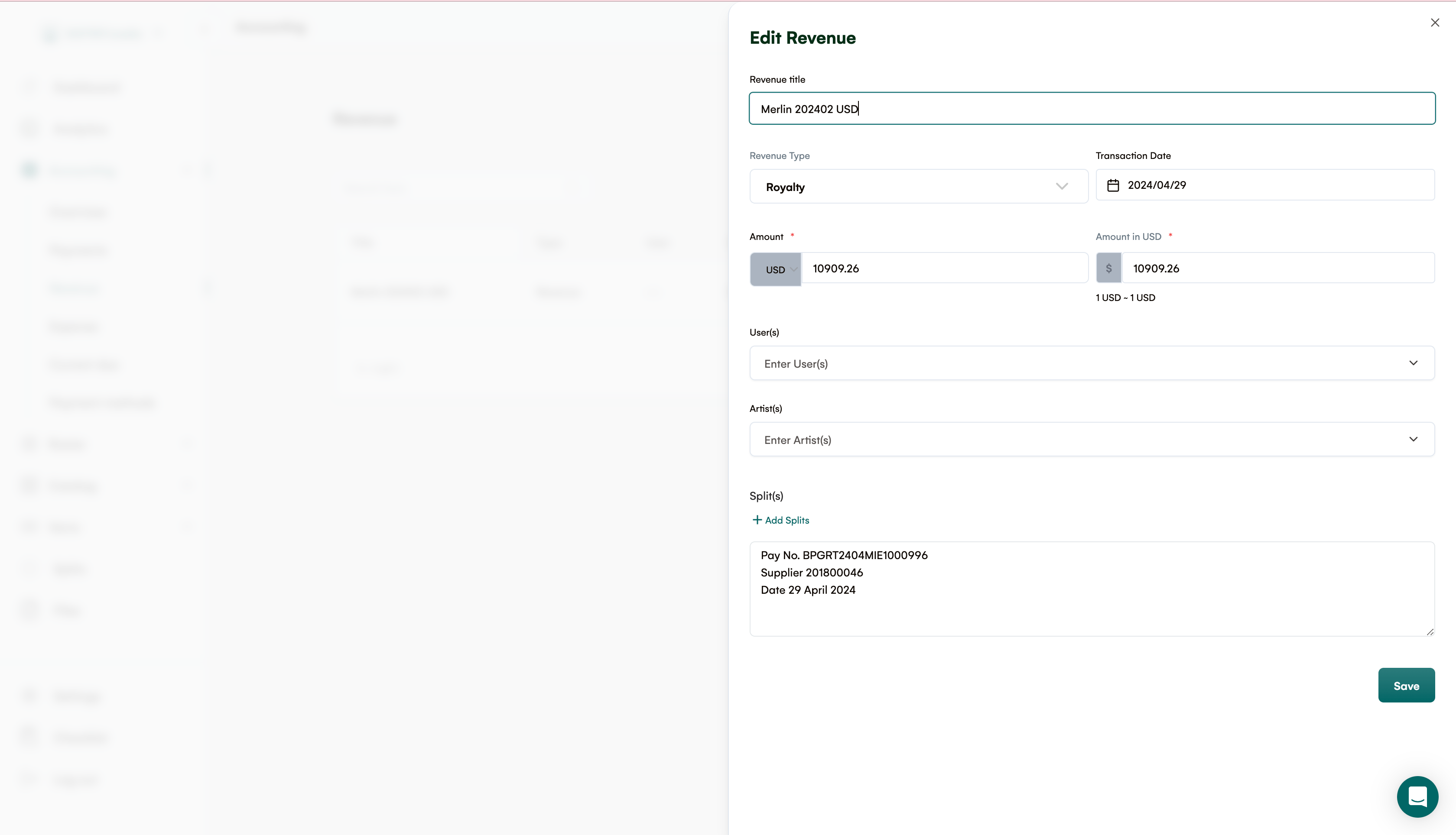
Click the Save button at the bottom of the sidebar to save your changes
Important Notes About Editing:
-
Required fields are marked with an asterisk (*)
-
Some fields may not be editable depending on the status of the item
-
Amount fields reflect the fee rate and currency configured for that item's royalty source at the time it was processed. To correct a systematically wrong amount across many items from the same source, update the source's settings under Settings → Royalty Sources rather than editing items one by one. See Royalty processing, source fees & exchange rates.
Deleting Items
To remove an accounting item from your records:
Locate the item you want to delete in the table
Click the menu icon (three dots) on the row of the item
Then
A dropdown menu will appear
Select the Delete option from the menu
Confirm your decision in the dialog box that appears
Important Notes About Deletion:
-
Deleted items cannot be recovered directly through the interface
-
Some items may not be deletable if they are connected to other active records
-
Deletion is logged in the system for audit purposes
-
Consider archiving instead of deleting for items you may need to reference later
Best Practices
-
Regular Review: Periodically review your accounting entries to ensure accuracy
-
Documentation: Add notes when editing items to track the reason for changes
-
Caution with Deletion: Only delete items when absolutely necessary
If you need further assistance, please contact our support team.
Related articles
Find statement income that isn't reaching your works
Find society statement lines paid on a work number your catalogue doesn't carry, or paid against no work, and decide what to do with each one.
Deleting your Royalti account
Delete your Royalti account from Settings. You're signed out straight away, and you have 30 days to cancel with the link we email you.
Download and Send Royalty Data
On the Royalti.io platform, you can download Royalty data from your workspace in CSV, XLSX or PDF formats. The Royalty data can be downloaded for specific artists, territories, DSPs, Assets, Products
Still stuck?
Support answers within one business day — usually much faster.