Read your results: errors, warnings, rule ids and sources
Use this guide to understand the problems list and what a clean result does and does not tell you. CWR (Common Works Registration) is the text format publishers use to register works with collecting societies.
Your file is never uploaded.
The headline
The checker states what it found. It reads either "No problems found in N checks" or "N problems in N checks". The built-in sample file shows the second form: 6 problems in 4,406 checks, made up of 4 errors and 2 warnings. The checker runs 172 rules, and a file only meets the rules that apply to its version.
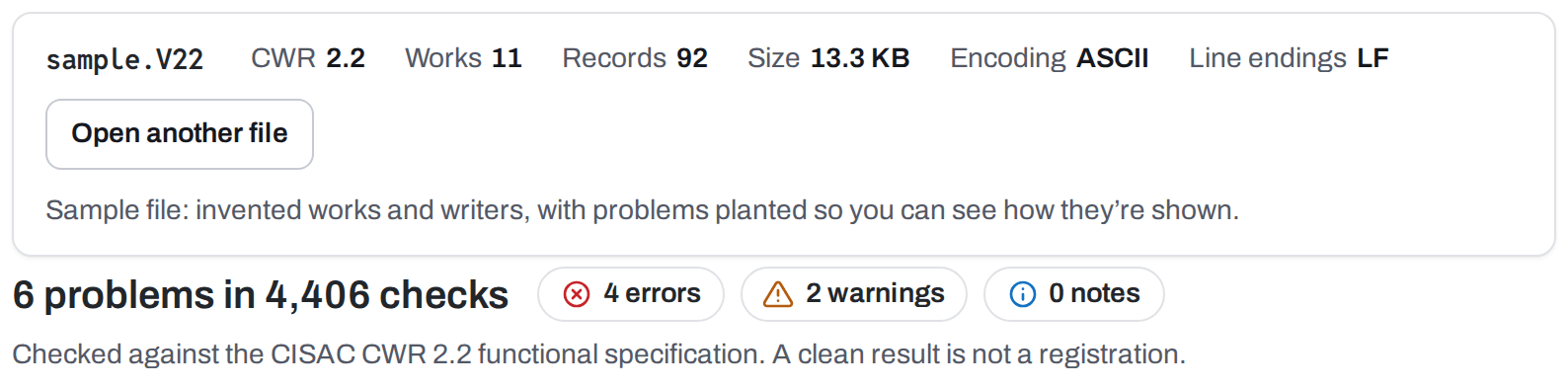
Errors, warnings and notes
The Problems tab has a "Show" filter with one button for each kind.
- Error: something the specification says a society rejects. It can be a file, group, work, or record.
- Warning: a field the specification replaces with a default, or a check that rests on a secondary source.
- Note: information only, such as a blank line.
Group and open a problem
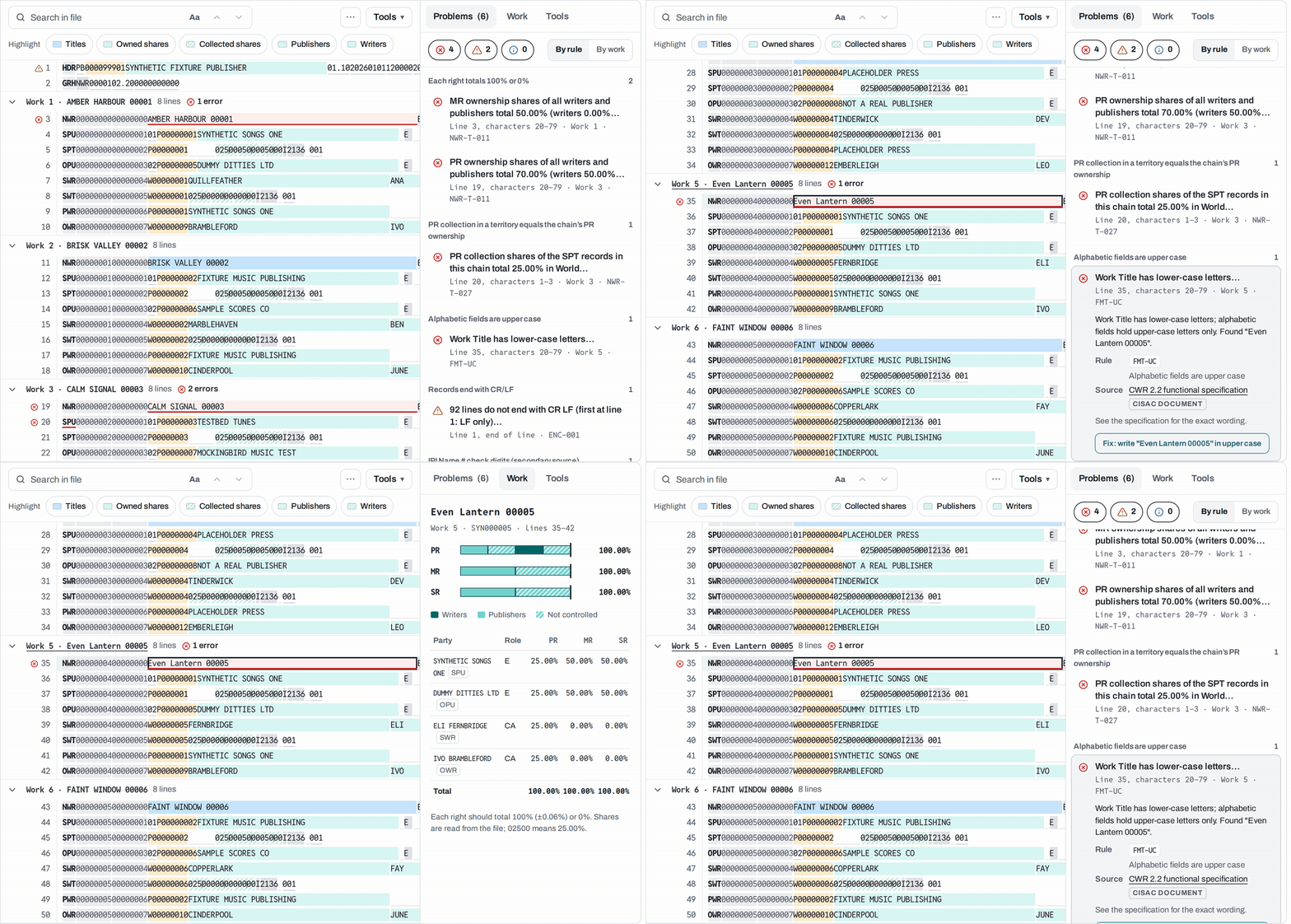
- Choose "By rule" to see each rule once, with its problems under it. Choose "By work" to see problems under the work they belong to. Problems about the whole file or a group sit under "File".
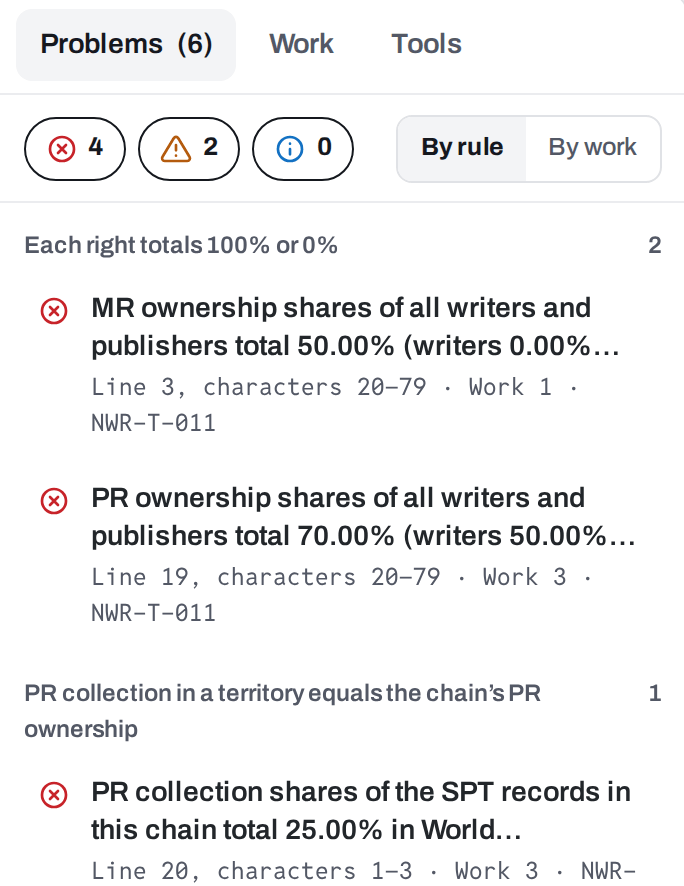
- Select a problem. The viewer jumps to the characters it is about and marks them.
- Read the message. It says what the checker found at that spot.
- Read the facts under the message:
- Rule: the rule ID, such as
FMT-UCand its short title. - CISAC key: CISAC's own key for the check, when there is one.
- Source: the name of the specification document the rule rests on, with a link that opens in a new tab.
- Rule: the rule ID, such as
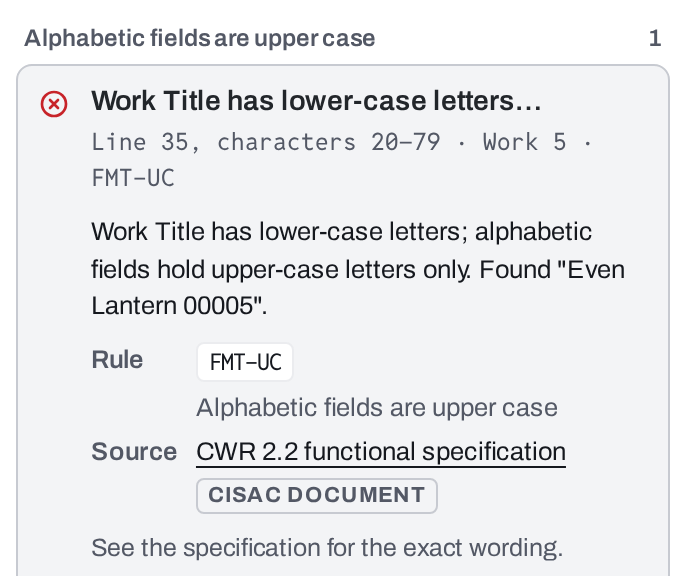
- Open the source link when you need the exact wording. The checker names and links the CISAC documents. It does not reproduce their text.
A "Secondary source" badge means the check rests on something other than the specification. The IPI check-digit rules (ID-IPI-CHK and ID-IPIB-CHK) work this way. A failure means "look this number up", not "the specification says it is wrong".
The list shows only the first problems of each rule. Every problem is still counted.
Fix buttons
Some problems show a Fix button. For an identifier or a lower-case field, it writes the corrected form into a copy of your file. For line endings (ENC-001), the button reads "Use CR LF when you download". Shares, codes and dates have no Fix button.
What a clean result means
"No problems found" means the checker found nothing in the checks it ran. It does not mean a society will accept the file. Societies apply their own rules and check identifiers against their own databases. The checker also does not confirm that an IPI or agreement exists, or check CWR 3.0 and 3.1 files.
What to check next
- Fix errors first, then warnings.
- Use the Tools tab where a tool fits. See the Tools guides.
- Check the file again in the CWR checker.
Related articles
Fix spreadsheet damage
Use this guide when a CWR file passed through a spreadsheet and the checker now reports many problems.
Fix an ISWC that has the wrong shape
Use this guide when the checker reports an ISWC that is not in the form the specification asks for.
Find duplicate works
Use this tool to list works in a CWR file that look like the same work.
Still stuck?
Support answers within one business day — usually much faster.