Delivering to Stores with DDEX & FUGA
Delivery lets you send finished releases to streaming stores and download services using the DDEX ERN standard, through a connected provider such as FUGA. This guide covers connecting a provider, sending a delivery, tracking status, fixing failed deliveries, and the readiness checks that gate a release before it can go out.
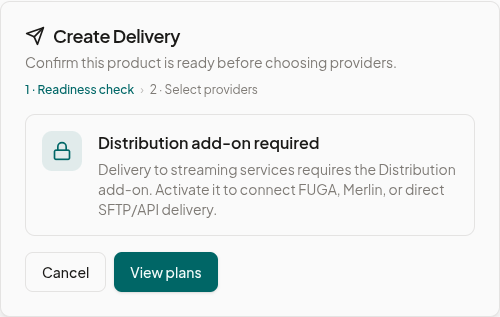
Delivery is gated behind the DDEX & Deliveries add-on. If you don't see delivery options on a product or in Settings, your plan doesn't currently include this add-on. Talk to your account owner or Royalti about enabling it.
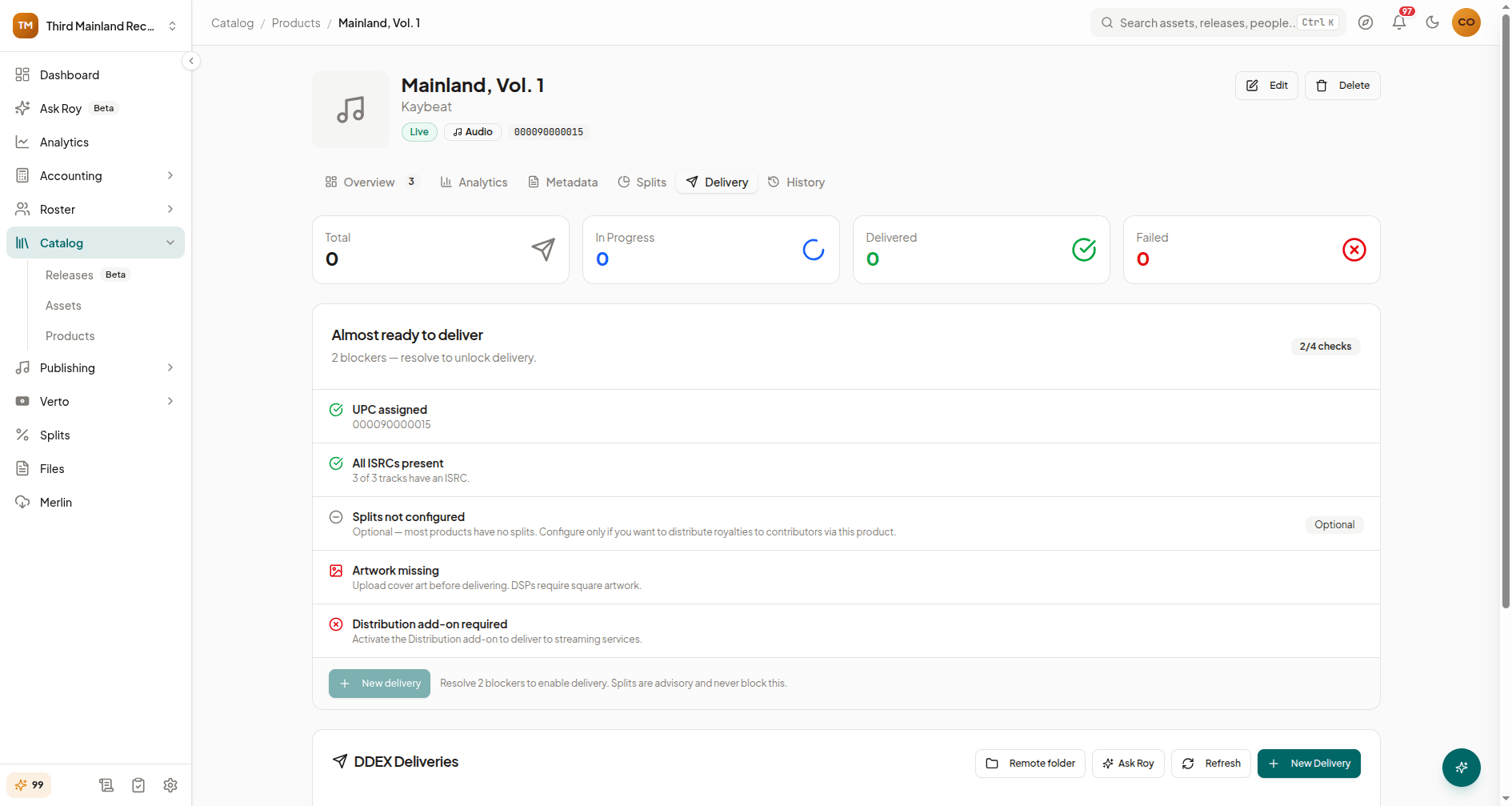
Connecting FUGA
Go to Settings → Delivery to manage your delivery providers. If you don't have FUGA connected yet, click Connect FUGA to open the guided setup, which walks you through:
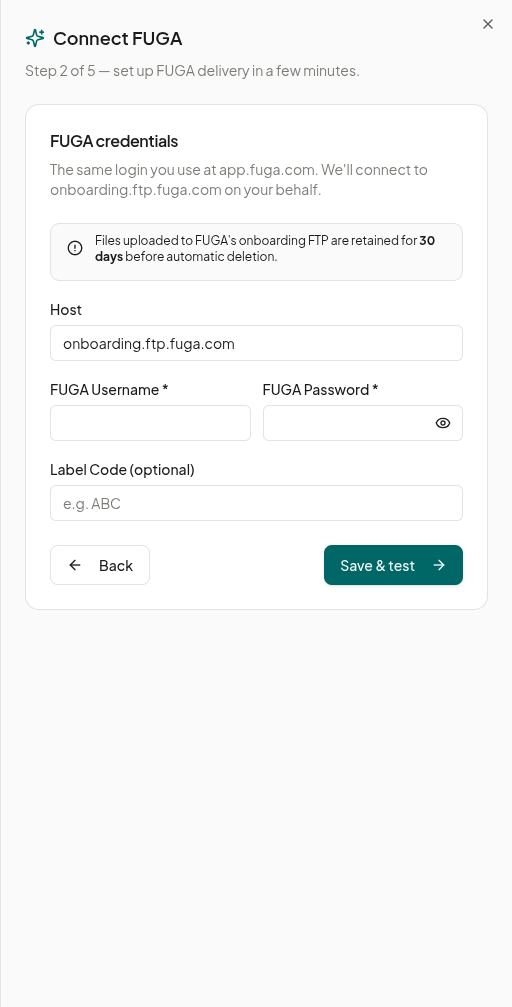
- Add-on check: confirms the DDEX & Deliveries add-on is active on your account.
- Credentials: enter your FUGA SFTP credentials (the host is pre-filled).
- Test connection: verifies Royalti can reach FUGA's onboarding SFTP endpoint before you go further.
- Delivery preferences: set your catalog tier, delivery territories, and whether new releases should auto-deliver.
- Done: confirms setup and returns you to Delivery Settings.
Once connected, FUGA appears in your provider list on the Delivery Settings page, where you can test all connections at once, add other delivery providers, or edit existing provider credentials.
Delivery Preferences
From Delivery Settings, open your FUGA preferences to set:
- Catalog tier: the FUGA catalog tier your account is provisioned under.
- Territories: deliver worldwide, or pick specific territories to include or exclude (there's a combined cap on how many territories you can list).
- Auto-delivery: automatically send new releases to FUGA once they're ready, instead of delivering each time manually.
Delivering a Release
Open a product and go to its Delivery tab. From there, you can:
- See delivery totals at a glance: total deliveries, in progress, completed, and failed.
- Click to start a new delivery, choose which provider(s) to deliver to, and review any validation issues before confirming.
- View delivery history, including files that were uploaded to the provider.
- Use the remote-folder browser to inspect what's actually sitting on the provider's server for that release, and download individual files if you need to check them.
Audio is packaged and delivered as WAV or FLAC depending on what the provider requires, and metadata attached to a delivery (track/release details sent in the DDEX message) can be edited before you resend if something needs correcting.
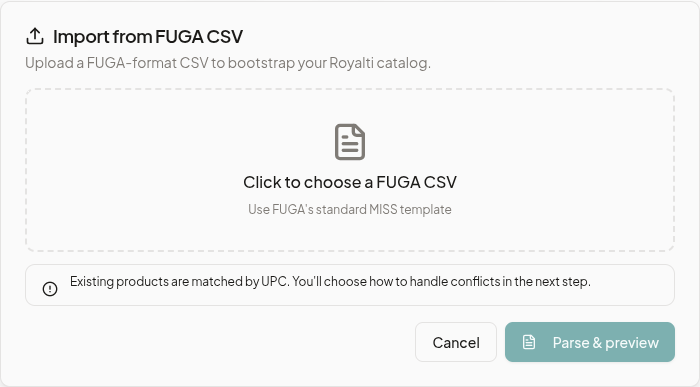
CSV Import for FUGA Deliveries
If you're bringing over deliveries FUGA already has on file rather than creating them fresh in Royalti, you can import them from a CSV export. From the product list, open the FUGA CSV import tool, upload the file, and preview the matches before committing. You'll be asked how to handle conflicts (skip, overwrite, or create new) for anything that already exists in Royalti.
Delivery Readiness Checklist
Before a release can be delivered, Royalti checks it against a readiness checklist. You'll see this on the product's Delivery tab, and it's what determines whether the release is actually deliverable. It checks:
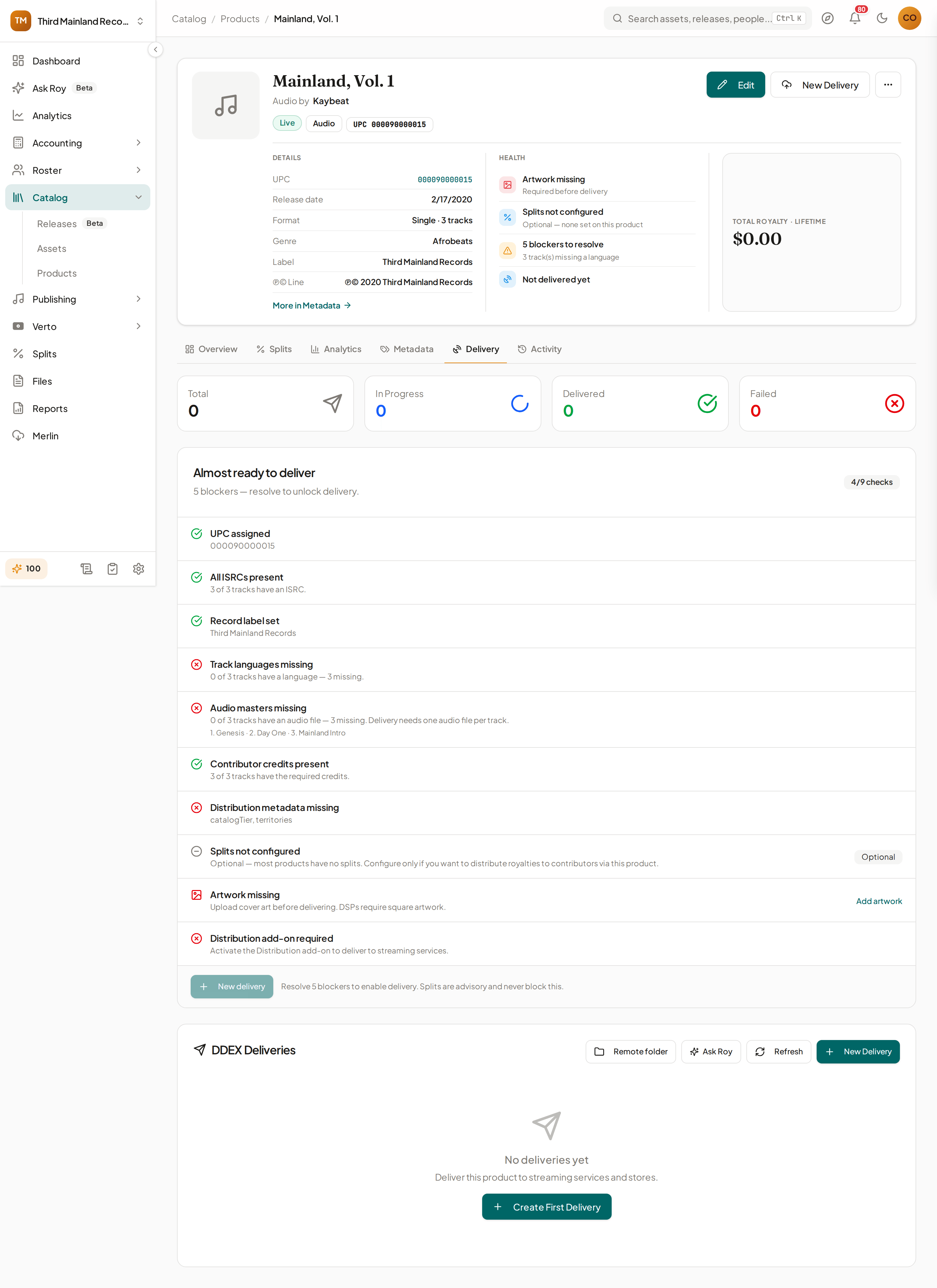
- UPC — present on the release.
- ISRC — present on every track.
- Record label — set on the release; stores require it.
- Track language — set on every track, and expressible in a language code the store accepts. A language that's set but unsupported is flagged separately so you know to change it rather than hunt for a blank field.
- Artwork — cover art is present and meets the required minimum dimensions. The checklist tells you which problem you have: no artwork at all, or an uploaded cover that's too small (with its dimensions), and lets you pick or replace the cover to deliver.
- Audio masters — every track has an audio file uploaded.
- Contributor credits — every track has at least a Composer, Lyricist, or Vocals credit.
- Required metadata — any remaining store-required fields are filled.
- Add-on — the DDEX & Deliveries add-on is active.
Splits are shown as an advisory note, not a hard blocker; a release with no splits configured is common and won't stop delivery on its own. Anything flagged as a blocker needs to be fixed before you can deliver.
Retrying Failed Deliveries
If a delivery fails, rejects, or errors out, it shows up in the failed group on the Delivery tab. Use Retry all failed to requeue every failed delivery for that release in one action. Royalti reports how many were requeued, skipped, or failed to queue again, so you know what still needs attention.
Takedowns and Re-delivery
Taking a release down from stores isn't a self-serve action inside Royalti yet. To take a delivered release down, process the takedown through your delivery provider (or ask Royalti support to help). Royalti picks up the resulting status change so your product's delivery state stays accurate. Re-delivering a release after you've corrected its metadata works the same way today: contact support to push the update to your connected provider rather than rebuilding the delivery yourself. Self-serve takedown and re-delivery controls are planned.
Merlin (Neighbouring Rights)
If your account has the Merlin add-on, go to Merlin in the main navigation to manage neighbouring-rights reporting. The page has three tabs:
- Pending approvals: review and approve incoming royalty data before it's applied, including approving related rows together as a group when they belong to the same batch.
- Batch history: see past import batches and their outcomes.
- Invoices: review Merlin invoices, matched against what's been reconciled and paid.
Merlin is a separate add-on from DDEX & Deliveries and is gated independently; having one does not grant the other.
What's Next
- Set up royalty splits so earnings from delivered releases route correctly once sales come in.
- Check your catalog health checklist to catch missing metadata before it becomes a delivery blocker.
- Review your delivery provider's connection status regularly from Delivery Settings. Expired credentials are a common cause of failed deliveries.
Questions about your delivery setup? Reach out to Royalti support.
</content>
Related articles
Import your catalog from DSPs
Pull an artist's catalog metadata from connected streaming sources, review every change before it touches your catalog, and apply it safely — including safe re-runs.
Setting Up the Royalti MCP Server
Connect your AI assistant to your Royalti workspace in about 5 minutes. No installation required—just add your API key and start querying your royalty data.
Still stuck?
Support answers within one business day — usually much faster.